.svg)
Shopify for Beginners: Do You Need Local Delivery, Shipping, or Both?
Last updated on
August 20, 2026
%20(1).webp)
If you're setting up your first Shopify store, one of the decisions you'll need to make is how your orders will reach your customers. Every new Shopify merchant goes through this phase where they stare at the settings page wondering whether to offer local delivery, shipping, or both. The answer is simple: offer local delivery if your customers are within a specific area and go with shipping if your customers are from across different cities, states, or even countries. But geography isn't the only factor.
Choosing the right fulfilment methods is important to avoid charging customers the wrong rates or promising delivery you can’t fulfil. This guide will help you set up your fulfillment type correctly, break down Shopify local delivery and Shopify shipping, how it works, how they differ, and how to choose the best option for your store in plain terms, making Shopify for beginners easy and accessible.
Key Takeaways
- Use Local Delivery if you sell to customers within a small radius and can deliver orders yourself or with a local courier.
- Use Shipping if you sell to customers across the country and ship to international customers.
- Use both if you serve local customers and ship nationally or internationally — this is common for small businesses that started local and are growing.
What is Shopify local delivery?
Shopify local delivery is a native Shopify fulfillment feature that lets you deliver orders to customers within a set radius from your store or business location. For local delivery, the package is either delivered by someone from your team or through a local delivery service without involving a traditional shipping carrier.
How does Shopify local delivery work?
Once you have chosen the location from which you will be offering local delivery, you can move on to set the ground rules.
- Set a delivery radius (For example: 10 kms from your chosen shop location) or specific postcodes where delivery is available.
- Set a delivery fee that’s feasible for both you and your customers. (For example: Free delivery, flat rate, or based on distance or order value)
- Set a minimum order value. (For instance, you might charge $5 for orders under $50 but offer free local delivery when the order is above $50)
Shopify currently allows up to 10 different local delivery zones per location. You can customise each zone with its own conditional pricing. You can also create price-based conditions.
What is Shopify shipping?
Shopify Shipping is a native Shopify feature that lets you buy shipping labels, calculate shipping rates, configure shipping zones, and finally hand over the package to a third-party shipping carrier. This is specially designed for orders that need to be shipped beyond your local service area.
How does Shopify shipping work?
Once you have enabled the shipping service, you can move on to set the ground rules by creating a shipping profile.
- Create a shipping zone to define where you ship and where shipping is available.
- Set a flat shipping rate (Example: $5 shipping for all orders) or price it based on cart value (Example: $10 shipping for orders below $100) or total weight (Example: $5 shipping for orders above 5 kg)
- You can even offer free shipping or offer carrier-calculated shipping.
Shopify local delivery vs. Shopify shipping vs. both
The main difference between Shopify Local Delivery and shipping is based on your delivery landscape and how the order reaches them.
A local florist doesn't necessarily need a nationwide shipping strategy. Similarly, a clothing brand selling across the country shouldn't restrict itself to a 20 kms delivery radius.
The right choice comes down to where you sell, what you sell, and how you can realistically fulfil those orders.
If you are selling products that are fresh, fragile, or time-sensitive, lean towards offering local delivery to preserve their nature. This includes businesses such as florists, bakeries, restaurants, and grocery stores.
If your products are small, easy to package, have longer shelf life, and scale better with a wider customer landscape, then Shipping is the more practical option. Restricting your business to local customers would unnecessarily limit your reach. This works best for apparel stores, toys, cosmetic products, and book sellers.
Offer both local delivery and shipping if you sell a different and mixed range of products.
For example, a bakery can locally deliver cakes, cupcakes, and fresh pastries within 15 km, while they can ship cookies, baking kits, and packaged products nationwide.
Or consider a furniture business where customers within 30 kms could receive furniture through your own delivery team, while smaller home accessories could be shipped nationally.
This lets you build a strong local operation without restricting the geographic reach of your Shopify store.
How to set up local delivery and shipping in Shopify
To set up local delivery:
1. Go to your Shopify Settings and choose Shipping and delivery.
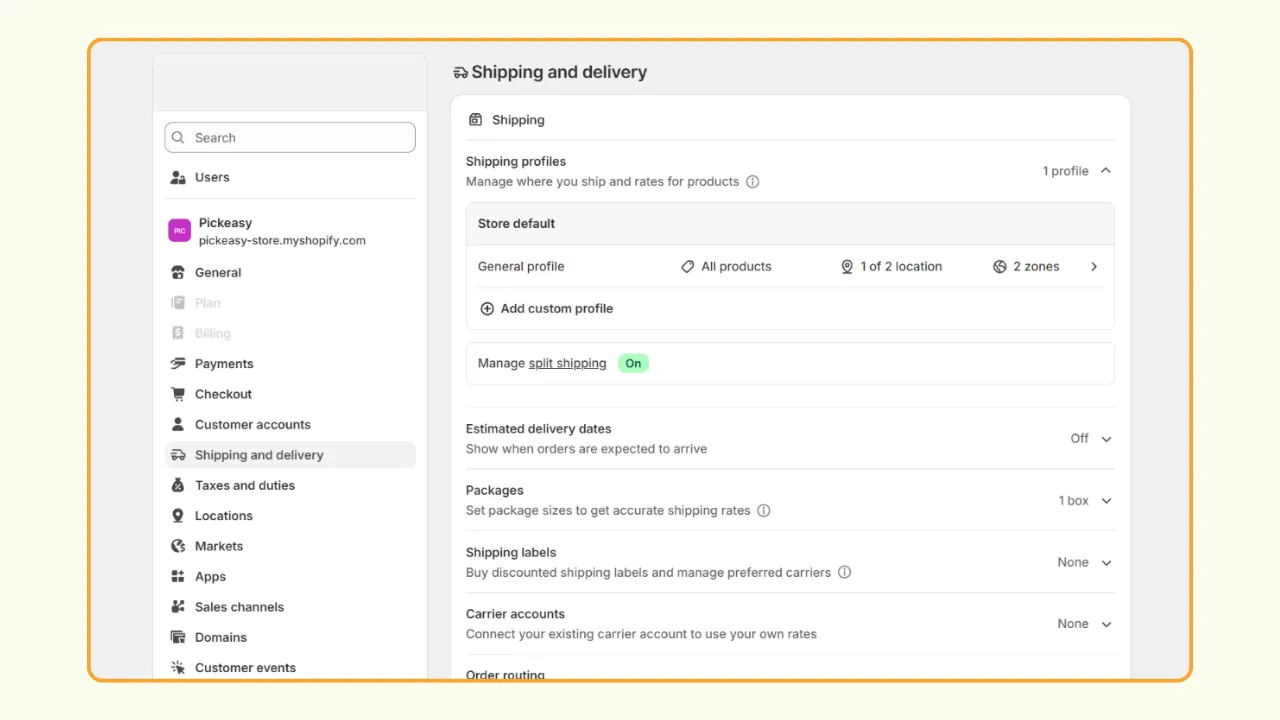
2. Under Additional delivery methods, click Local delivery.
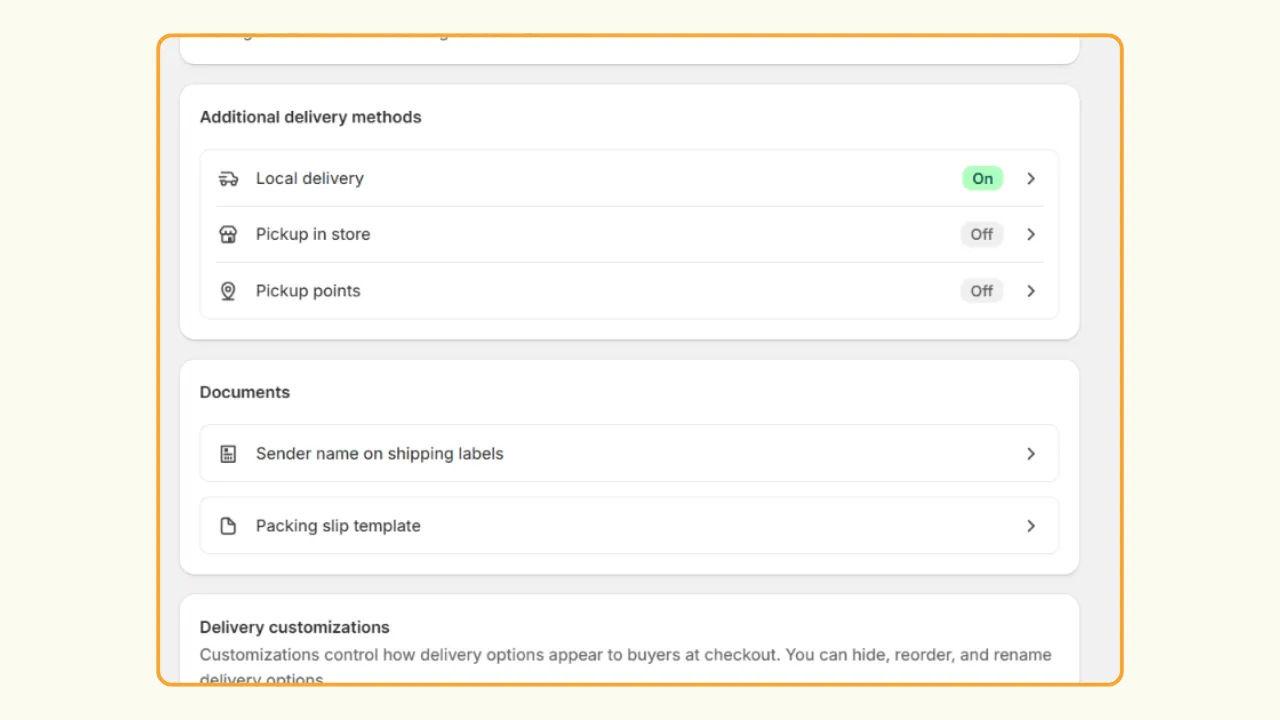
3. Choose your store location and enable Location status.
4. Under Delivery zone, choose PIN or delivery radius for your zone.
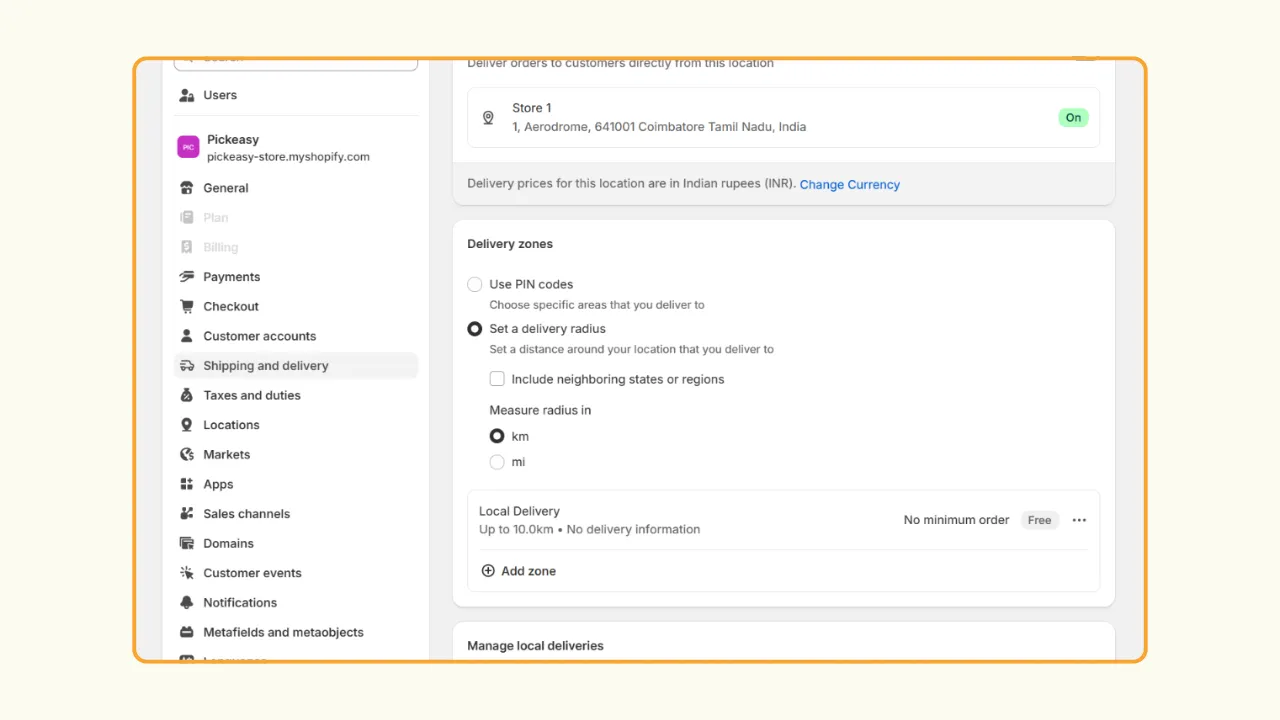
5. Click on Add zone to set up a specific PIN code or radius limit, minimum order value, delivery fee, and delivery information.
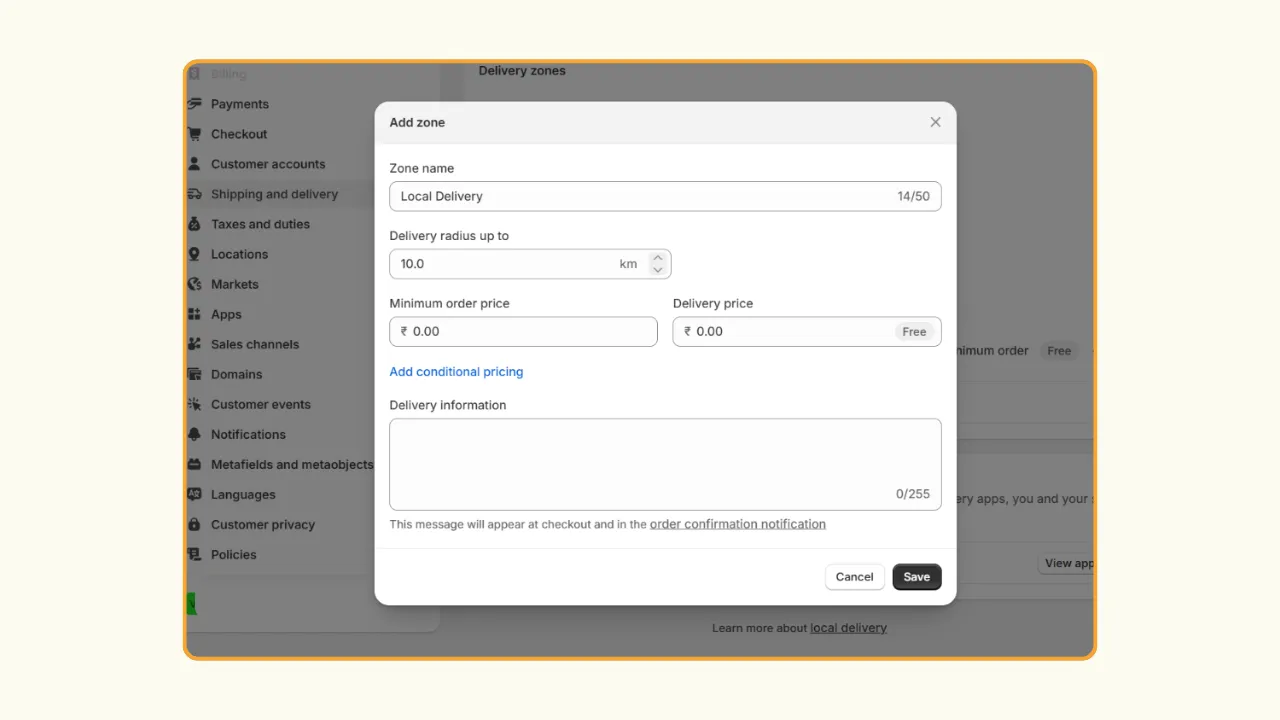
6. Click Save to confirm the setup, then test by placing a sample order from a local address.
To set up Shopify shipping:
1. Go to your Shopify Settings and choose Shipping and delivery.
2. Under Shipping, click on Shipping profile, and add a custom profile to choose products and shipping zones.
3. Enable Estimated delivery dates (optional) to show customers an expected delivery window at checkout.
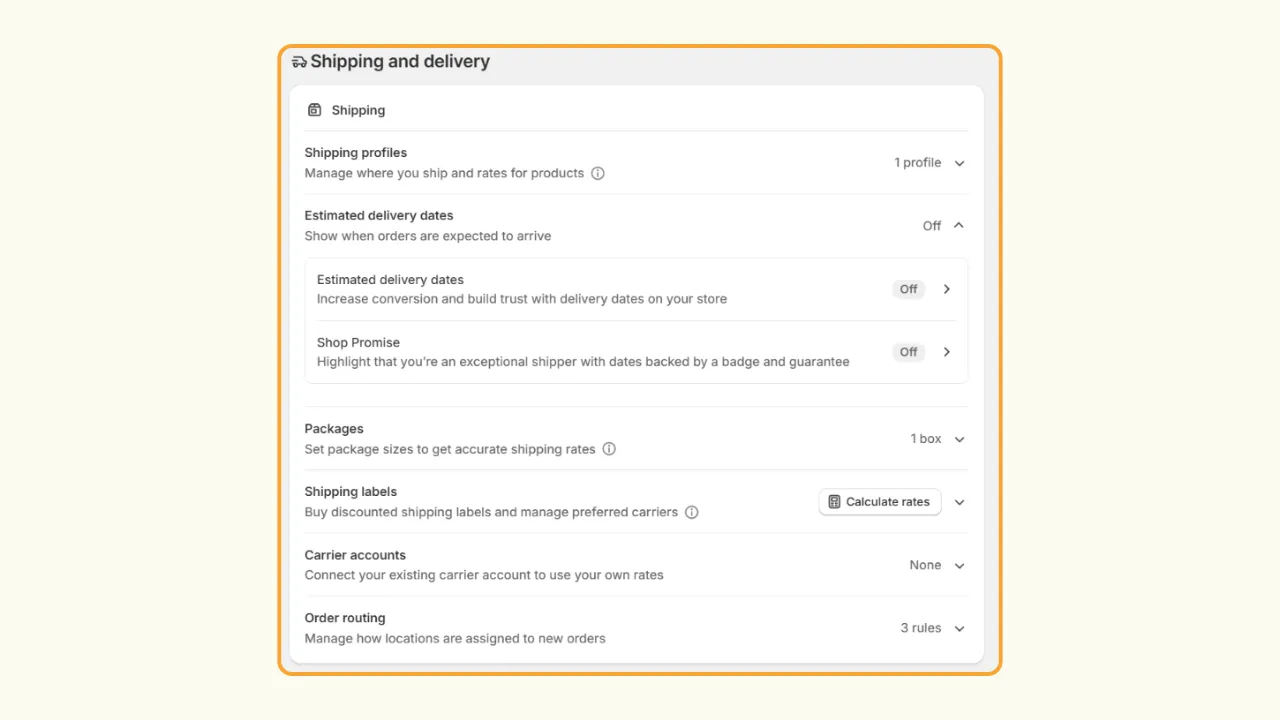
4. Configure Packages by adding the box sizes and weights you use for shipping.
5. Set up Shipping labels or connect your Carrier accounts (optional) to purchase labels or use your own negotiated carrier rates.
6. Review Order routing to decide which fulfillment location should process incoming orders when you have multiple locations.
Why merchants upgrade to Pickeasy instead of Shopify's native settings
The above-mentioned setup is Shopify’s native shipping and delivery setting, which is available on Shopify at no extra charge. For a brand new, small, and low-volume business, this should be sufficient. But as your order flow increases, you might need a more advanced setup, and for that you need a pickup and delivery app such as Pickeasy.
When is Shopify's native local delivery and shipping enough?
As mentioned earlier, you don't automatically need a Shopify local delivery app just because you offer local delivery or shipping. Shopify's native functionality can be enough when your requirements are straightforward. For example, you only need to:
- You're doing a low volume of orders per week and can manage delivery or shipping manually.
- You only need one flat rate or a simple radius/zip-code rule, with no need for time slots.
- You don't need customers to choose a delivery or pickup date since a simple "we'll get to it soon" works fine for your business.
But here is when the simple setup falls short:
- Customers need to choose a specific delivery or pickup date and time, which Shopify's native settings don't support.
- You need to block out holidays or days you're closed, since there's no native blackout-date feature.
- You run multiple locations and need to manage capacity, prep time, or availability separately for each one.
- You enable local delivery, local pickup, and shipping all at once, and customers start seeing every option at checkout regardless of what they picked in the cart — a common source of order confusion as volume grows.
What Pickeasy adds on top of Shopify's native settings
Pickeasy offers advanced scheduling and delivery options. Pickeasy is specifically designed to close the gap that exists in Shopify’s native settings without abandoning the native checkout or fulfilment system. It works hand in hand with your Shopify setup. Here is how it aids your business:
- Your customers can pick a specific delivery or pickup date and time while placing the order.
- You can create block-out dates for holidays or days when you are closed. This helps avoid mishaps during delivery and shipping.
- You can set different delivery and shipping rates and rules for different products.
- You can set preparation time and availability for each individual product and store location.
- It comes with options to create time slots and cut-off times to help manage the workflow.
- It also supports delivery rates based on factors including ZIP/postal code, product, weight, cart value, and time slot.
The important difference between the two is control.
Suppose you own a flower shop. Shopify's native local delivery can determine whether the customer's address falls within your delivery area. But your real fulfilment question might be:
"Can this customer order these flowers for delivery between 10 AM and noon on Valentine's Day when I can only handle 20 deliveries during that slot?"
That's a scheduling and capacity problem rather than simply a delivery-area problem.
A tool such as Pickeasy becomes more relevant at that stage.
The same applies if your bakery needs different preparation times for custom cakes, your grocery store needs delivery slots, or your multi-location business needs different schedules and availability depending on the location.
How to set up delivery and shipping on Pickeasy
Here is a step-by-step guide on how to set up delivery and shipping for your Shopify store using Pickeasy.
Set up local delivery on Shopify using Pickeasy
1. Install the Pickeasy app from the Shopify app store.
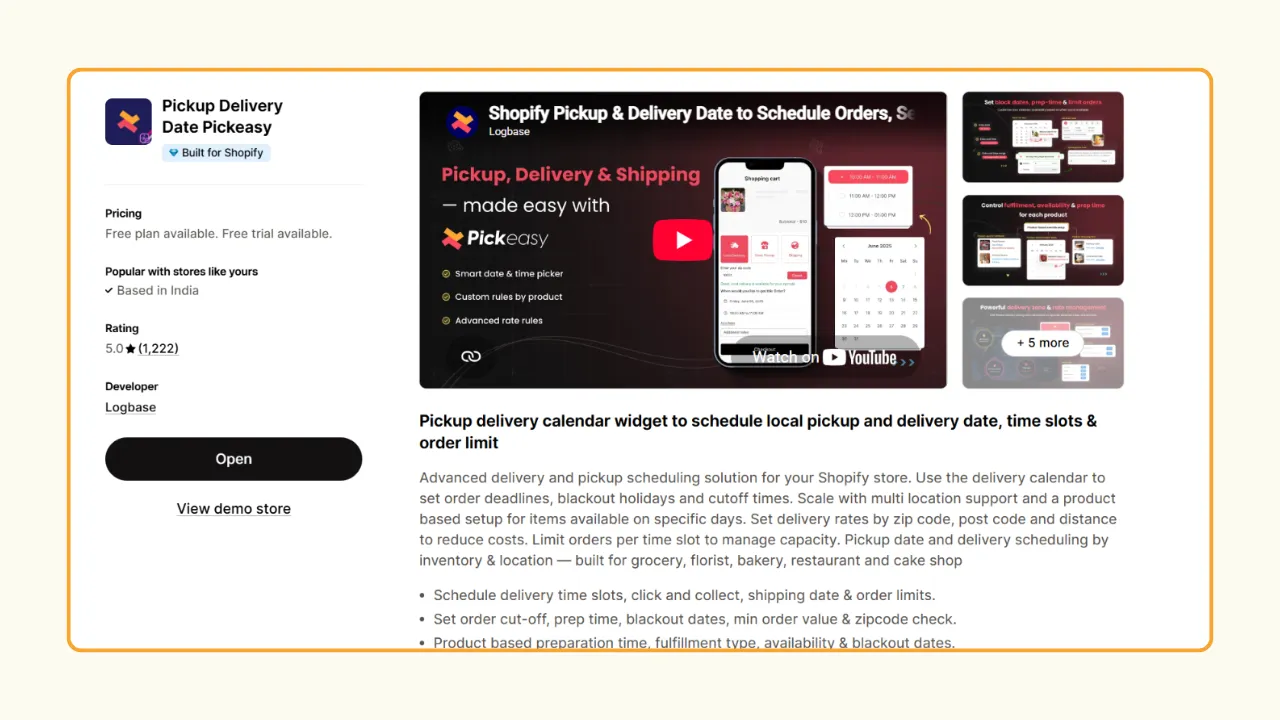
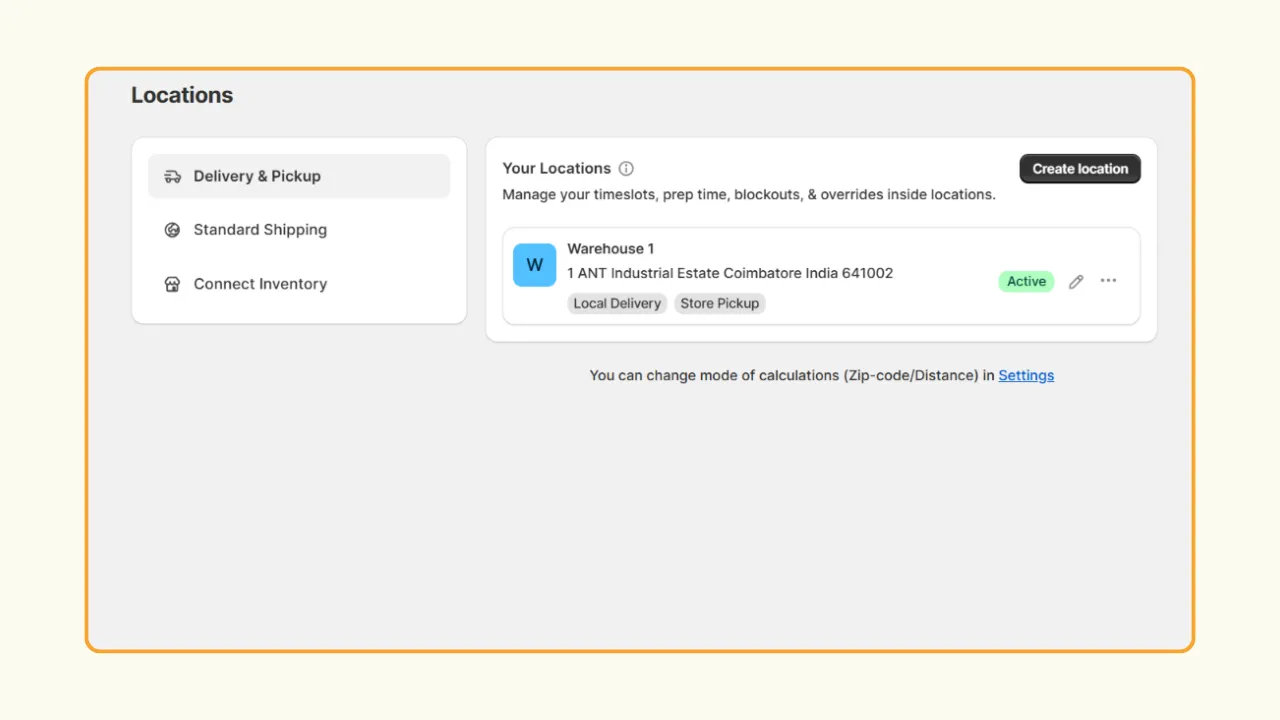
2. Open the app, navigate to Locations, and under Delivery & Pickup, add your store location(s).
3. Under Fulfilment type, choose Local delivery and optionally set a minimum order value.
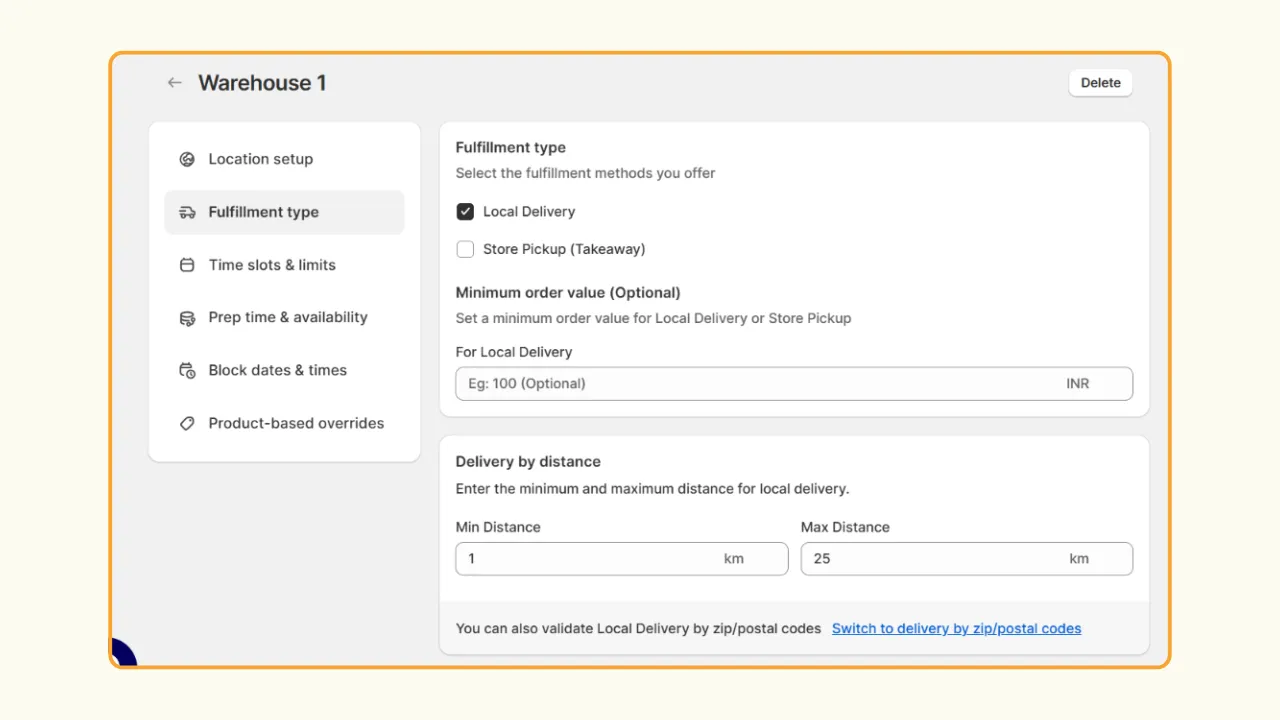
4. Set your delivery radius either by distance or by ZIP- or postal codes.
5. Under Time slots & limits, choose a slot and customize it to suit your store needs.
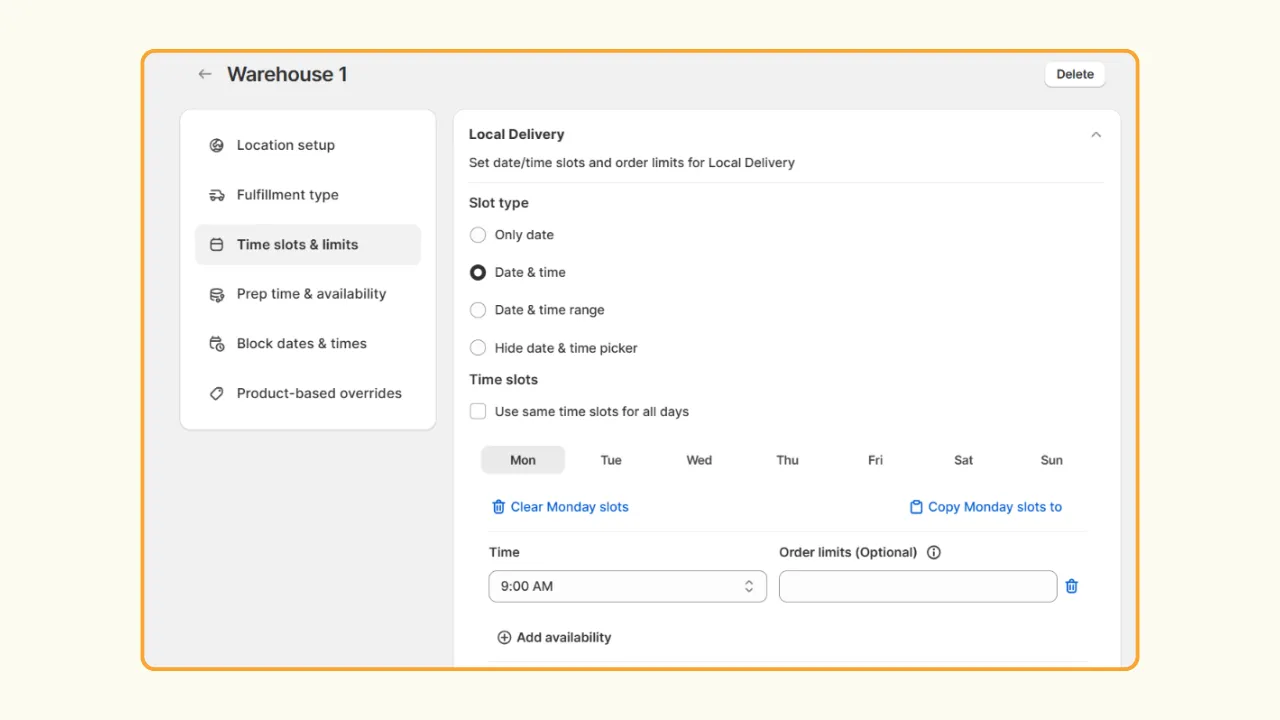
6. Under Prep time & availability, set preparation time (you can set different times for different days) and slot visibility.
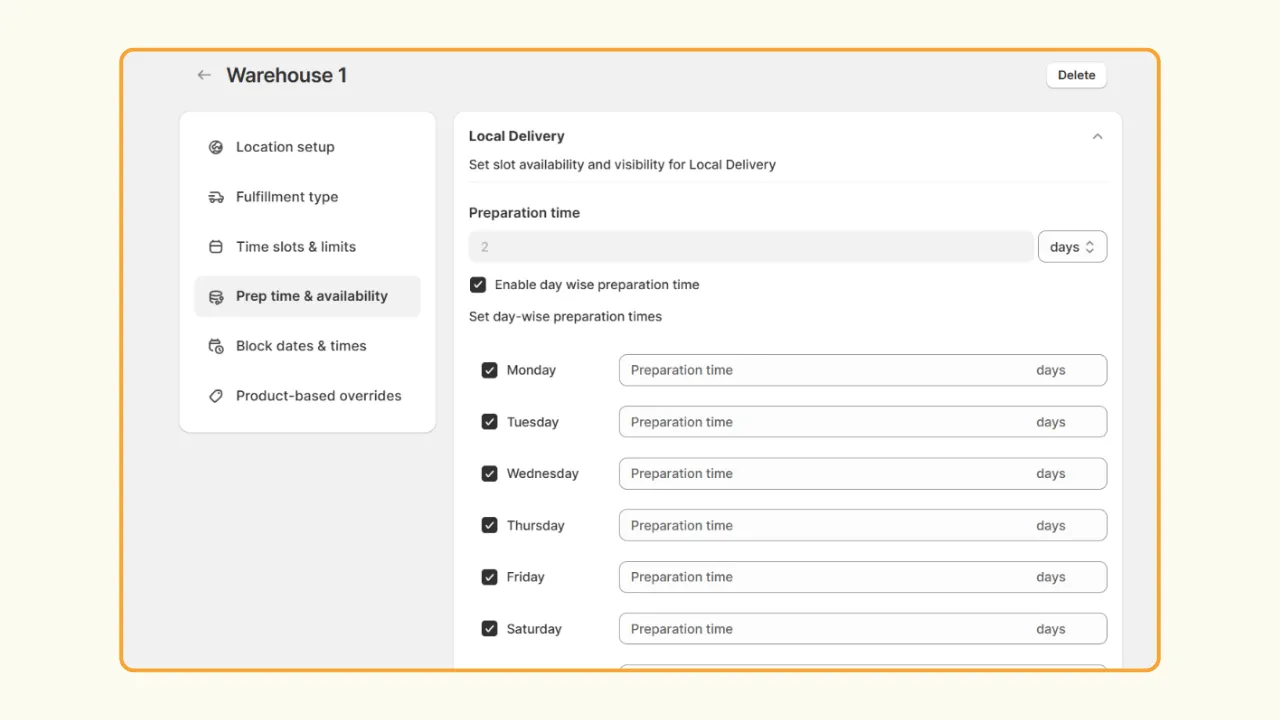
7. Optionally. create black out days along with a time slot under Block dates & time.
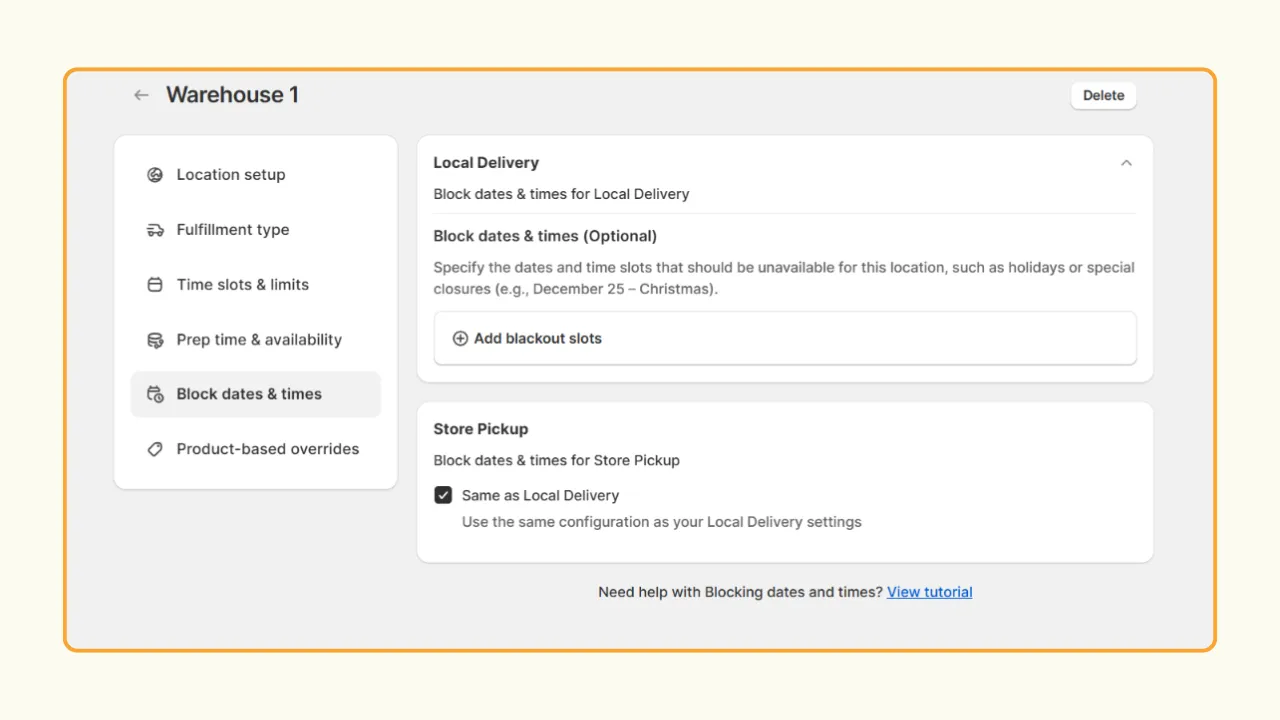
8. Press Save to complete the setup.
Note: You can also offer store pickup through the same setup and configuration within Pickeasy.
Set up shipping on Shopify using Pickeasy
1. Install the Pickeasy app from the Shopify app store.
2. Open the app, navigate to Locations, and under Standard Shipping, click on Turn On.
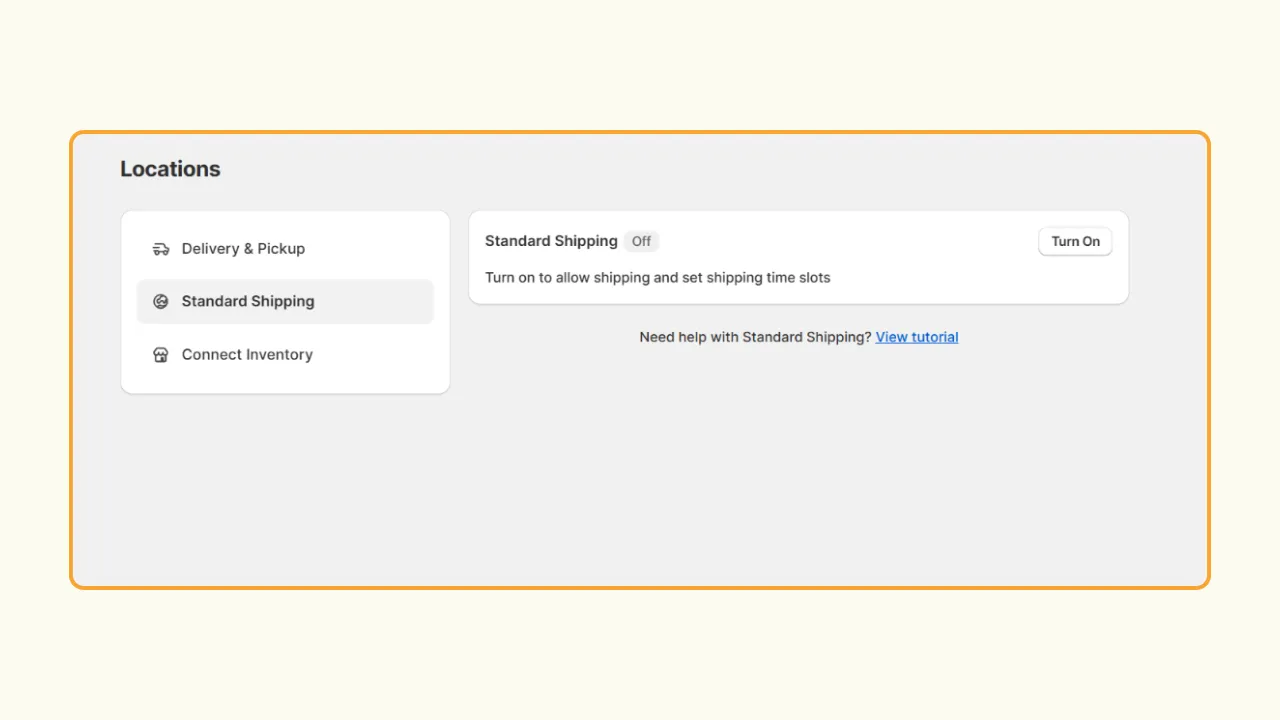
3. Optionally, enable the Enable slots checkbox to create and edit slots for standard shipping.
4. Under Time slots & limits, choose a Slot type, create Time slots, and optionally choose order limits for each day.
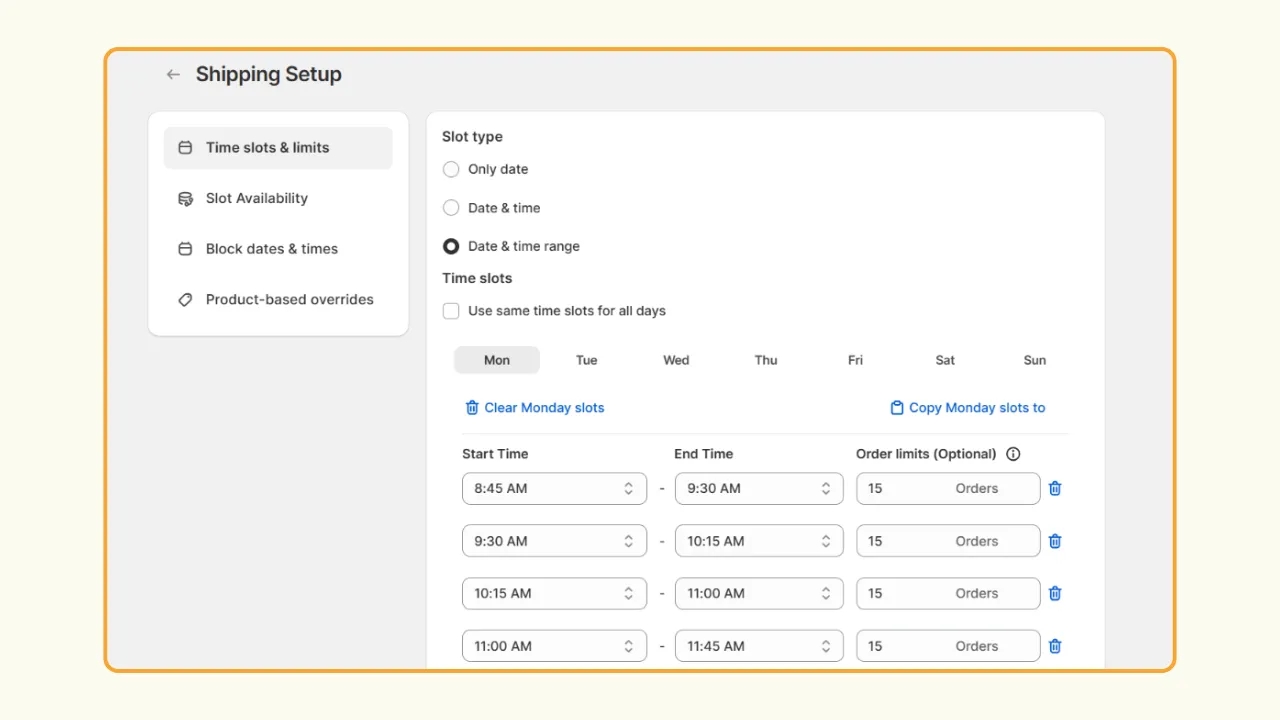
5. Next, under Slot availability, set preparation days, preparation time, and slot visibility.
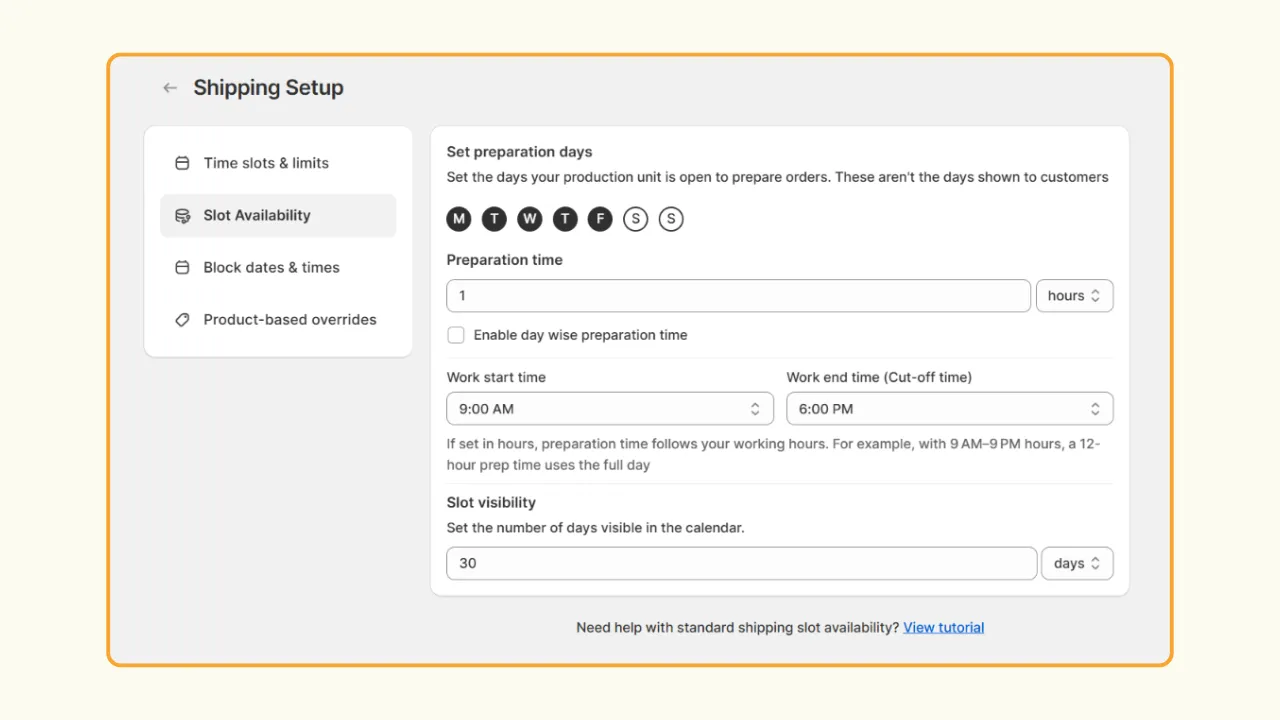
6. Optionally, set block dates and times if applicable.
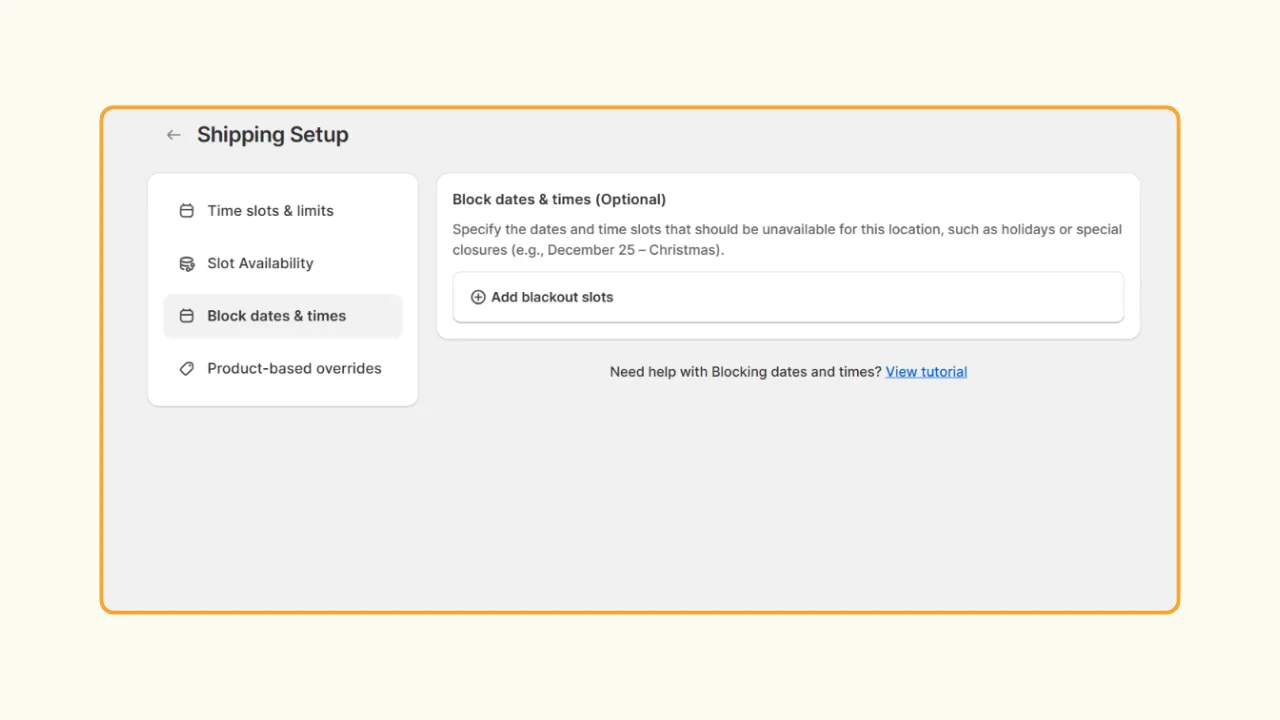
Common Mistakes Beginners Make with Fulfillment Settings
As a Shopify beginner, it is important to avoid making mistakes while setting up your fulfillment settings. This directly affects your business and your customer retention.
- Setting a delivery radius that's too large: Promising local delivery 40 kms away from your store or warehouse location when you only have one driver leads to late deliveries and refund requests.
- Forgetting to update shipping profiles for new products: New items default to your main profile, which can cause incorrect rates if weights differ.
- Not testing checkout before launch: Many merchants discover their shipping rates are $0 or wildly high only after a customer complains. To avoid this, after every small setup change, check your configuration on your live store.
- Offering both options everywhere: If Local Delivery shows up for a customer 200 miles away, it creates confusion and failed orders. Ensure only the suitable options are visible for eligible customers.
- Mixing up delivery settings with shipping settings. These are two separate systems in Shopify, and it is important to understand that configuring one doesn't automatically configure the other.
Wrapping up
Getting your Shopify delivery settings right saves you from refund requests, confused customers, and missed deliveries. Whether you need local delivery, shipping, or both, it just takes a five-minute trip to your Shopify admin. If your store is brand new and your fulfillment needs are simple, start with Shopify's native settings. It's free and fast to set up. Once you need scheduled delivery windows, blackout dates, or product-specific rules, Pickeasy is the natural next step, since it's purpose-built to fill exactly those gaps.
Frequently asked questions
Does Shopify charge for local delivery?
No, Shopify itself doesn't charge extra just for turning on the Local Delivery feature, but you set your own delivery fee to charge customers, and any third-party delivery or route apps may have their own costs.
What's the difference between local delivery vs. shipping on Shopify?
Shopify local delivery and Shopify shipping are two entirely different settings. Local delivery means you or a courier hand-deliver the order within a set radius, with no shipping carrier involved. Shipping means the order is packaged and sent through a carrier like USPS or UPS, with no radius limit.
Is there a better alternative to Shopify's native local delivery settings?
Yes. Apps like Pickeasy build on top of Shopify's native Local Delivery and Shipping settings by adding scheduled time slots, blackout dates, product-specific fulfillment rules, and more advanced rate logic, which makes them a popular upgrade once a store outgrows the basic native setup.
What is the best Shopify local delivery app?
Pickeasy is one of the best Shopify local delivery apps that adds scheduling and fulfillment controls to your Shopify store. This allows you to decide not only where an order can be delivered or shipped, but also when.
With over 1250 five star reviews and trusted by more than 8500 brands, Pickeasy is specifically built to close the gaps listed above. It seamlessly works alongside Shopify's native pickup and delivery settings.
.avif)
.webp)
.webp)
.webp)
.svg)
.svg)
.svg)


.svg)