Shopify Restaurant Ordering: How to Take Online Orders in 2026
Last updated on
November 16, 2026
One customer wants dinner delivered tonight before 10. Another wants lunch delivered to their office. The third wants their party order for Saturday ready by 4 for pickup. All three want the same thing: an easy, practical way to order food from your store and get it when they need it. Fulfilling those orders requires different schedules, prep time, delivery arrangements, and, most importantly, knowing how many orders your kitchen can take.
If you run a restaurant, cafe, cloud kitchen, or catering business, Shopify will help you create your own branded website that acts as your storefront. Customers get to browse your menu, place their orders, and pay online. With the right setup, you can manage your delivery, pickup, catering orders, and more on Shopify without relying on third-party delivery marketplaces.
Read along to learn how Shopify restaurant ordering works, how to set up and manage delivery and pickup orders directly from your website.
Can you use Shopify for a restaurant?
Yes. Shopify can be a great place to take your food business online once you get your kitchen and your online orders in sync. With Shopify, you can easily list your menu as individual products, categorize them, manage orders, and accept online payments.
However, Shopify is not a platform that’s specifically designed for restaurants or kitchen management. Where it falls short, apps from the Shopify App Store fill the gap.
The setup you need completely depends on how your kitchen operates. For example: A cafe that accepts order pickup has different requirements from the cloud kitchen that delivers food across the city or a restaurant that offers same-day delivery.
Here is how Shopify fits different restaurant and food chain models:
Shopify offers the foundation for your online storefront. The native features and apps can help you manage your restaurant the way you see fit. What matters is finding the right rhythm for your store and building an ordering system that works around your actual kitchen operations.
Why are restaurants moving online orders to their own website?
Food delivery marketplaces can help customers find your store and discover your dishes, but they take away your control over the customer experience. In addition, platform fees can range from 15% to 30% on average, and higher on some. This essentially eats into your profit margin. Moreover, nearly 40% of customers prefer ordering food through the restaurant's own website rather than from a third-party app.
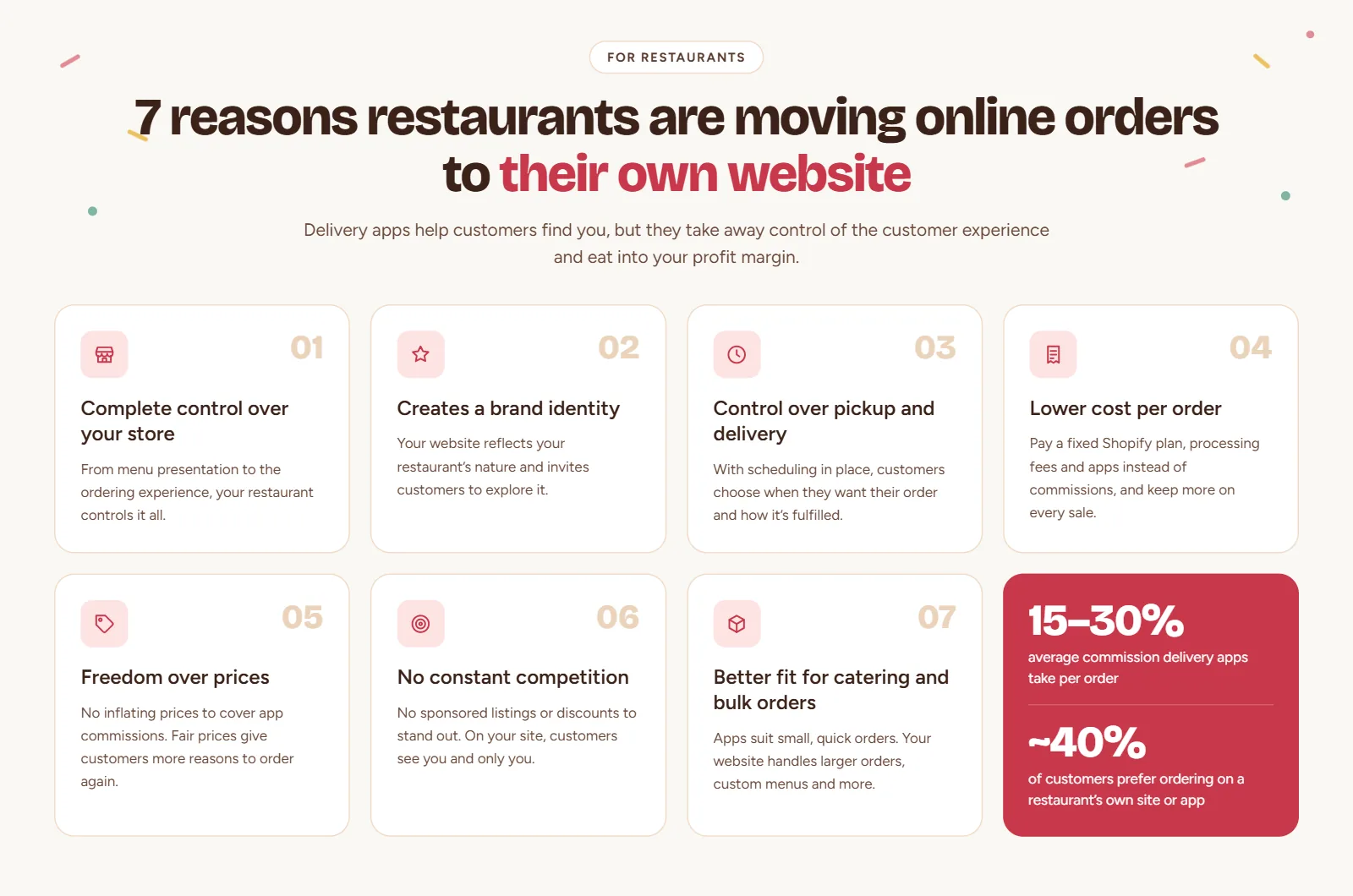
Here are the main reasons restaurants are moving online orders to their own Shopify websites.
- Complete control over your store: From menu presentation to order experience, your restaurant controls it all.
- Creates a brand identity: Your website reflects your restaurant’s nature, and it gives your customers an opportunity to explore your store.
- Control over pickup and delivery: With a proper scheduling system in place, your customers get to choose when they want their order and how they want it fulfilled.
- Lower cost per order: Instead of paying commissions, you pay a fixed amount for your Shopify plan, processing fee, and added apps. Even with all of that added, you still get to keep more on every sale.
- Freedom over prices: Many restaurants end up raising their prices to compensate for the commissions on delivery apps. But with your own site, you can offer a fair price, giving your customers more reasons to order again.
- No constant competition: On a marketplace, you are constantly competing with other restaurants for customers. You need to pay for a sponsored listing to get to the top, and offer discounts to stand out from the competition. But with your own website, your customers see you and only you.
- Better fit for catering and bulk orders: An app might be a good fit for small and quick orders, but your website lets you handle larger orders, offer customization on menus, and more.
What you need before setting up online ordering on Shopify
Before you take your first order or go live on Shopify, here are some things that need sorting out.

Organize your menu
On a Shopify store, your restaurant menu card doesn’t work. You need your menu organized into clear categories. This includes starters, main courses, desserts, beverages, combo offers, chef’s favorite, today’s special, vegetarian, non-vegetarian, vegan, and gluten-free options. Create categories that make your menu accessible.
Each product should have:
- A clear product name.
- An appetizing photograph taken in clear light. (No AI or deceptive images)
- A clear description with portion sizes, allergen information, and a key ingredient list.
- Variants and customization options if applicable.
- Clear pricing for each product and its variants.
Tip: If you want your customers to look at your menu at a glance, you can add a digital copy of your menu card as a separate page on your Shopify store. Customers can have a quick look in one place.
Set up your payment methods
Based on your country, the payment providers and gateways might vary on Shopify. Enable payment options that are easy for your customers to complete their order.
Decide how you wish to collect your payment. You can offer online payment, cash on delivery, or collect partial payments based on order eligibility.
Example: Full payment online or cash on delivery for regular meal orders, delivery, and pickup. Partial payment as a deposit for large catering orders, corporate orders, and party orders to confirm bookings.
Multiple fulfillment methods
Decide how you wish to fulfill your orders and set definite rules for each of them. Offering multiple fulfillment options can help with reaching more customers. This includes offering store pickup and local delivery, apart from the dine-in option for restaurants and cafes. Caterers, cloud kitchens, and meal box companies can offer both pickup and delivery. It depends on your kitchen capacity, staff availability, and order management.
Ask yourself these questions before you decide:
- Store pickup: Which locations should offer pickup? During which hours?
- Local delivery: Should I offer free delivery or charge a fee? Which postal codes or zones can I deliver?
- Scheduled orders: How far in advance can customers order? When should they order to be eligible for same-day delivery or pickup?
- Preparation time: How much time do I need to get the orders ready?
- Order capacity: How many orders can I accept in a day? For each time slot?
Find the right apps for your workflow
Shopify offers a great platform to launch your restaurant online, and its native features are sufficient for straightforward orders. But for complex operations, you need apps that're designed for it.
This includes separate apps for pickup and delivery scheduling, table reservations, product customization, upsell, subscription, reviews, and more. You don’t have to have everything upfront. Get the most important apps first; try apps with free plans and free trials. Based on your actual operational needs, upgrade and discover more apps.
How to manage restaurant pickup and delivery on Shopify for online orders
Pickup and delivery are where your online orders meet the realities of kitchen operations. Dine-in has a natural limit. There are only so many seats to fill, and orders come in at a pace your kitchen can manage. Online orders do not work that way. Orders keep coming in, and unless your kitchen meets that demand, your order management will drown in chaos.
A pickup customer has arrived, but the food is not ready. Your delivery team hasn't come back from their last run, and now the next set of deliveries is going to be late, with the food cold by the time it reaches your customers. A one-star review in your mailbox.
With proper order management, pickup and delivery scheduling in place, you can avoid all that and ensure every order leaves your kitchen on time. No confusion, no rushed orders, no frustrated customers waiting for their food. Just a highly efficient kitchen functioning as it should.
How to set up pickup and delivery on Shopify for restaurants without an app
To configure pickup and delivery using Shopify’s native settings, follow the steps below.
Step 1: In your Shopify admin, go to Settings and navigate to the Shipping and delivery option.
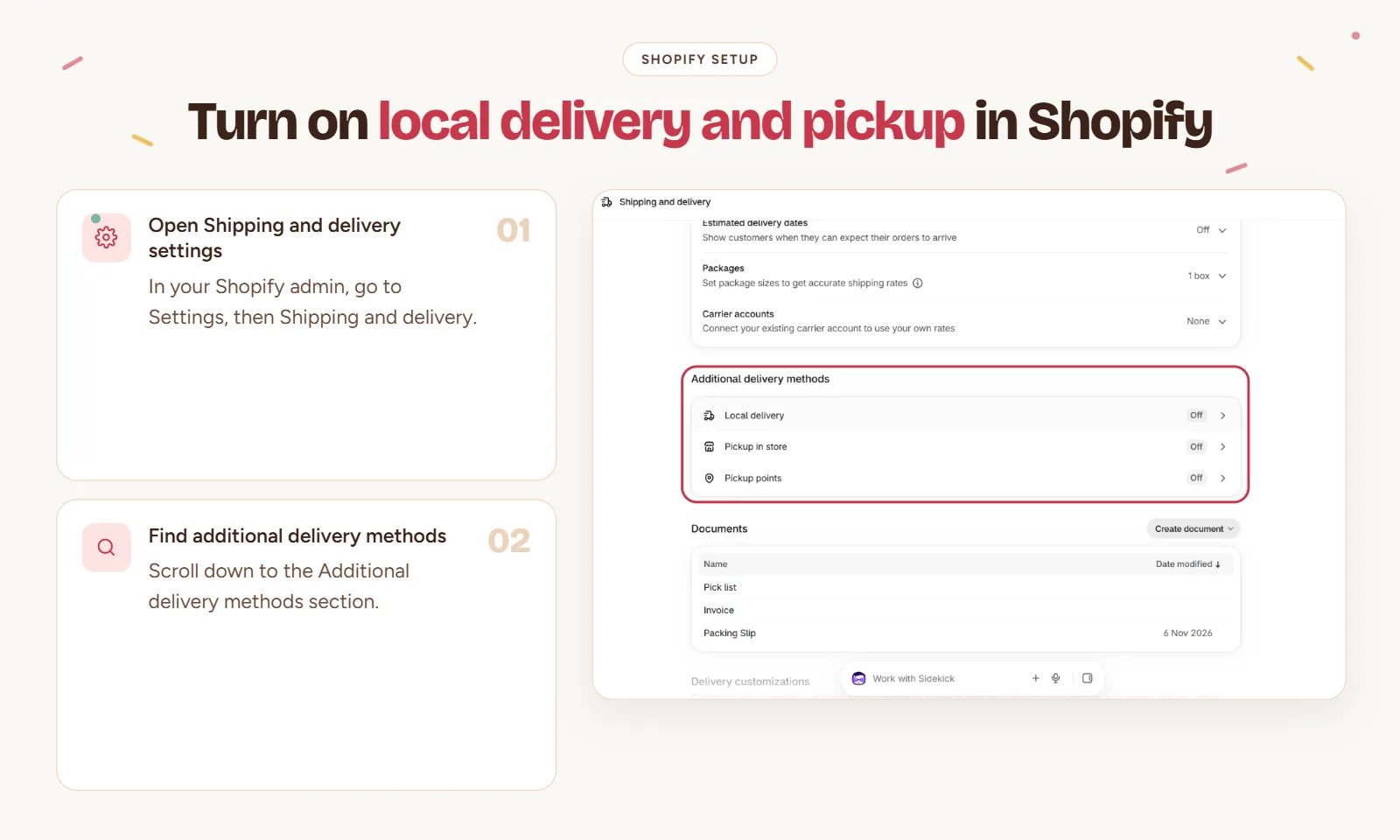
Step 2: Under Additional delivery methods, click on Local delivery.
Step 3: Next, select your location and turn on the Location status toggle.
Step 4: Under Delivery zones, choose between ZIP codes and delivery radius, and proceed to click on Add zone to create your delivery zones.
Step 5: Each zone needs a name, ZIP code or radius distance, minimum order value, delivery fee, and delivery information.
Step 6: Press Save to complete the delivery setup.
For pickup:
Step 1: Go back to the Additional delivery methods section and click on Pickup in store.
Step 2: Next, click on your location and turn on the Location status toggle.
Step 3: Optionally, add an expected pickup date and pickup notification message.
Step 4: Press Save to complete the pickup setup.
Read more: How to Set Up In-Store Pickup and Local Delivery on Shopify
Shopify pickup and delivery vs a pickup and delivery scheduling app
Shopify offers native pickup and delivery features, and it's a solid starting point. Your customers get to choose whether their order is for pickup or delivery, while allowing you to define where you can deliver. But a restaurant works on a clock, and you need everything timed and scheduled properly to ensure your kitchen runs smoothly and your customers are happy.
Every dish has a prep time; you need control over when customers can collect, when deliveries can go out, and most importantly, how many orders your kitchen can manage in each window. A scheduling app like Pickeasy gives you a date and time picker, order limit, prep time, cutoff time, and other scheduling features as an added layer on top of Shopify’s native settings.
| Feature | Shopify pickup and delivery | Pickup and delivery scheduling app |
|---|---|---|
| Store pickup and local delivery | Yes | Yes |
| Delivery zones | Yes | Yes |
| Pickup and delivery date picker | No | Yes |
| Time slot picker | Basic (estimated time) | Yes |
| Preparation time | No | Yes |
| Order cutoff times | No | Yes |
| Order limit | No | Yes (Limit per time slot and per day) |
| Block out days and time slots | No | Yes |
| Separate rules for pickup and delivery | Yes (Limited) | Yes |
| Product-specific rules | No | Yes (Product overrides) |
| Delivery fee | Yes (Based on zones) | Yes (Based on ZIP codes, distance, cart value, weight, product, time of the day, day of the week - varies by plan) |
| Multiple locations | Yes | Yes |
| Shopify POS integration | Yes | Yes |
How to set up pickup and delivery on Shopify for restaurants using an app
To add advanced order scheduling and fulfillment options to your restaurant on Shopify, use an app like Pickup Delivery Date Pickeasy. Pickeasy meets the actual demands of a restaurant with order limits, date and time slot picker, advanced product overrides, preparation and cutoff times, and block-out options.
Step 1: Install the Pickup Delivery Date Pickeasy app and complete the onboarding process.
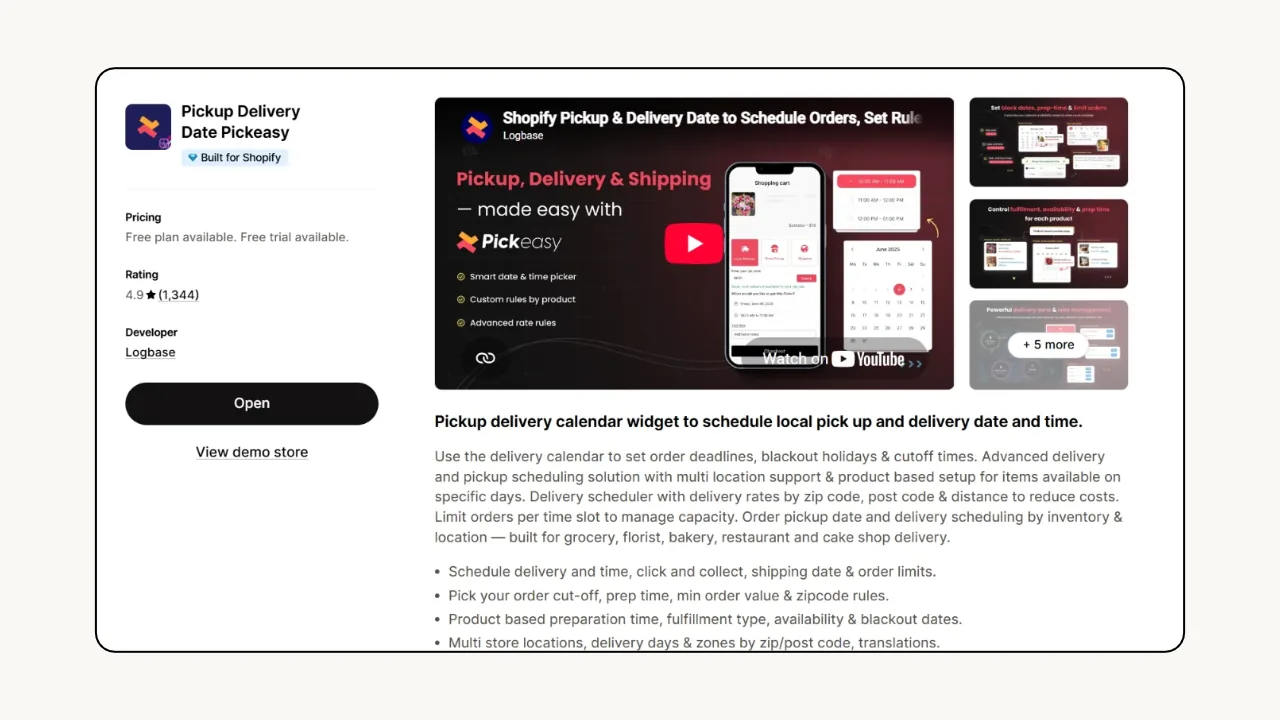
Step 2: Click on the Locations tab from the side panel and open the Delivery & pickup settings.
Step 3: Create a new location, or add an existing one, and complete the Location setup.
Step 4: Next, choose your fulfillment types and set up delivery by ZIP/postal codes.
Step 5: Under Time slots & limits, choose a slot type and create time slots.
Step 6: Under Preparation time & availability, set a preparation time, days, and slot visibility.
Step 7: Optionally, create block-out dates and product overrides if applicable.
Step 8: Press Save to complete the setup.
How Shopify restaurants can configure pickup and delivery setup
While setting up store pickup and local delivery on Shopify, create different schedules for both based on your actual operations. Because while you can only fulfill 10 delivery orders per time slot, you might be able to fulfill 15 pickup orders within the same window. This applies to all the sections that need to be configured.
Here is everything you need to configure pickup and delivery scheduling on Shopify:
Date and time slot
Customers get to choose the exact date and a time window between which they want their order delivered or ready for pickup instead of a default, “Usually ready in 24 hours”. Just a proper date and time window chosen by your customers, promised by your store, and fulfilled by your kitchen with no guesswork involved.
The calendar shows slots based on your availability, preparation time, cutoff times, order limits and your actual kitchen operations. You can have different time slots for pickup and delivery.
Example: Pickup is open from 11 am to 10 pm with 15-minute slots. Delivery is open from 12 pm to 8 pm with 45-minute slots. As orders come in, your kitchen will know which order needs to go out first based on the time slot the customer picked. This will also help you group your delivery orders so everything can go out on time.
Order limit
Avoid taking in more orders than you can handle with order limits per slot. Once the limit is reached, customers will see only the next available slot.
Example: If your kitchen can only make 30 pizzas in an hour, an order limit will stop a 31st order from being placed. At the same time, your delivery team might only be able to deliver 10 in an hour while 20 can be ready for pickup. So limit your orders accordingly for pickup and delivery.
Preparation time
Cooking time varies based on what is being cooked. Setting a prep time gives your kitchen enough time to prepare the dishes and get them ready for pickup and delivery.
Example: A slow-cooked brisket takes 4 hours of prep time, while a pizza can be made in 15 minutes. So, a customer ordering a brisket at 11 am is shown the 3 pm slot. While a customer ordering pizza can schedule it for 11:30 am. In both cases, the earliest available slot based on the prep time is shown to the customer.
Order cutoff time
Just because you are open till 11 pm doesn’t mean you can take a delivery order at 10:30 pm. Kitchen closing hours and restaurant closing hours are two different things. Cutoff time helps you keep it separate.
Example: Set a 10:00 pm cutoff time, and no new orders come after 10. Your kitchen simply fulfills the remaining orders for the day, gets the 10 to 11 pickups and deliveries ready, and closes on time. No last-minute orders, no overworked staff.
Block out dates and time
If your restaurant is closed on some days for a public holiday or simply short on staff, you can block out dates and time slots to ensure customers don’t book an order when you can’t fulfill. If you operate from multiple locations, then create different blockout dates and times for each location.
Example: You are closed on all Mondays and Christmas; with those days blocked out, no one can place an order on those days. You can block delivery slots during lunch hour to give your drivers a break but keep pickup open.
Local delivery zones and rates
Define your delivery zones and rates by distance or ZIP/postal code. Adding a ZIP code or address validation checker on the home page or cart page makes it easier for your customers to know if they are eligible for local delivery or not.
Example: If you only deliver within a 15 km radius, you can offer free delivery for customers within 3 kms, charge a small fee for those within 5 kms, and so on. Based on your plan, you can even set dynamic delivery rates based on total cart value, product weight, time of day, and day of the week.
Multi-location scheduling
Each location gets its own time slots, prep times, order limits, cutoff times, and delivery zones. You can add more locations based on your plan.
Example: If your restaurant has three different outlets, all three can run independently based on their own staff availability and kitchen capacity. Customers get to choose their nearest outlet for pickup and will only see the slots you have created for that specific location.
Restaurants using Pickeasy for pickup and delivery scheduling
Here are three food spots that sell online on Shopify with unique delivery and pickup needs. All three use Pickeasy to schedule their order fulfillment. Go ahead and borrow their idea if you are looking for a schedule that works for you.
Kanazawa Japanese Restaurant
Based in Singapore, the restaurant sells fresh sushi rice bowls. They offer pickup and delivery, seven days a week. Pickeasy helps them schedule pickup and delivery slots and block out times for kitchen breaks between lunch and dinner service.
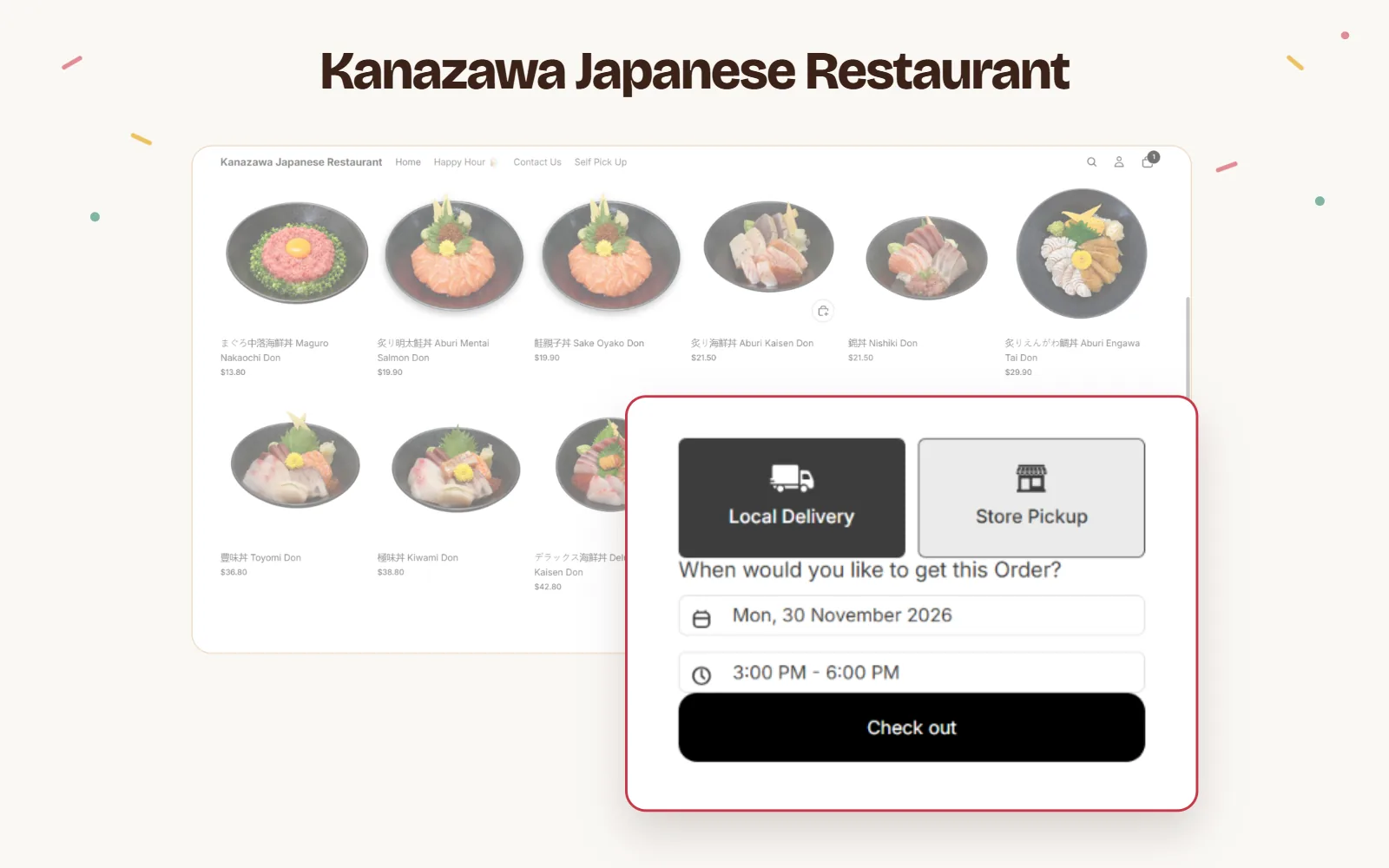
- Pickup: Offered from one location. Multiple pickup slots between 11 am and 8:30 pm.
- Delivery: Two delivery slots available every day.
- Blocked-out time: 2:30 pm to 5:30 pm is blocked out each day
Kanazawa’s two fixed daily delivery slots can help a restaurant keep every delivery order grouped into planned runs instead of drivers heading out every time a new order comes in. Pickup, on the other hand, works differently: with multiple slots across lunch and dinner, customers can choose the one that suits them.
Clays Kitchen
Based in the UK, Clay’s Kitchen uses Pickeasy to offer pickup and shipping for their blast-chilled, vacuum-sealed dishes that have a shelf life of 10 days under refrigerated conditions.
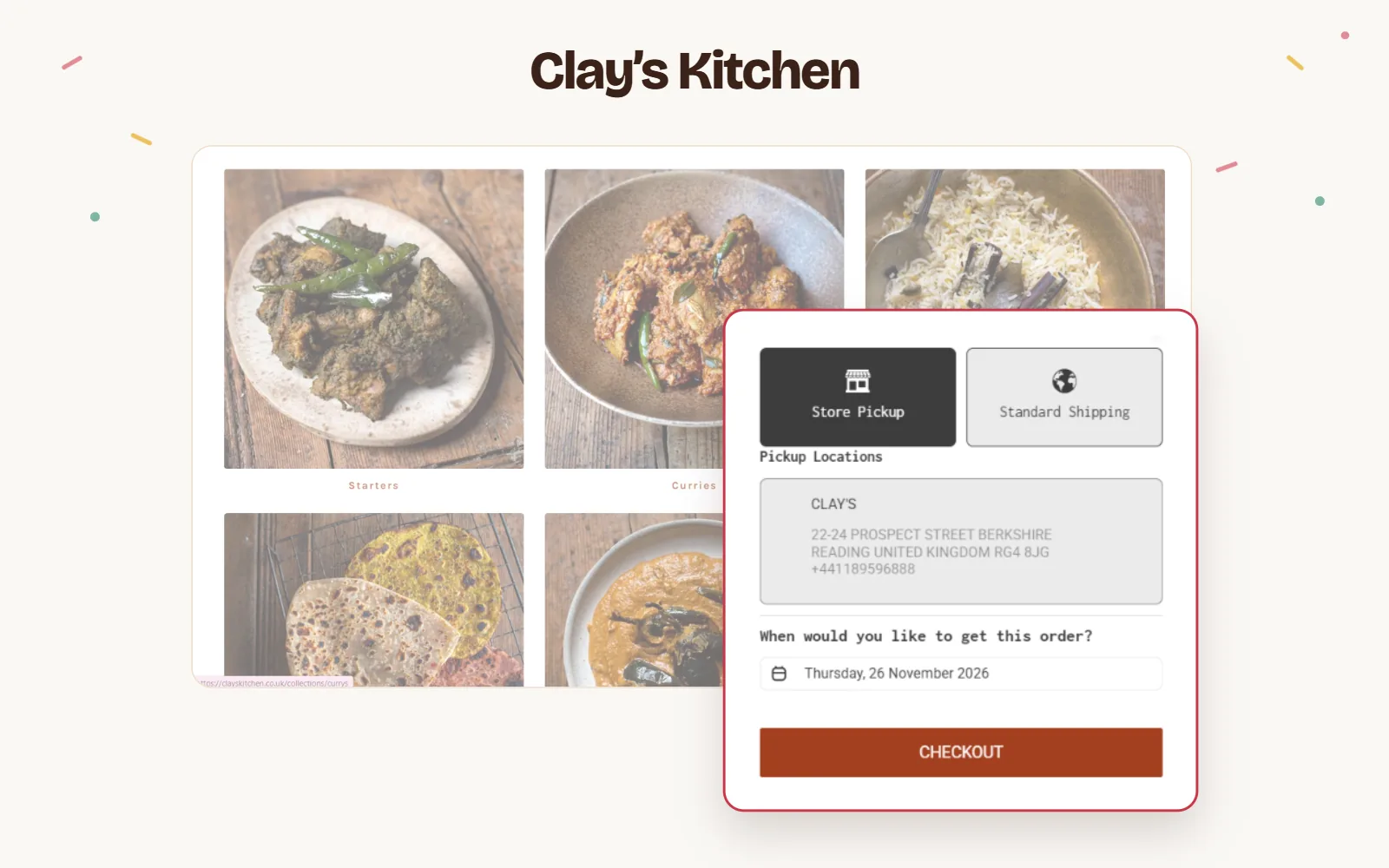
- Fulfillment type: Store pickup and standard shipping
- Fulfillment days: Thursdays only, with no time slot
- Order cutoff: End of Saturday for the following Thursday
- Pre-orders: Up to 8 weeks in advance
All orders placed before the end of Saturday are eligible for pickup and delivery for the following Thursday. This model works best if your meals are reheatable packs with a longer shelf life and your kitchen needs a production schedule.
Chopstix Pan-Asian Eatery
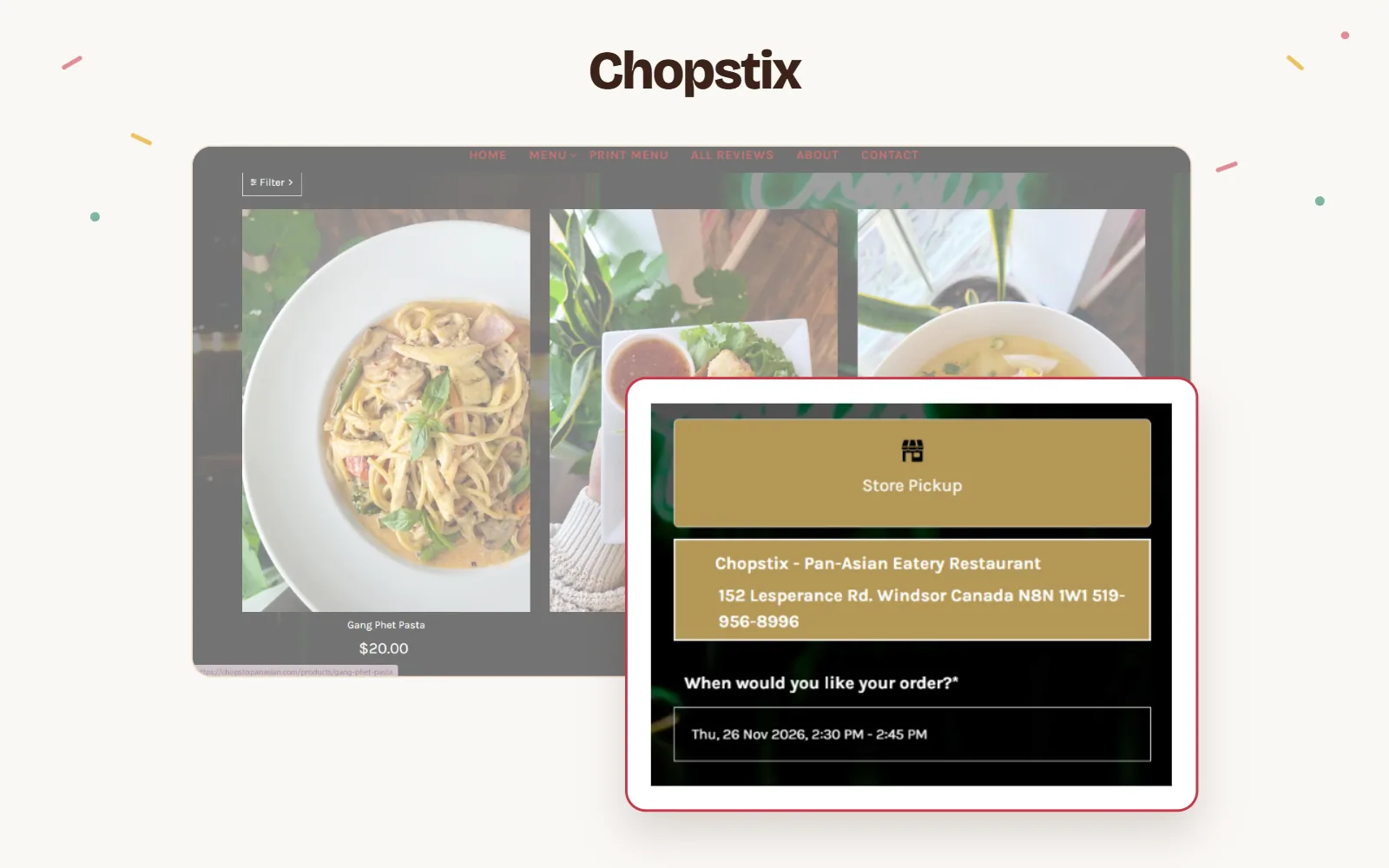
Based in Windsor, Canada, Chopstix is a pan Asian eatery that serves Thai, Vietnamese, and Chinese dishes. It uses Pickeasy to schedule its takeout orders placed online through its Shopify website.
- Fulfillment type: Store pickup only
- Fulfillment days: Tuesday to Saturday, 5 days a week
- Time slots: Multiple pickup time slots from 12 pm to 9 pm.
- Same-day pickup: Customers can order and collect their dishes on the same day.
Their online menu is available only for pickup, and the days the restaurant is unavailable are greyed out in the calendar. This model works best if you cook to order for dine-in and takeout from the same kitchen. Choosing pickup only also means there is no need to worry about delivery logistics.
Common mistakes to avoid when taking restaurant orders on Shopify
Look out for these common mistakes restaurants make while taking online orders to avoid overbooking, delayed delivery, and last-minute cancellations.
- Not setting a proper preparation time: Every dish comes with a different prep time; a seafood platter needs more prep time than a pizza. Not setting the right preparation time leads to late orders and an unrealistic fulfillment timeline.
- Not setting an order limit: Without an order limit, peak hours might wreak havoc in your kitchen. You will end up with more orders than you can fulfill, leading to delays, cancellations, and bad reviews.
- Not setting proper delivery zones: Food that travels is still expected to arrive moderately hot. Calculate drive times while setting your delivery zones.
- Same rules for pickup and delivery: Delivery needs more lead time than pickups. You need to calculate the drive time and the prep time. Configure them separately.
- Forgetting closures: Block out the dates and times your kitchen is closed in advance to ensure no new orders come through when you are unavailable.
- No clear product description: Your dishes need to have all information customers look for, including allergen information, key ingredients used, and portion sizes right on the product page to avoid confusion and cart abandonment.
Wrapping up
Shopify is a great place to take your restaurant orders online. But a menu and checkout button will not get you too far. With the right order management and schedule in place, your restaurant will run smooth as butter (pun intended).
Whether it's a new cafe or a chain restaurant, it doesn't matter. A coordinated prep time, pickup and delivery window, delivery zones and fees, order limits, and capacity will ensure your kitchen can meet the order flow without overbooking. With a scheduling app like Pickeasy installed on your store, you can have separate pickup and delivery schedules that work around your kitchen.
Frequently asked questions
1. Can I manage multiple restaurant locations from one Shopify store?
Yes. If you own a chain of restaurants, you can manage multiple locations from one Shopify store. Each location can have its own pickup and delivery settings and inventory. A pickup and delivery scheduling app like Pickeasy will allow you to create separate schedules, hours, time slots, order limits, and availability for each location.
2. Does Shopify natively integrate with third-party food delivery marketplaces?
No. Shopify does not natively sync with or integrate with delivery marketplaces like DoorDash or Uber Eats. Most restaurants run their Shopify store alongside these apps since they give the initial discovery and visibility for the store, while Shopify allows them to create a space of their own.
3. Can Shopify handle restaurant delivery without a delivery app?
Yes. Shopify has native delivery and pickup settings that are built in to offer multiple fulfillment options. You can also define your delivery zones and areas by radius/distance or ZIP/postal codes. You can add multiple delivery zones and adjust the delivery fee accordingly for each zone.