.svg)
How to Set Up Shopify Local Pickup and Local Delivery (Complete Guide)
Last updated on
July 24, 2026
![How To Set up In-store Pickup and Local Delivery in Shopify? [2025]](https://cdn.prod.website-files.com/611167e7889c927aebfd8ee2/6a632a33369c14fdbecc9e7d_New%20Blog%20banner%20images%20(1)%20(3).webp)
Shopify local pickup and Shopify local delivery let you fulfill nearby orders without a shipping carrier. This way, customers either collect their order in person or get it delivered directly by you or a courier. Both are built into every Shopify plan at no extra cost, and both can be set up in about ten minutes.
Running a local business doesn't always mean relying on traditional shipping. Many Shopify merchants, especially bakeries, florists, grocery stores, and furniture retailers, prefer serving customers who live nearby with faster, more convenient fulfillment options. These options reduce shipping costs, shorten fulfillment times, and create a better shopping experience for local customers.
This guide covers exactly how Shopify local pickup and local delivery work, how to set each one up, where the native tools stop being enough, and how an app like Pickeasy extends them with scheduling, time slots, and order limits. As your business grows, you may need additional scheduling and delivery management features that go beyond Shopify's built-in capabilities.
What Is Shopify local pickup?
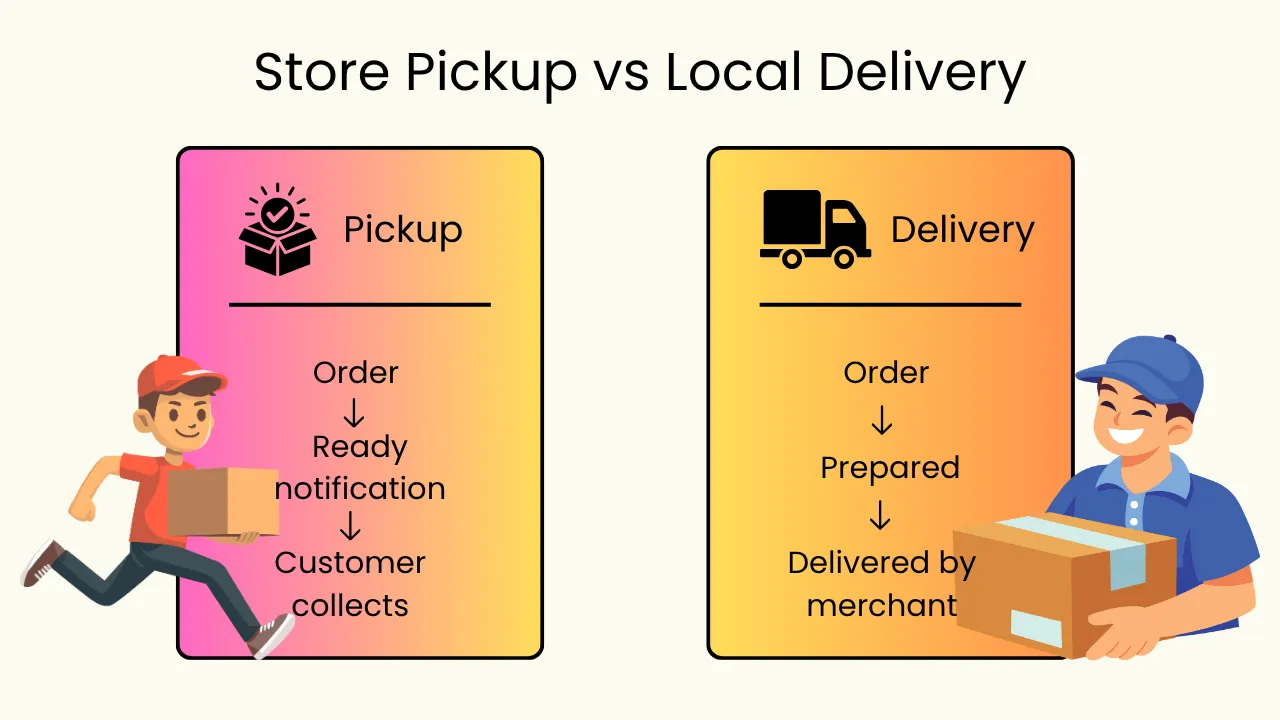
Shopify local pickup is a fulfillment option that allows customers to place an order online and collect it in person from your physical store instead of having it shipped.
During checkout, customers can choose In-Store Pickup as their delivery method.
How Shopify local pickup works
The pickup process is simple. When local pickup is enabled for a specific store location, it appears as a checkout option alongside shipping for customers buying a product from that particular location. They can choose pickup, pay online, and collect their order when they receive the order pickup notification. Shopify sets local pickup to free by default.
Benefits of offering local pickup
Offering local pickup can help you:
- Eliminate shipping costs: No shipping cost is passed to the customer or absorbed by you. It's a win-win for both the customer and the merchant.
- Speed up order fulfillment: You can work on more orders without worrying about delivering the product safely on time.
- Increase foot traffic to your store: Customers picking up their orders often browse your store, creating opportunities for additional purchases.
- Improve customer convenience: Customers can pick up the order at their convenience instead of waiting at home for a delivery.
- Reduce delivery delays: You can avoid delivery mishaps, including missed deliveries, shipping delays, and orders getting lost in transit.
Businesses that benefit most from Shopify local pickup
Bakeries, florists, pet stores, and any local retailer with a walk-in storefront and an inventory that can be fulfilled the same day benefit the most from local pickup.
Imagine you own a neighborhood bakery.
A customer orders a birthday cake online at 9 a.m. and chooses local pickup. Your staff prepares the order by noon, and the customer collects the cake on the way home—without paying for shipping.
What is Shopify local delivery?
Shopify local delivery allows you to deliver orders directly to customers located within your chosen delivery area. Instead of shipping through a courier, you or your local delivery partner will fulfill nearby orders. Customers only see this option if their delivery address falls within your configured delivery zone.
This is essentially the opposite of how Shopify local pickup works.
How Shopify local delivery works
For Shopify local delivery, you have to establish your ground rules first. Set a delivery zone (by radius or by zip/postal code), set a delivery rate, and if necessary, a minimum order value. Customers within your set zone will be able to see "Local delivery" as a delivery option at checkout. They simply select the option, pay the delivery fee, provide a delivery address, and place their order.
Once the order is ready, you dispatch the order for doorstep delivery. It is important to understand that fulfillment is entirely on you; Shopify doesn't dispatch a courier on your behalf.
Benefits of offering local delivery
Offering local delivery can help you:
Offer same-day or next-day delivery: You can fulfill orders much faster than traditional shipping. Customers get their orders without waiting for several days.
Reduce shipping costs: Local deliveries often cost less than using third-party carriers, especially when you're delivering multiple orders within the same area.
Build customer loyalty through convenience: Fast and reliable local delivery encourages repeat purchases. This gives your customers another reason to shop with your business instead of a competitor.
Businesses that benefit most from Shopify local delivery
Grocery stores, meal prep services, and furniture retailers benefit most from Shopify local delivery when standard shipping is slow, expensive, or impractical for the product itself.
A furniture store delivering a dining table across town, when the customer's address falls within the delivery zone on the same day or the next, instead of freight-shipping it over a week, is the clearest example of effective use of local delivery.
Shopify local pickup vs Shopify local delivery
Although both options help you fulfill nearby orders, they serve different purposes.
Should you offer local pickup, local delivery, or both?
If you have a physical store rather than a warehouse from which you operate your business, both options are beneficial. They serve different customer needs altogether. Pickup suits customers who are already in the neighborhood and wish to save on the delivery fee. Delivery is more convenient for customers who can’t or don’t want to travel to the store but live in your neighborhood.
For example:
- A bakery may offer pickup for custom cakes and delivery for everyday orders.
- A grocery store may offer free pickup but charge for home delivery.
- A florist may let nearby customers choose whichever option suits them best.
Giving customers multiple fulfillment choices often improves conversion rates and customer satisfaction.
How customers experience Shopify local pickup and local delivery
Prerequisites to set up Shopify store pickup and Shopify local delivery
Before enabling either feature, make sure your Shopify store is configured correctly. Here are a few things to get you started.
Create and configure store locations
Both local delivery and local pickup are tied to a specific Shopify location.
Navigate to Shopify Settings > Locations and add your store location. If you operate from multiple stores, create a location for each one.
If you only sell online with no physical address, you'll need to add at least one location that represents where orders are fulfilled from.
Assign inventory to locations
Pickup and delivery only appear at checkout for products that are stocked at a location. So all products must have inventory assigned to the correct location.
You can double-check this under each product's Inventory tab. This is the single most common reason merchants report the option "isn't showing."
Enable store pickup and local delivery
Confirm the location is set to accept online orders (not just POS/in-person sales).
Navigate to your Shopify Settings > Locations > [Location name] > Turn on Fulfillment toggle.
A location excluded from online order fulfillment won't offer pickup or delivery, no matter how the shipping settings are configured.
How to set up Shopify local pickup
1. Go to Settings → Shipping and delivery.
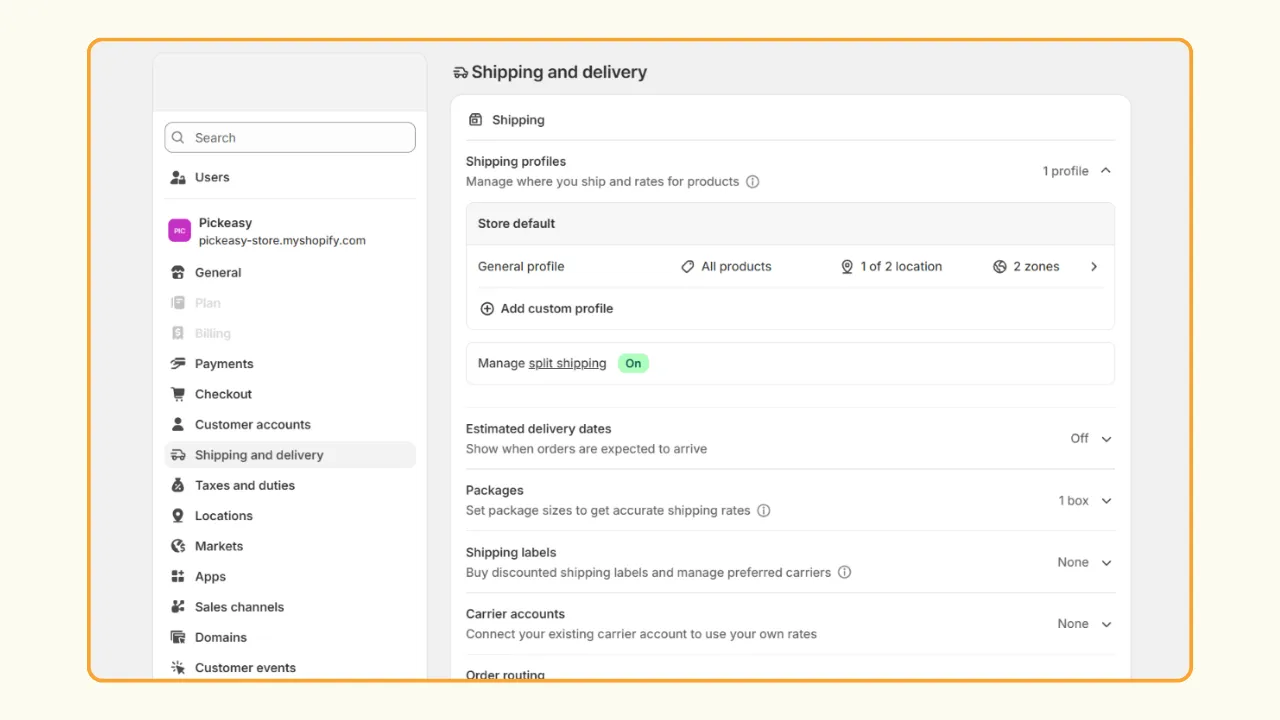
2. Under Additional delivery methods, select Pickup in store.
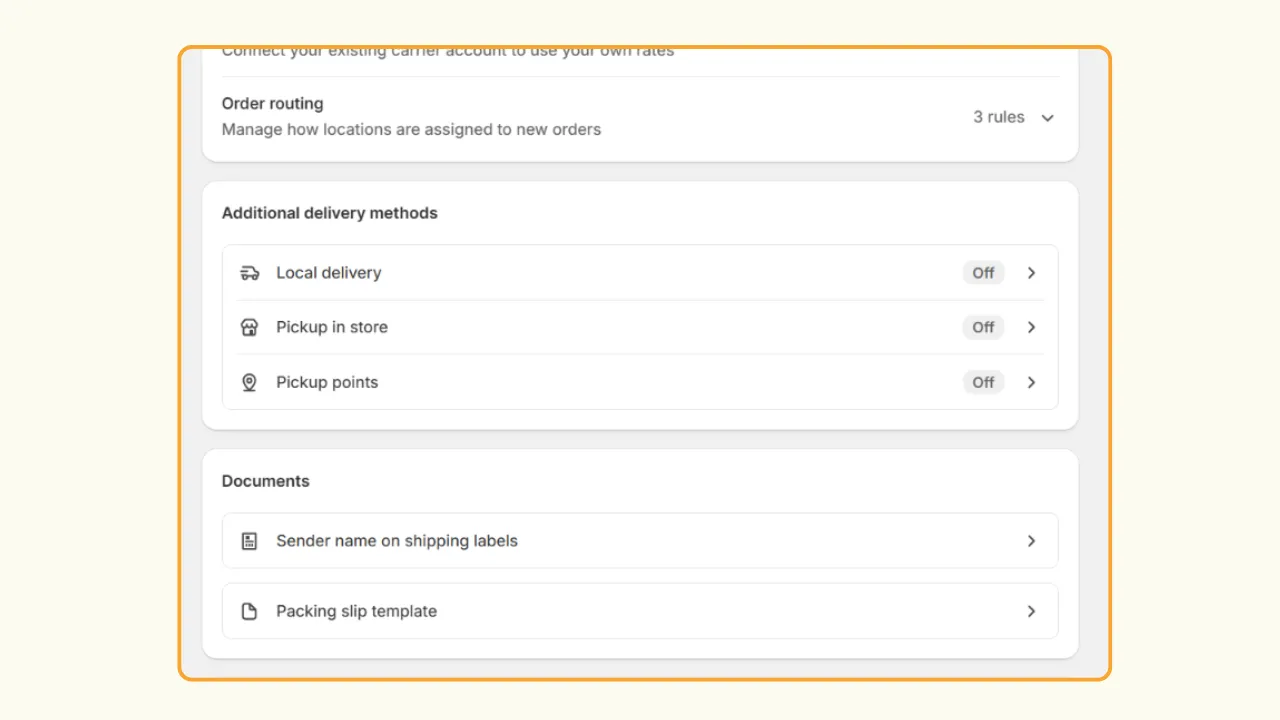
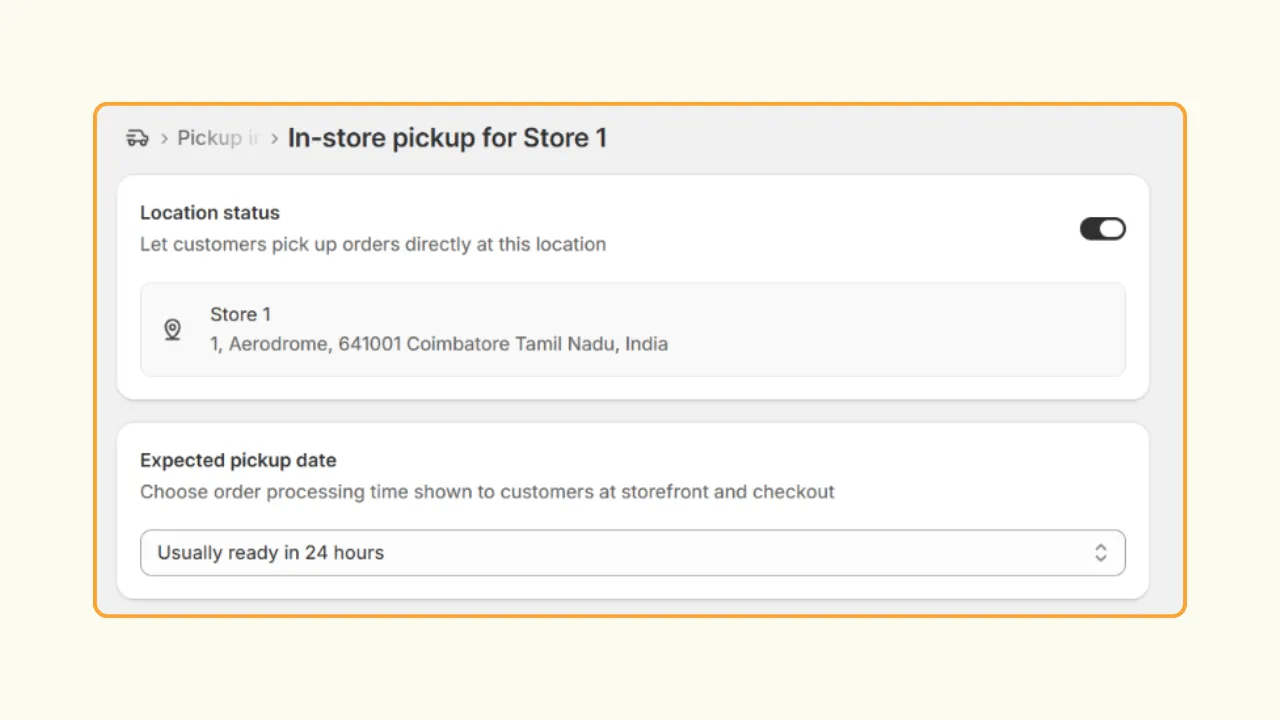
3. Choose your store location and turn on the Location status toggle.
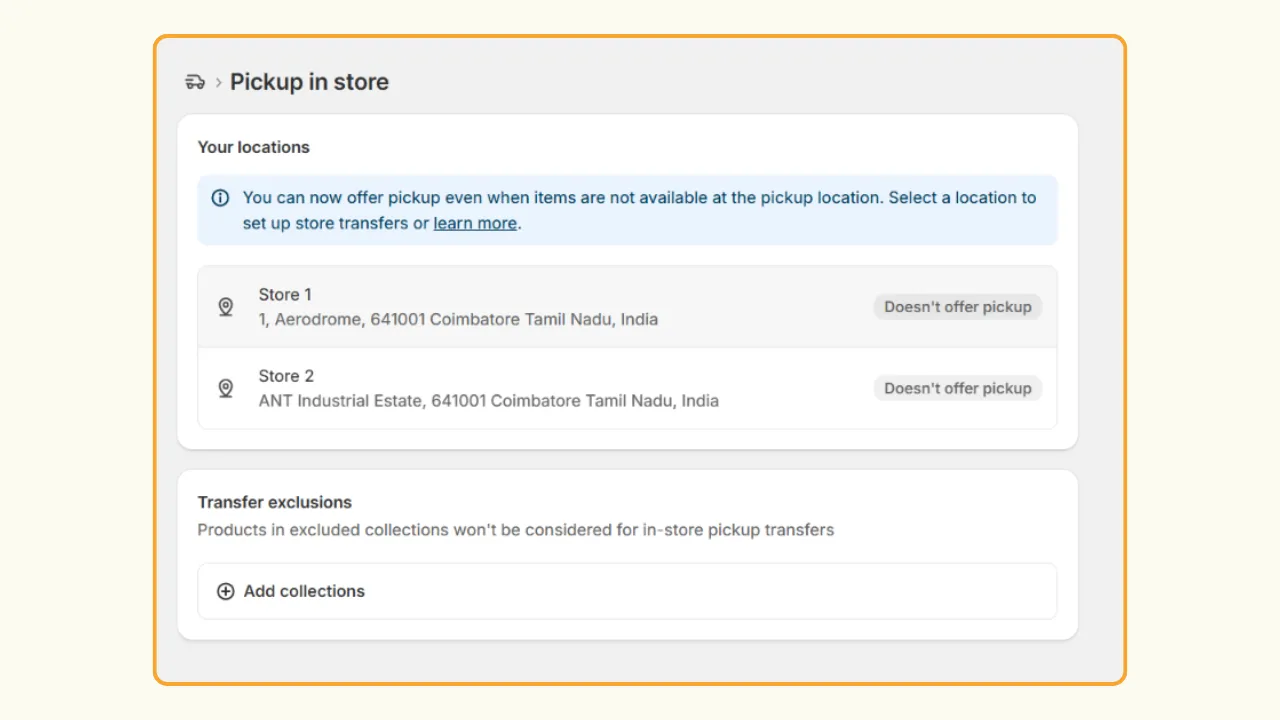
4. Choose a pickup timeline under Expected pickup date.
5. Set up Store transfer if applicable and set up Ready for pickup notification with pickup instructions for your customers.
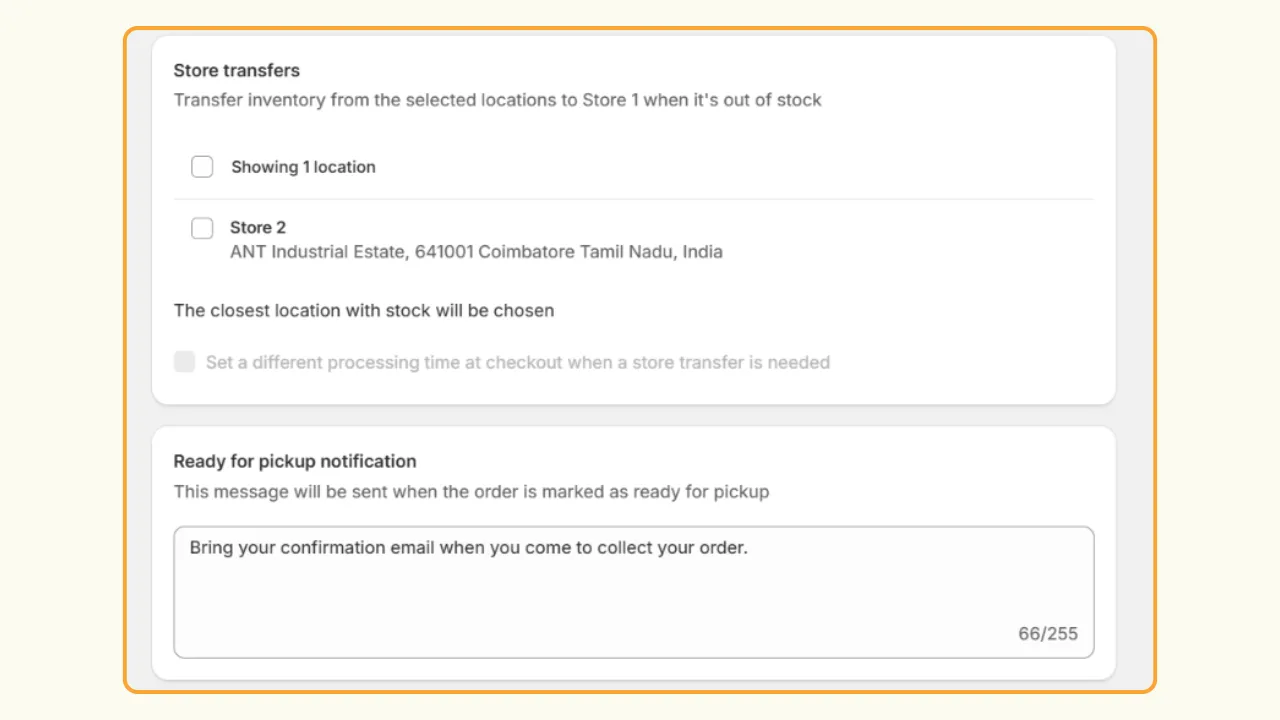
6. Cross-check the preview and press Save.
How to set up Shopify local delivery
1. Go to Settings → Shipping and delivery.
2. Under Additional delivery methods, select Local delivery.
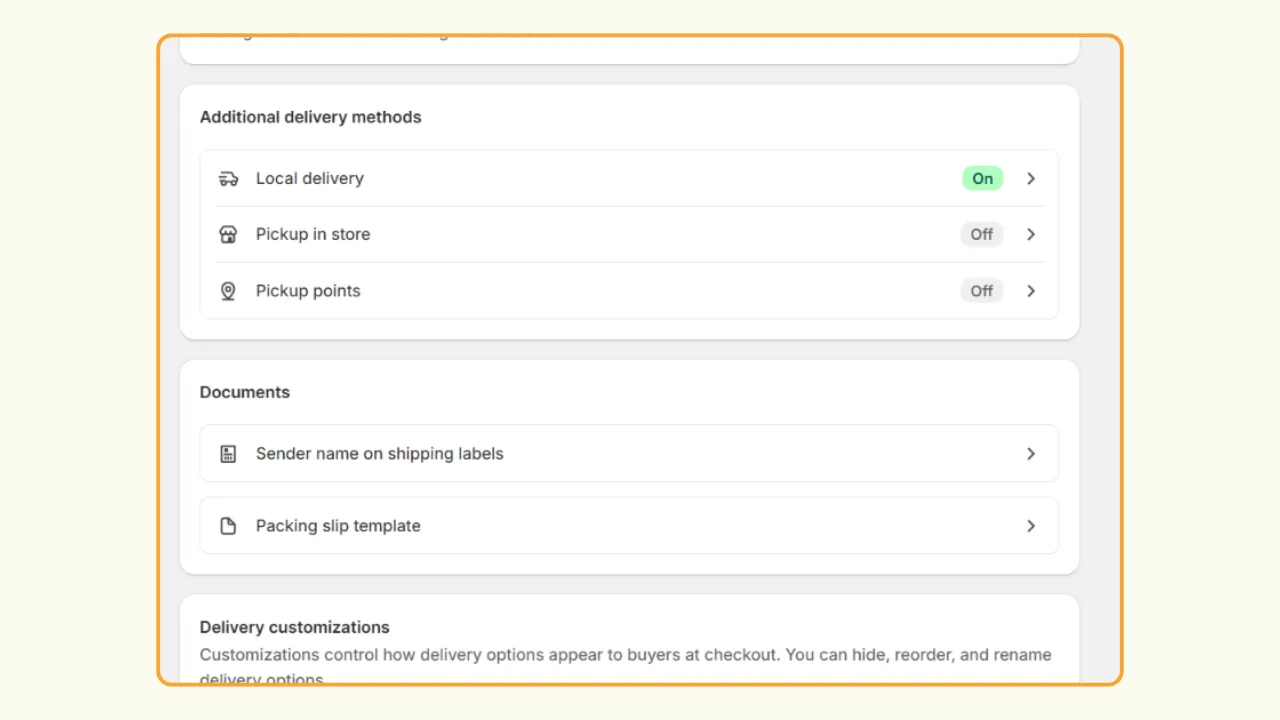
3. Select your location.
4. Under Delivery zones, select Use a PIN code or Set a delivery radius.
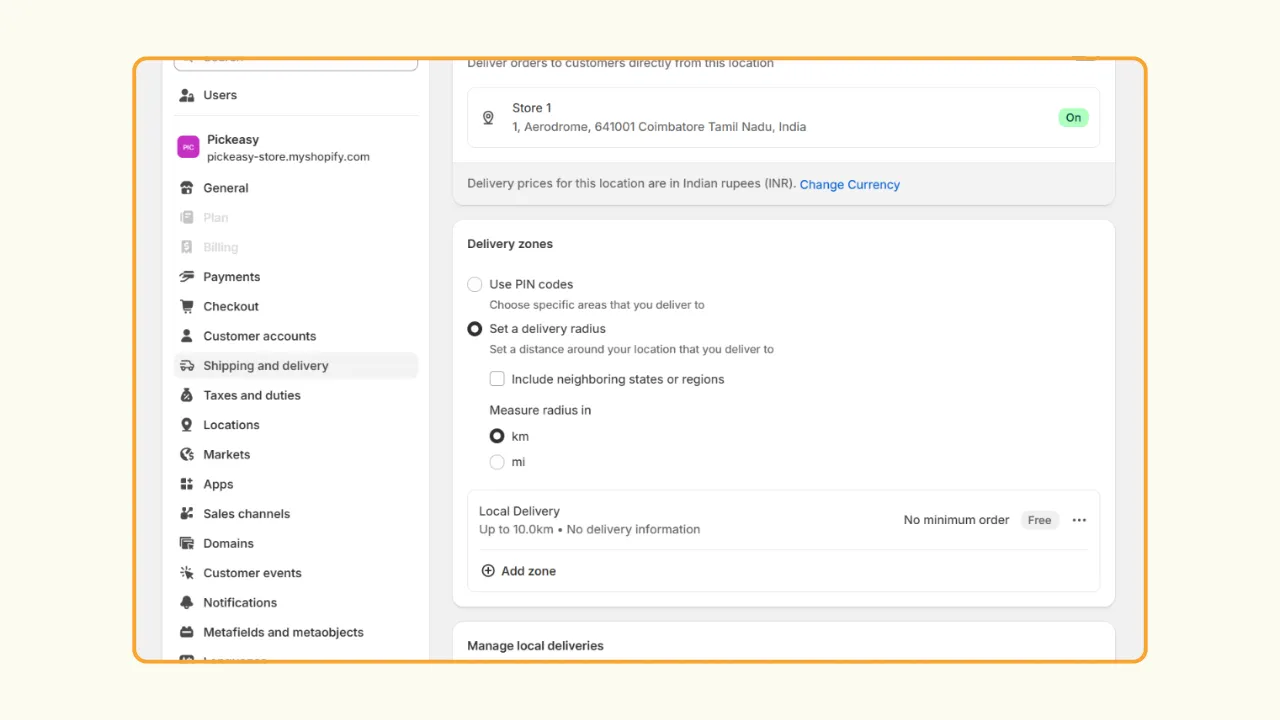
5. Click Add zone to create a new price.
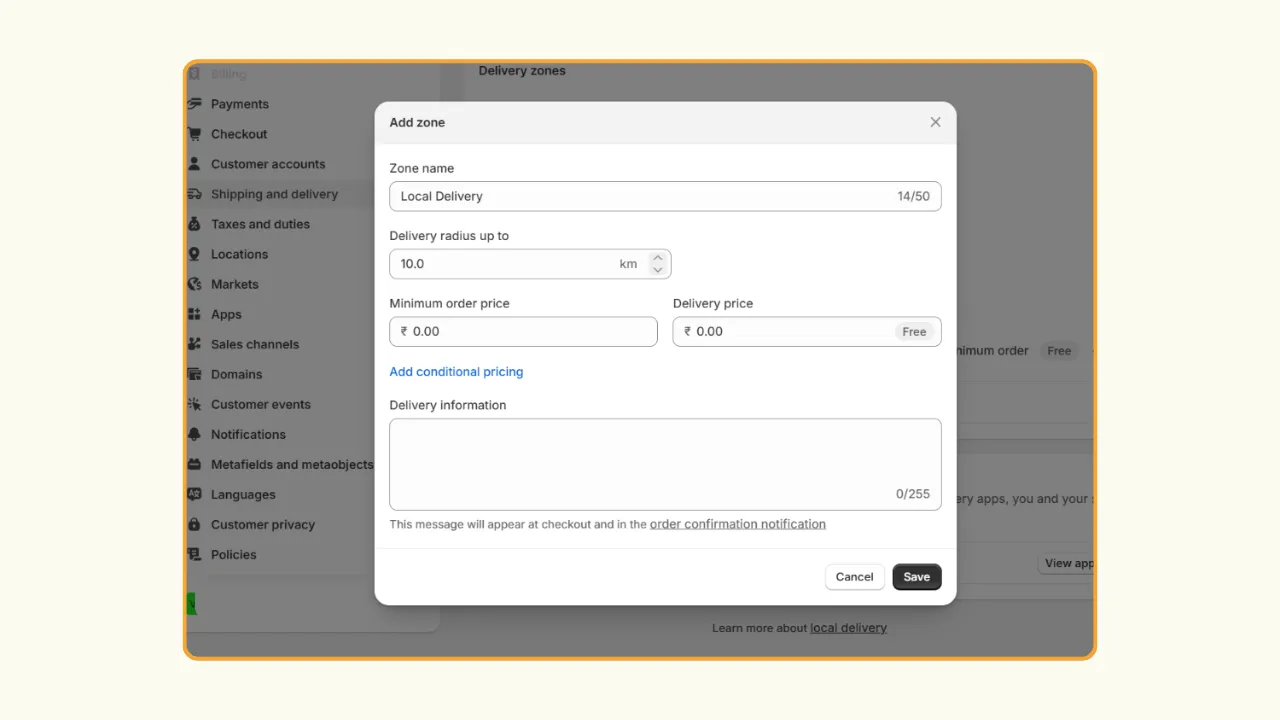
6. Enter the zone name and PIN code or delivery radius.
7. Set a minimum order value and set the delivery price based on your needs. Click Save.
Limitations of Shopify's native store pickup and local delivery
Shopify’s built-in local pickup and delivery works well if your fulfilment needs are simple and your business is still new and small. You can offer pickup from your store and deliver orders within specific areas without adding another app.
However, as your order volume grows or your delivery process becomes more complex, you may need more control over when and how customers receive their orders, which Shopify doesn’t support natively.
Here are some common limitations you may encounter.
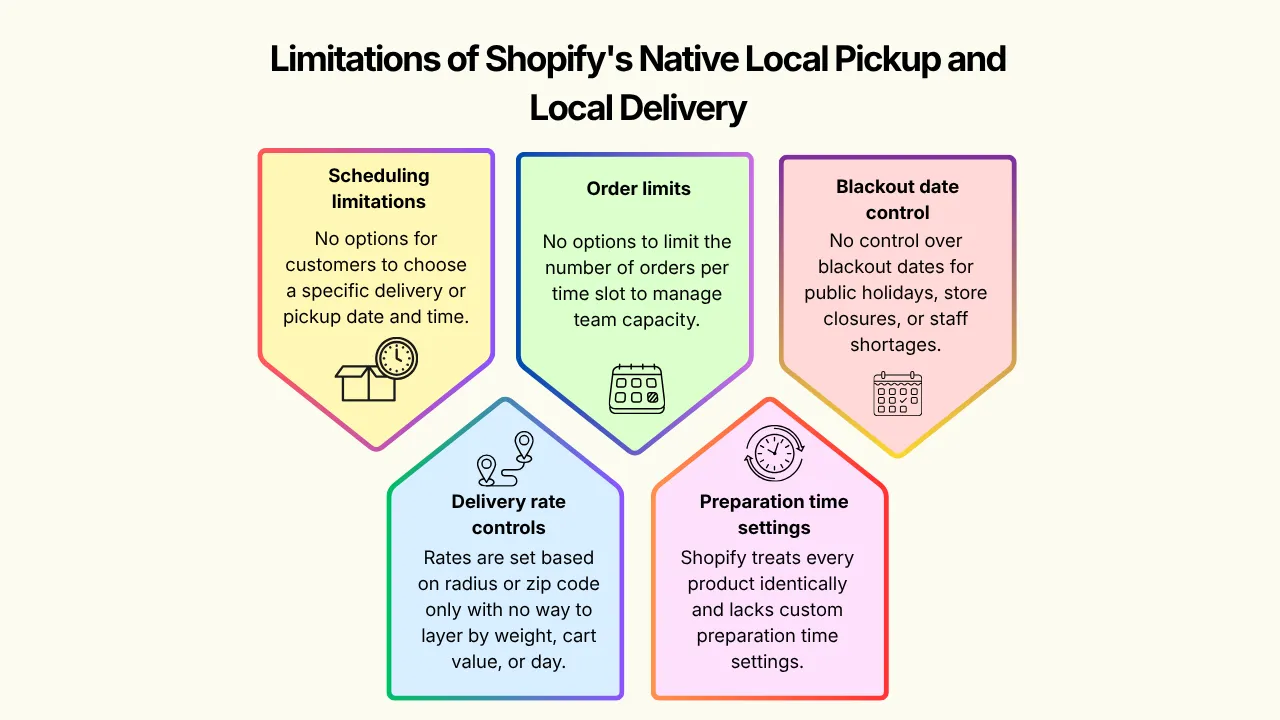
Limited delivery and pickup scheduling
Shopify's native setup allows you to offer local pickup and delivery, but does not have options for customers to choose a specific delivery or pickup date and time.
When customers are not given an option to choose a specific delivery date, orders are fulfilled whenever you're able to get to them, with no calendar-based selection at checkout.
Similarly, with no specific pickup window — customers place the order and wait for a "ready" notification rather than choosing "3 p.m. Thursday" upfront.
For example, a bakery taking cake orders may need customers to select Friday between 2 PM and 4 PM for pickup rather than simply choosing "Local Pickup."
Limited delivery rate controls
Shopify natively supports radius- or zip-code-based delivery zones only, and so rates are set based on that with no way to layer in different rates by weight, cart value, or day of the week within the same zone.
No order limits per time slot
Businesses can only handle a certain number of orders at a time, and Shopify does not have options to limit orders per time slot.
Imagine a bakery that can prepare 10 pickup orders between 10 AM and 11 AM. Without slot-based order limits, too many customers could choose the same pickup period, putting unnecessary pressure on your team.
Setting order limits for individual time slots helps spread orders throughout the day. The lack of an option becomes a real problem once volume grows past what your team can handle.
No preparation time settings
Not every product takes the same amount of time to prepare. Product-level preparation times help ensure customers only see realistic pickup and delivery dates.
But Shopify treats every product identically for readiness. There's no setting to tell Shopify a custom cake needs 24 hours while a packaged snack needs none.
A florist may need two hours to prepare a standard bouquet but 24 hours for a custom arrangement.
Limited control over blackout dates
Shopify does not offer control over blackout dates. Your store may not deliver or offer pickup every day of the year.
Public holidays, store closures, staff shortages, and special events can all affect your availability. Businesses with complex schedules may need greater control over blackout dates to prevent customers from selecting unavailable days.
Extend Shopify local pickup and local delivery with Pickeasy
If your business needs more flexibility than what Shopify's native setup provides, a pickup and delivery scheduling app like Pickeasy can help you manage the process.
Pickeasy adds scheduling and fulfillment controls that allow you to decide not only where an order can be delivered or picked up, but also when.
With over 1200 five star reviews and trusted by more than 8500 brands, Pickeasy is specifically built to close the gaps listed above. It seamlessly works alongside Shopify's native pickup and delivery settings.
1. Install the Pickeasy app from the Shopify app store.
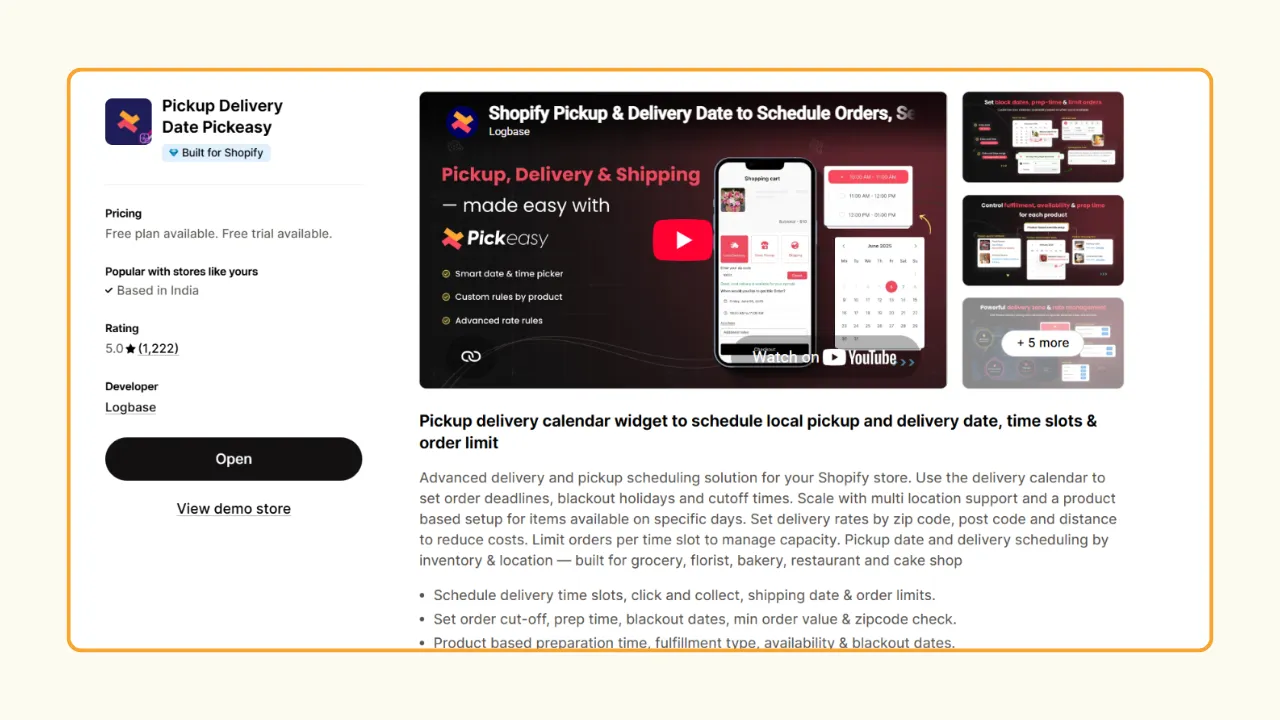
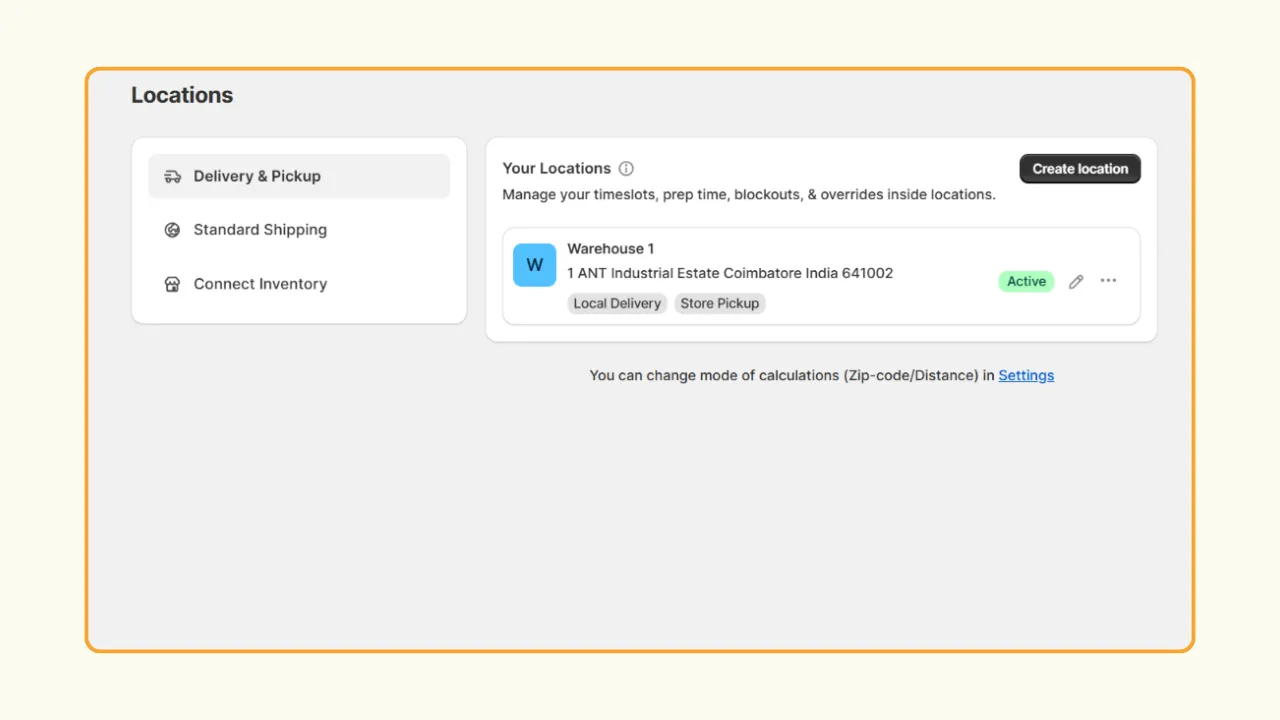
2. Open the app, navigate to Locations, and under Delivery & Pickup, add your store location(s).
3. Under Fulfilment type, choose your fulfilment method (Local delivery or store pickup or both) and optionally set a minimum order value.
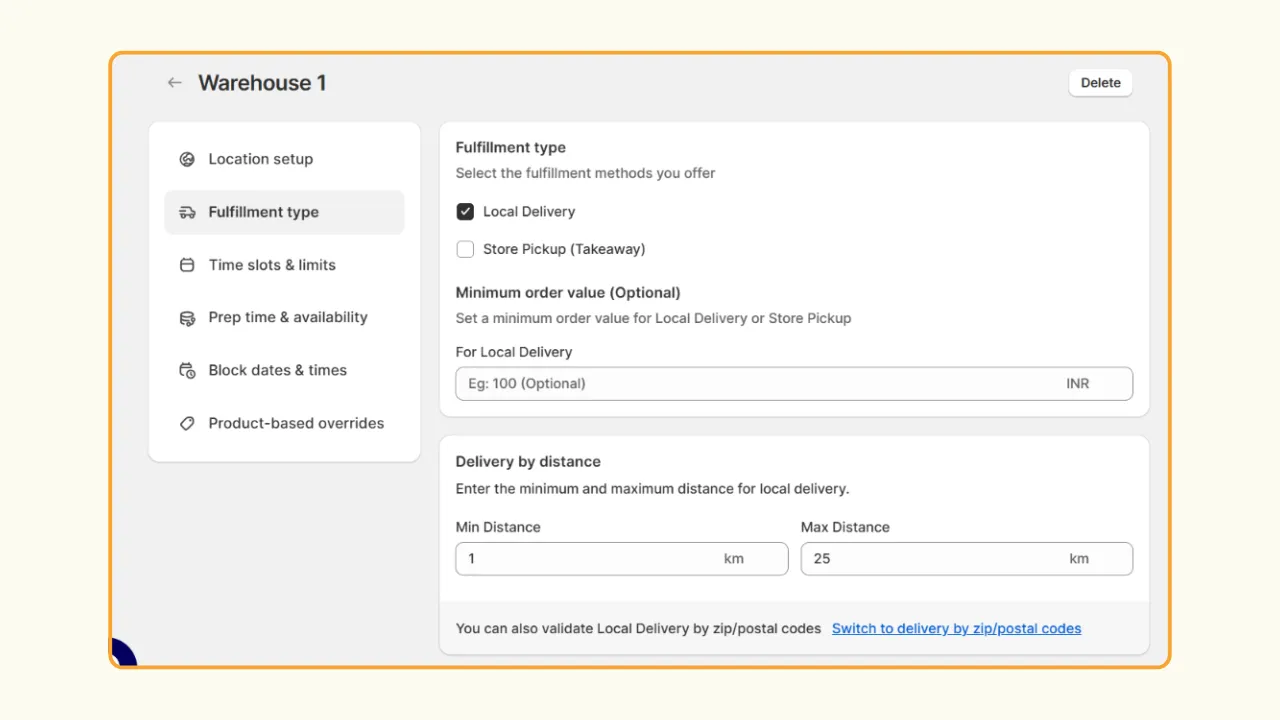
4. Set your delivery radius either by distance or by zip- or postal codes.
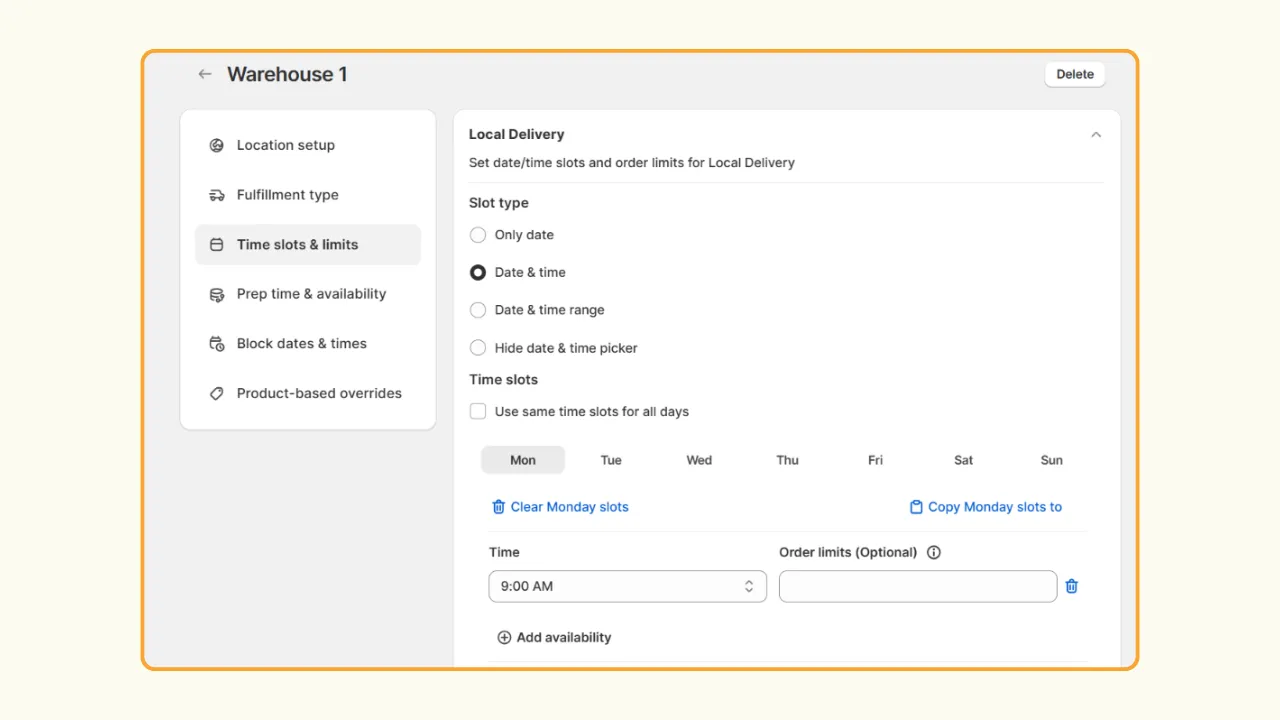
5. Under Time slots & limits, choose a slot and customize it to suit your store needs. Click on ‘Same as Local Delivery’ under Store Pickup for similar customization.
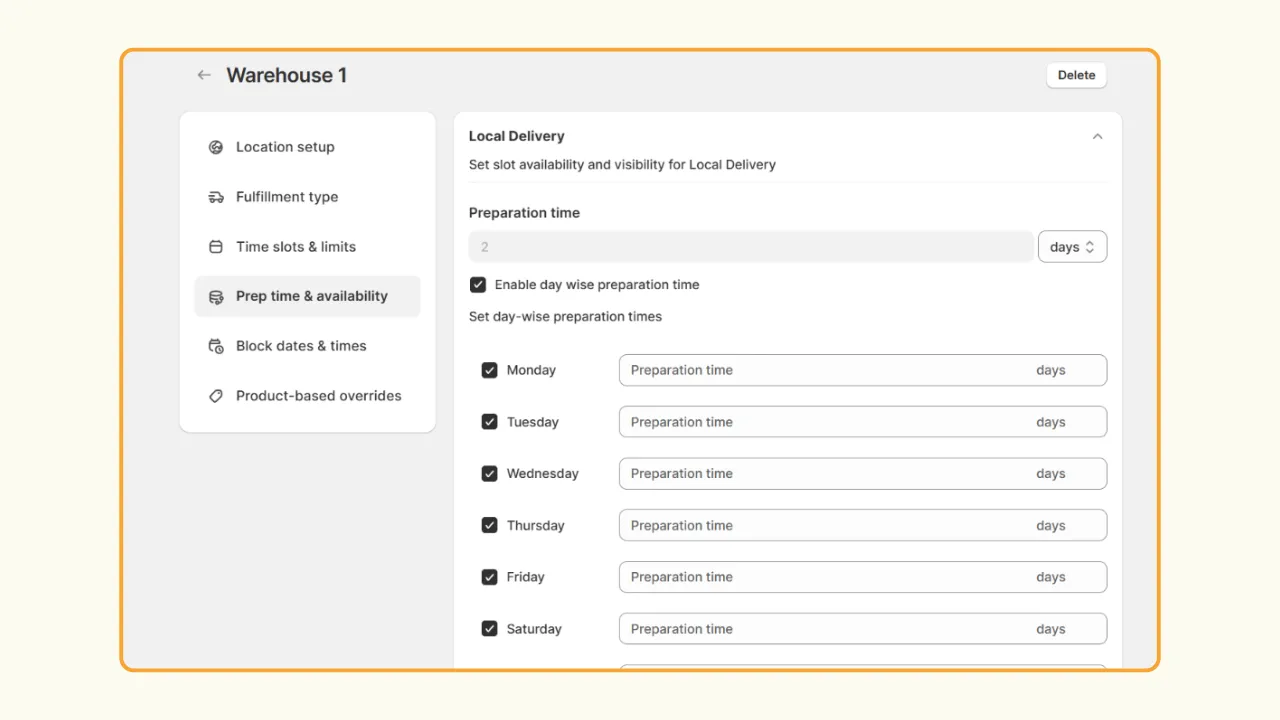
6. Under Prep time & availability, set preparation time (you can set different times for different days) and slot visibility.
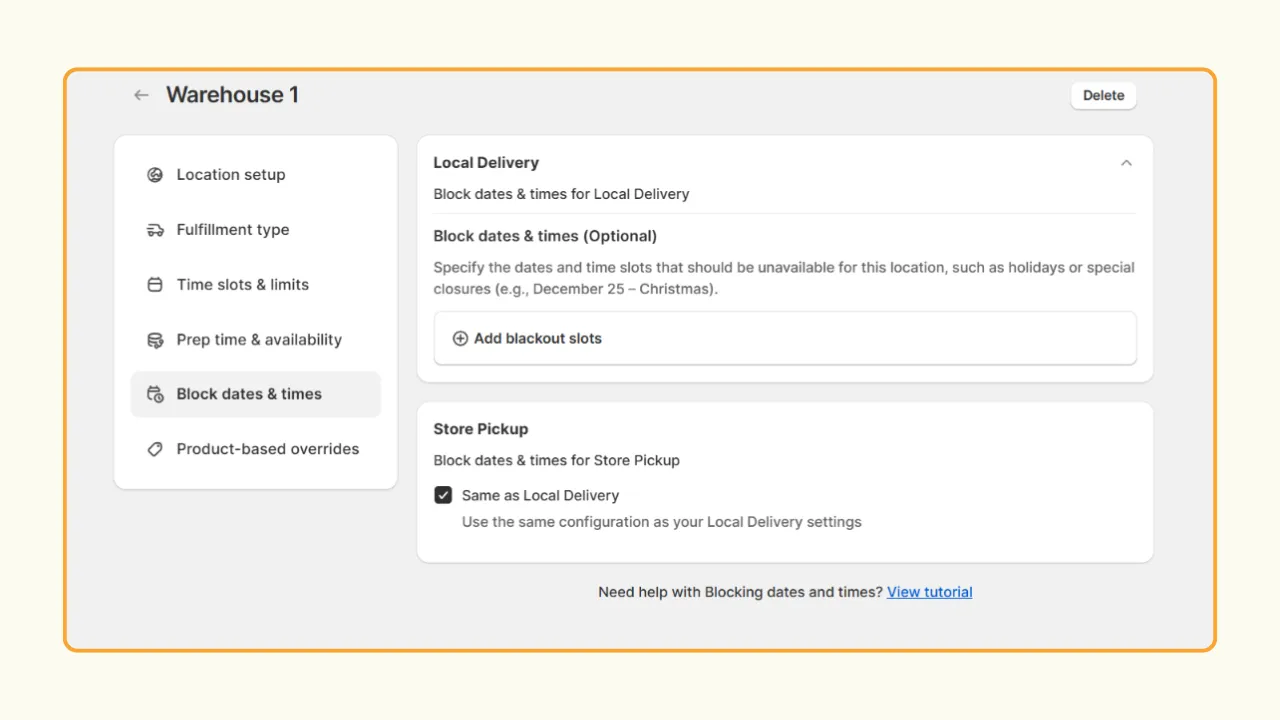
7. Optionally. create black out days along with a time slot under Block dates & time.
8. Press Save to complete the setup.
Shopify native features vs Pickeasy
Which option is right for your business?
The right option depends on the level of control your business needs.
Shopify's native features are a good starting point for merchants with simple pickup and delivery requirements. Pickeasy is better suited to businesses that need advanced scheduling and operational controls.
You can also start with Shopify's built-in features and move to an app as your local fulfillment needs become more complex.
Store pickup and local delivery setup examples
Here are some examples of how pickup and delivery, especially with an app like Pickeasy, work in different stores.
Bakery
A bakery can enable local pickup with a 24-hour or a 2-day prep time for custom cakes while offering same-day pickup for standard items. Using Pickeasy, customers select a specific pickup slot, and the bakery can limit cake orders to four per hour to avoid decorating bottlenecks.
Florist
A florist can offer both pickup and same-day local delivery within a 5-mile radius. Blackout dates can be set for holidays when the shop is closed, and preparation time can be set dynamically based on the order. The prep time can be higher for custom arrangements than for pre-made bouquets.
Grocery store
A grocery store can set a delivery zone by zip code with a flat $6 fee while also offering free delivery for all orders above $75. Time slots can be limited to avoid overloading a single delivery driver, and delivery rates can vary by zone to account for driving distance.
Restaurant
A restaurant can enable pickup with a short, tight preparation window and create order limits per slot to avoid a kitchen bottleneck during peak lunch hours. They can even have black out days/time when they are fully booked.
Best practices for Shopify local pickup and Shopify local delivery
Setting up local delivery and pickup is only the first step. A clear and reliable process helps create a better experience for both customers and your team. Here are some of the best practices to follow while offering store pickup and local delivery on Shopify.
Keep pickup instructions clear
Tell customers exactly where and how to collect their order.
Include your store address, opening hours, contact information, parking instructions, and anything customers need to bring when collecting their order.
This helps avoid confusion and mishaps during the time of pickup.
Define realistic delivery areas
Don't create a delivery zone that's larger than your team can serve. Start with a manageable area and expand as your delivery capacity grows.
Set realistic delivery rates that neither eat into your profit nor make customers cancel the order.
Set accurate preparation times
Give your team enough time to prepare every order.
If a product requires longer preparation time, don't allow customers to schedule same-day pickup.
If you offer same-day delivery, set a clear ordering deadline.
For example, orders placed before 1 PM could qualify for same-day delivery, while orders placed after 1 PM automatically move to the next available day.
Keep customers updated
Send a status update as soon as an order is ready or out for delivery, rather than only communicating when something is delayed. Customers should always know what is happening with their order.
Common mistakes to avoid while setting up store pickup and delivery on Shopify
Even a small configuration error can prevent pickup or delivery options from appearing at checkout or create chaos during the time of pickup and delivery.
Here are some common mistakes to watch for.
Forgetting to assign inventory
If product inventory is not properly tracked or assigned, fulfilment options will not appear properly for customers.
Make sure products are stocked at the location responsible for fulfilling the order and updated on Shopify from time to time.
Creating unreasonable delivery zones
A large delivery area may help you reach more customers, but it can also bring in the risk of increased delivery time and cost.
Start small and expand based on your actual delivery capacity to avoid late deliveries and frustrated customers.
Not testing checkout
Always test your store setup from the customer POV before going live. Test the entire customer journey, from adding a product to the cart to completing the order.
This helps you catch problems before your customers do.
Offering unrealistic delivery times
Same-day delivery sounds attractive, but only offer it if your team can consistently meet the promise.
A reliable next-day delivery service is better than an unreliable same-day service.
Keeping to the delivery schedule has a great impact on customer satisfaction and return rate.
Ignoring store closures and holidays
Keep your availability calendar updated.
Block dates when your business cannot fulfill pickup or delivery orders to avoid last-minute order cancellations.
Troubleshooting Shopify Local Pickup and Local Delivery
If customers can't see Shopify local pickup or local delivery at checkout, check your store configuration before assuming there's a technical problem. Here are three common issues that keep recurring, which can be resolved in under a minute.
Shopify local pickup isn't showing at checkout
If you are not able to find the local pickup option at checkout, go to your settings and check whether:
- Local pickup is enabled for the location.
- The product is available at that location.
- The customer's cart is eligible for pickup.
Test again after reviewing your location and inventory settings.
Shopify local delivery isn't available
If you are not able to find the local delivery option at checkout, go to your settings and make sure:
- Local delivery is enabled.
- The customer's address is within your delivery zone.
- The order meets any minimum order requirements.
- The products can be fulfilled from the correct location.
Try placing a test order with an address you know is inside your delivery area to ensure your delivery setup has no errors.
Delivery rates aren't displaying correctly
If your customers are not able to get their delivery rates properly,
- Review your delivery rate rules and minimum order conditions.
- Test several cart values and addresses to make sure the correct rates appear.
- If you're using an app for advanced delivery rates, also check whether its rules conflict with your Shopify shipping settings.
Wrapping up
Shopify Local Pickup and Shopify Local Delivery give merchants two practical ways to serve nearby customers without relying entirely on traditional shipping. And honestly, this saves both time and money for all parties involved.
If your fulfillment needs are straightforward, Shopify's native features can be a good place to start. As your business grows, however, you will need help managing delivery schedules, pickup times, preparation times, capacity, and availability.
With Pickeasy, a dedicated local delivery and pickup app, you can give your customers more control over when they receive their orders while giving your team more control over how many orders you accept and when you fulfill them.
The goal isn't simply to offer more delivery options. It's to create a local fulfillment process that works reliably for your customers and your business.
Frequently Asked Questions
1. Can I charge customers for Shopify Local Delivery?
Yes. You can configure a delivery fee for eligible local delivery orders. Your pricing strategy can depend on your delivery costs and business model. Some businesses also offer free delivery when customers spend above a certain amount.
2. Can customers schedule a pickup time?
Shopify's native features are designed for basic local fulfillment. If you need customers to select specific dates and time slots, you may need a scheduling app such as Pickeasy.
3. Can I set different delivery fees for different areas?
Yes. With Shopify Local Delivery, you can create different delivery zones and set different delivery fees based on the customer's location. For example, you could charge $5 for customers within 5 miles and $10 for customers farther away. You can also set conditions such as a minimum order value or offer free delivery when the order reaches a certain amount.
4. How to manage pickup and delivery orders from Shopify admin dashboard?
Once pickup or delivery is live, every eligible order shows its fulfillment method directly in Orders. To work with just pickup or delivery orders:
- Go to Orders in your Shopify admin.
- Use the Delivery method filter and select Local pickup or Local delivery.
- Open an order to manage its fulfillment status.
- For pickup, you can mark the order as Ready for pickup once it's prepared. Shopify then automatically notifies the customer that their order is ready.
- For local delivery, you can update the order as it moves through the fulfillment process and keep customers informed about its status.
If you're running pickup or delivery from more than one location, orders aren't automatically grouped by location in this view — check the Location column on each order, or use a scheduling app if you need separate queues per location.
5. How to set up and manage local pickup and delivery with Shopify POS
You don't need to set up local pickup or delivery separately in Shopify POS. The initial setup is done from your Shopify admin, while Shopify POS helps your staff manage these orders day to day. Go to Settings → Shipping and delivery in your Shopify admin and enable local pickup or local delivery
To manage orders from the Shopify POS app:
- Open Orders from the POS home screen.
- Filter your online orders by the relevant delivery type, such as Local delivery.
- Select an order to view its details, including any delivery instructions provided by the customer.
- Update the order status as your team prepares and fulfills it.
You can also enable push notifications in Shopify POS to alert your staff when new pickup or local delivery orders arrive.
.avif)
.webp)
.webp)
.webp)
.svg)
.svg)
.svg)


.svg)