.svg)
How to Set Shipping Rates by ZIP Code in Shopify (2026)
Last updated on
October 8, 2026
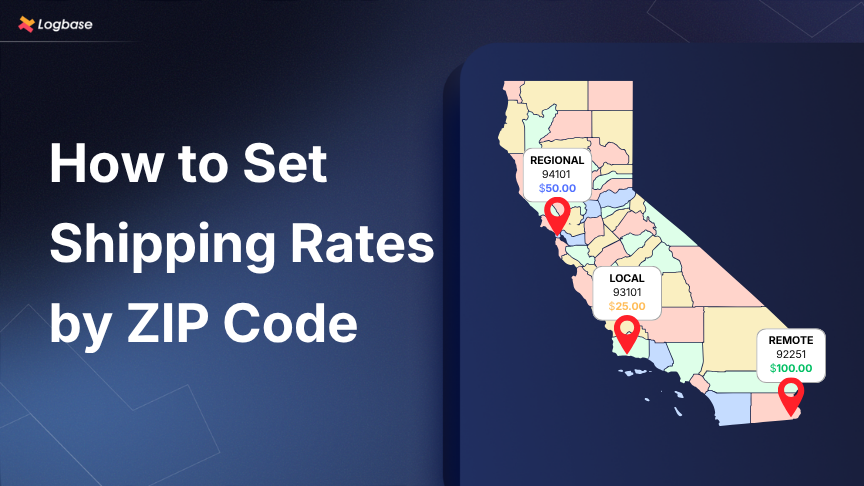
Two customers add the same $80 table to their cart. One is in Newark, one is in rural Montana, and you’re charging both $12 flat. Newark finds the shipping to be costly and leaves. Montana cost you $30 to ship, so you lose $18 to convert that order. A flat rate loses money on both ends.
The solution? A ZIP-code based rate structure that charges customers what it actually costs to reach their destination.
Quick answers:
- Shopify native settings can set rates by ZIP code natively only for Local Delivery. It’s free and works on any Shopify plan.
- Native setting limitations: Support only 10 postal-code zones per location, and you can only add order value conditions.
- If you want more zones or need condition flexibility (e.g., ZIP code + weight, ZIP code + product, etc.), you need a shipping rate app like ShipX.
The rest of this article covers how to set up native rates, its limitations, and what to use when you outgrow it.
How to set up ZIP code rates Shopify native settings
If you deliver from your own store or warehouse, Shopify lets you build delivery zones from specific postal codes and charge a different price for each one.
Here’s the kind of setup Local Delivery handles on its own:
If that’s all you need, here’s how to set it up.
Setting up ZIP code rates with Shopify Local delivery
You can create up to 10 delivery zones per location. Each zone has its own postal codes and delivery price, plus up to 3 additional price-based rules.
- Go to Shopify admin > Settings > Shipping and delivery.
- Under Additional delivery methods, select Local delivery.
- Choose the location you want to set rates for.
- Under Delivery, select Use postal codes, the click Add zone.
- Enter a zone name and its postal codes.
- Set a minimum order price and delivery cost for the zone.
- Click Save, then repeat for each zone.
Keep in mind: Local delivery is not the same as general shipping. Here are a few limitations you may encounter in local delivery rates..
Local delivery postal code rates limitations
- Order value is the only condition: You can’t charge rates based on weight, product type, quantity, or customer. A 5 lb lamp and a 100 lb sofa going to the same ZIP code get the same price.
- Zone limitations: Native postal code zones are limited to 10 for each fulfillment location.
How to set up ZIP code shipping rates with ShipX
With ShipX, you can either calculate custom ZIP-code rates with CCS or customize Shopify's native shipping rates based on ZIP code without CCS.
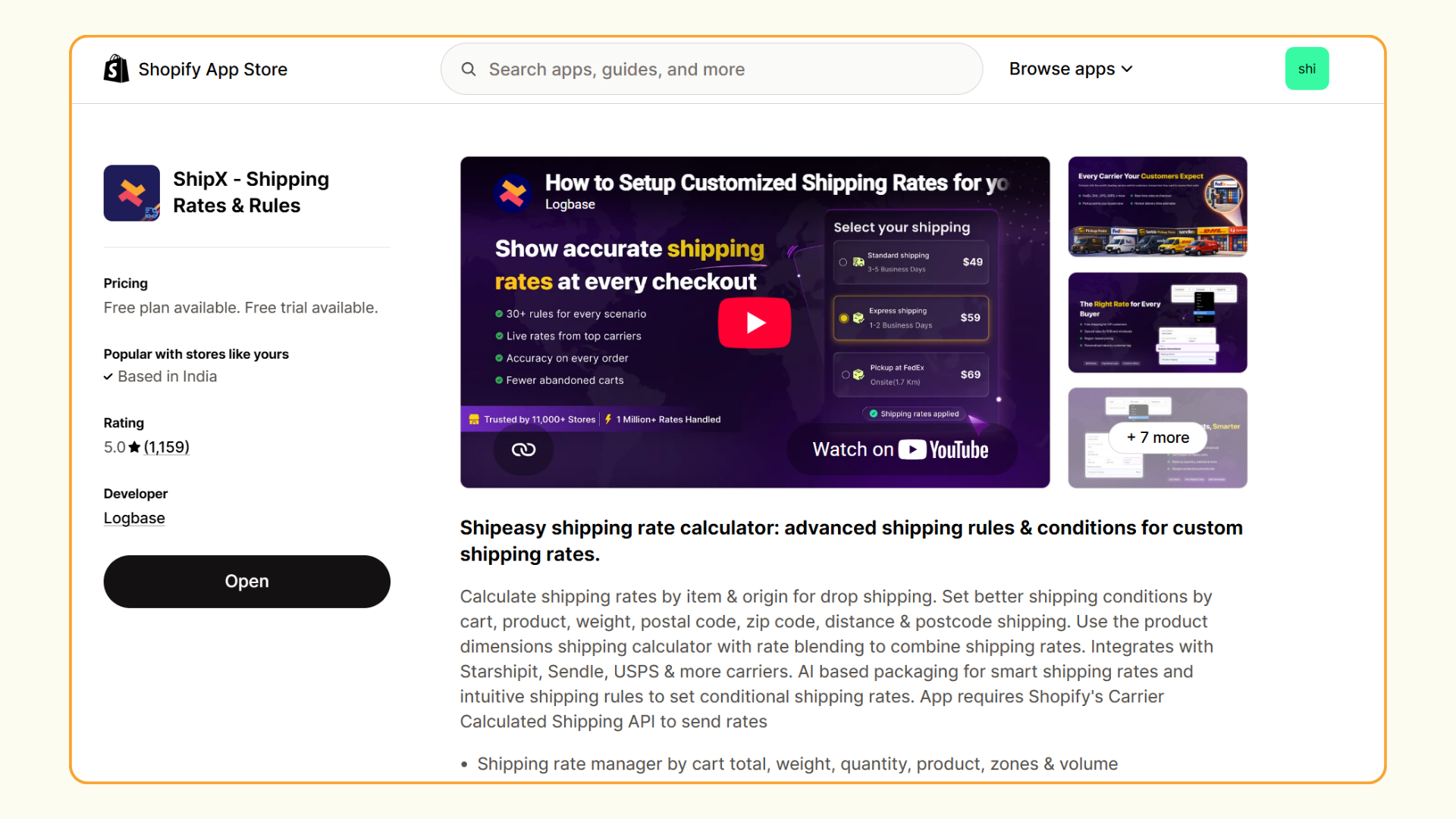
Option 1: Calculate custom ZIP-code rates with CCS
Shopify’s CCS API is available on the following plans:
Step 1: Define your ZIP code groups
Start by deciding which ZIP codes should share the same shipping rule. You can group them based on factors such as delivery cost, distance, service area, or whether you offer shipping to that location.
Once your ZIP code groups are defined, you can create the corresponding shipping rules in ShipX.
Step 2: Create scenarios or rules for each ZIP code group
Next, create a scenario or rule for each ZIP code group and define the conditions that should trigger it.
For example, if the customer’s ZIP code is within your local ZIP code group, the scenario would be:
Cart → ZIP code → Equals to → Enter your ZIP codes → Choose the shipping calculation method → Set the shipping rate.
You can repeat this process for other ZIP code groups with different rates.
Step 3: Combine ZIP code rules with other conditions
ZIP code does not have to be the only condition in your shipping rule. You can combine the destination rule with other cart or customer attributes to create more specific rules or rates.
Here are some combination logics,
Step 4: Test your ZIP-code shipping rules at checkout
Before making your shipping rules live, test them with different ZIP codes and order combinations. This catches overlapping rules, wrong ranges, and customers seeing a rate you didn't intend.
Option 2: Customize your existing rates by ZIP code without CCS
If you’re on a Basic or Starter plan, you can’t use calculated rates without upgrading. You can still customize how Shopify's shipping rates appear on the checkout using ShipX’s Delivery Customization feature.
ShipX's Delivery Customization doesn't create new rates. It changes how the rates Shopify already generates appear at checkout, based on the customer's ZIP code. You can:
- Hide a shipping method for specific ZIP codes.
- Show only selected shipping methods for a particular delivery area
- Add a custom message to a particular shipping method
- Reorder shipping methods so a preferred option appears first
Example: Hide a shipping rate for specific ZIP codes
You offer Standard and Express, but you can't deliver Express to some remote ZIP codes. A Delivery Customization rule hides Express for those ZIPs. Standard stays available, and customers never see an option you can't fulfill.
So do you need an app?
- You only charge different prices to different local ZIP codes: Use Shopify’s native Local Delivery. You don’t need to install anything.
- Your rates depend on weight, product, quantity, or cart value: Native settings can’t do this. That’s where ShipX comes in. CCS API is required.
- You don't have CCS API: ShipX’s Delivery Customization lets you hide or show Shopify’s existing shipping rates based on your ZIP-code rules.

.avif)
.avif)
.avif)
.svg)
.svg)
.svg)


.svg)