.svg)
Shopify Backorders Guide 2026: Setup & Strategies
Last updated on
May 15, 2026
Are you losing sales because your products are out of stock? According to a survey, nearly 40% of e-commerce sales are lost due to out-of-stock products.
Customers come to buy a product, and if it is sold out, they leave your store without purchasing anything. This is where Shopify backorders help you capture sales instead of losing them.
In this blog, we will cover the basics of Shopify backorders, including:
- What are Shopify backorders
- The difference between preorders and backorders
- Benefits of Shopify backorders
- How to set up backorders on your store
- Common mistakes in backorders
- Tips to create the best Shopify backorder campaign
What does Shopify backorders mean?
When a product is out of stock, it usually shows as sold out on the product page. It results in lost customers and reduced revenue.
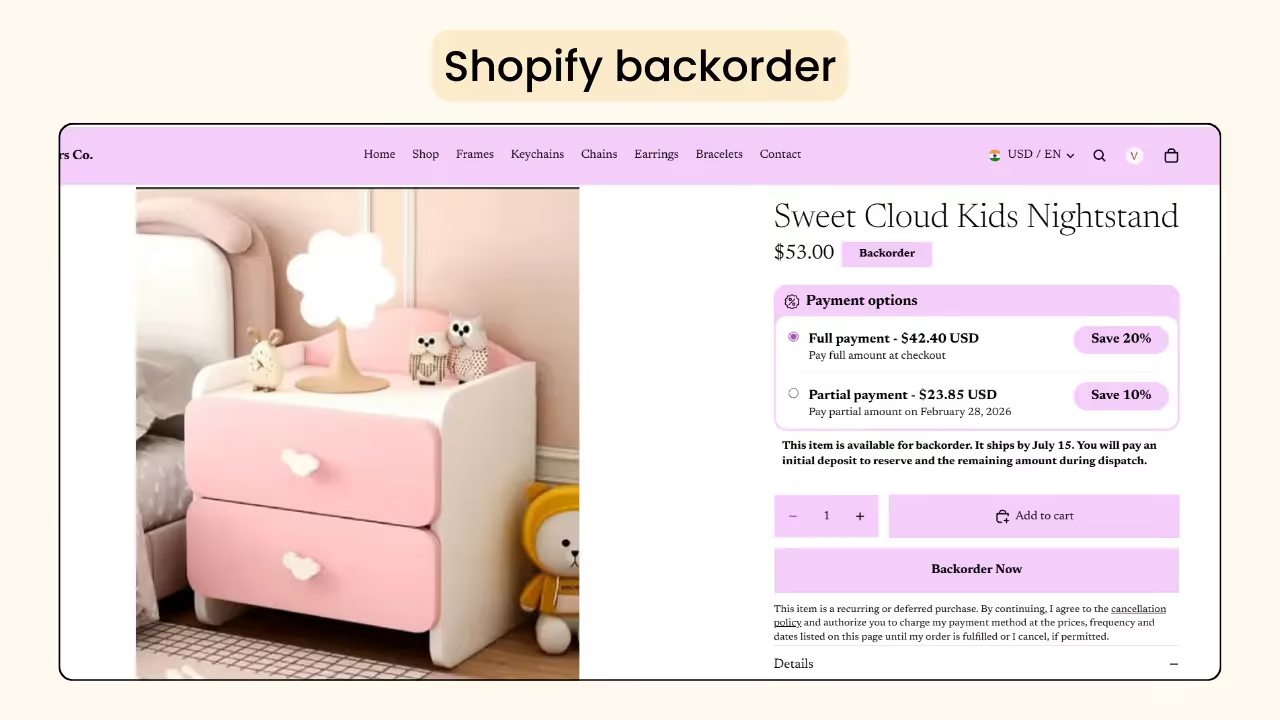
Shopify backorders are an e-commerce strategy that allows merchants to:
- Continue receiving orders even when a product is out of stock
- Boost your Shopify sales
- Avoid missed sales opportunities
Shopify preorders vs backorders
Shopify preorders and backorders are similar strategies that help boost sales when a product is not available, but they are used for different scenarios.
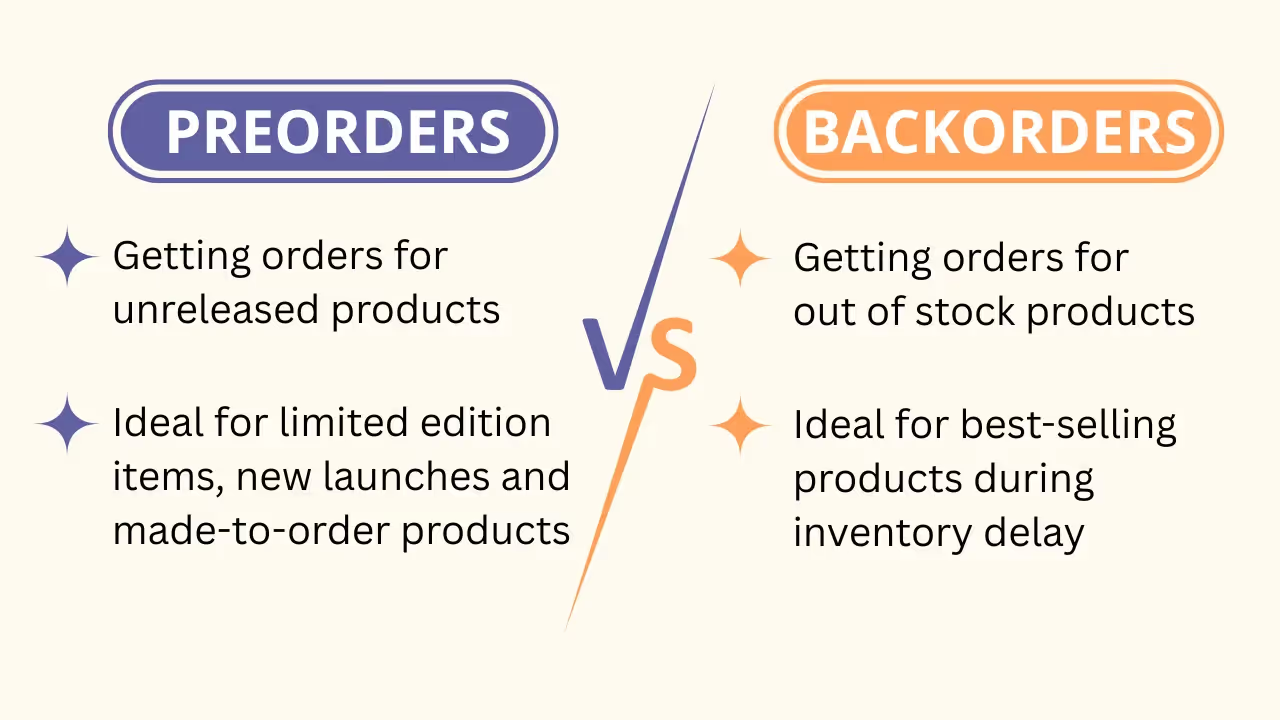
Shopify backorders are used to sell best-selling products during inventory delays, when you are confident the product will be restocked. You continue receiving orders even when the product is temporarily unavailable.
Shopify preorders are used for new launches, limited-edition items, or seasonal products. They help test demand and generate upfront cash flow.
Benefits of Shopify backorders
Shopify backorders have multiple advantages that allow stores to sell out-of-stock items without losing customers or revenue.
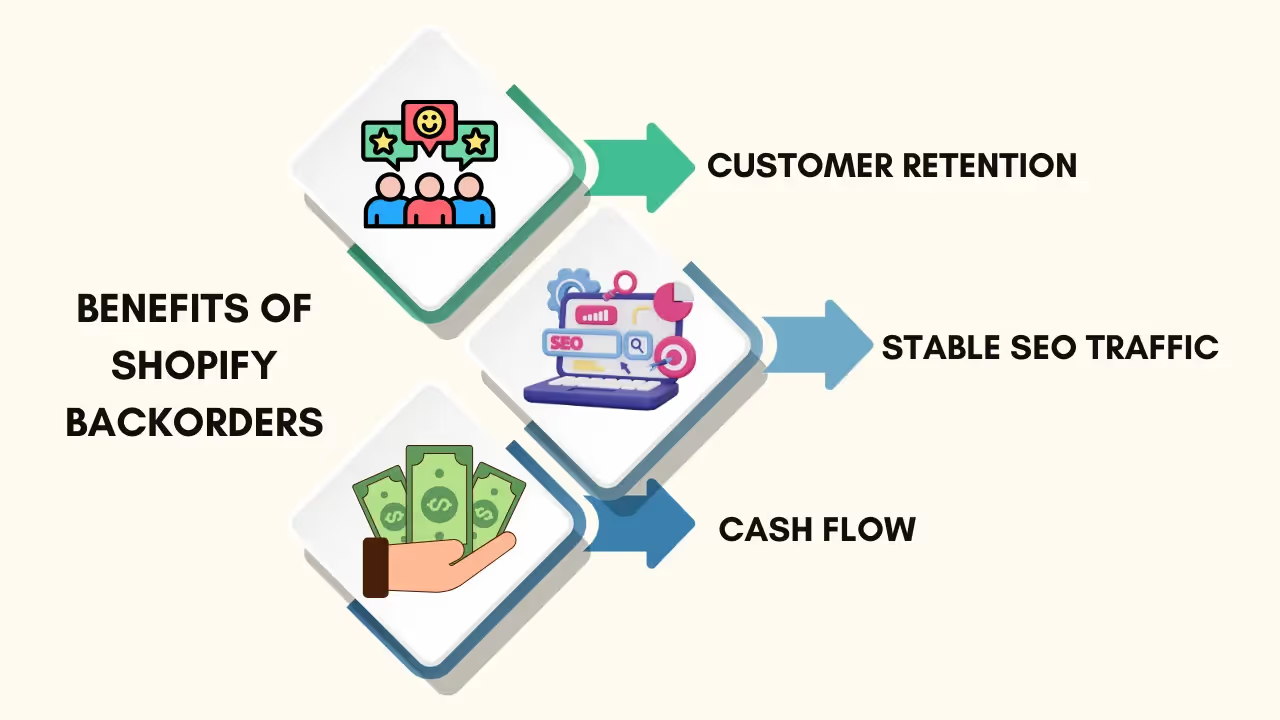
Customer retention
By setting up backorders, you can retain existing customers. If customers already love your product, they are more likely to wait for a short period rather than switch to competitors.
Stable SEO traffic
Out-of-stock product pages often have higher bounce rates and lower conversions, which can negatively impact SEO rankings. Backorders maintain page activity and preserve organic traffic.
Continued cash flow
In backorders, customers pay upfront to reserve their product. This ensures continuous cash flow, which can be used for manufacturing and restocking.
How to set up backorders in Shopify
You can set up backorders either manually or by using an app. Below is a step-by-step guide for both methods.
Manual setup
In this section, we’ll see how to set up backorders in Shopify manually without using any Shopify backorder apps. If you want to customize the widget's appearance, you will need to do it through coding.
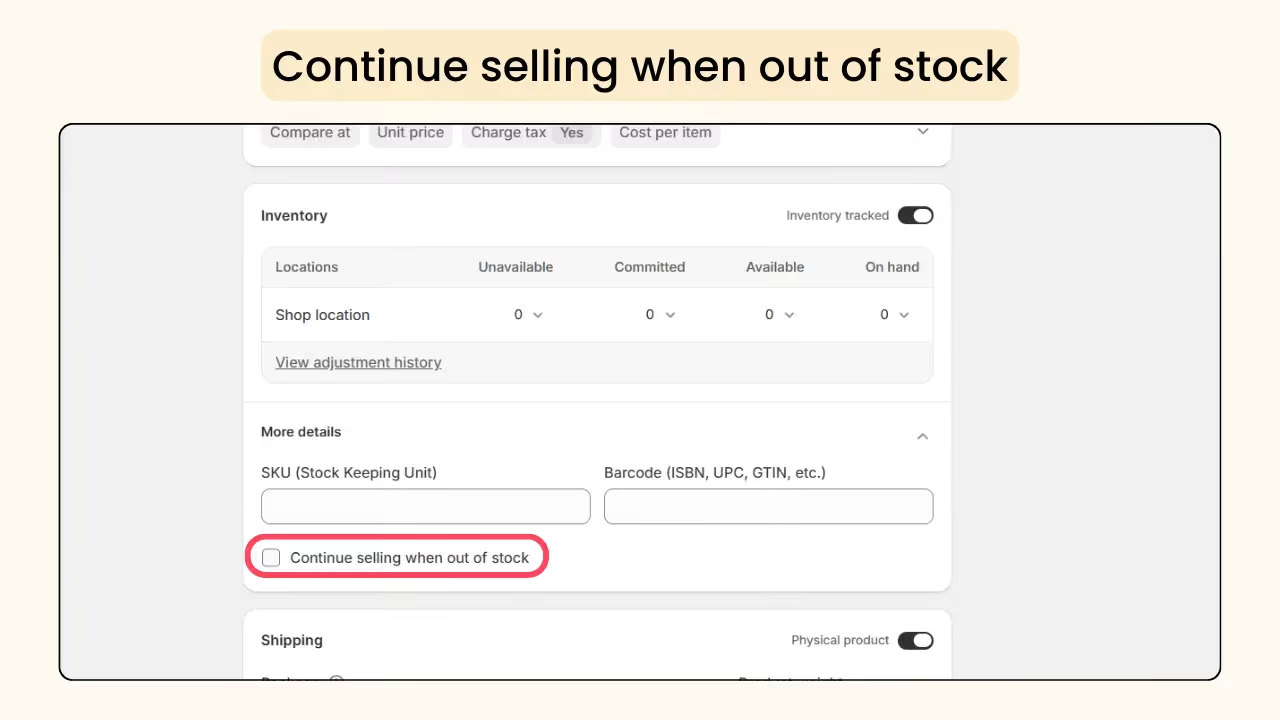
- Open the Shopify admin and choose the product you want to apply backorders to.
- Scroll down and enable the Continue selling when out of stock option.
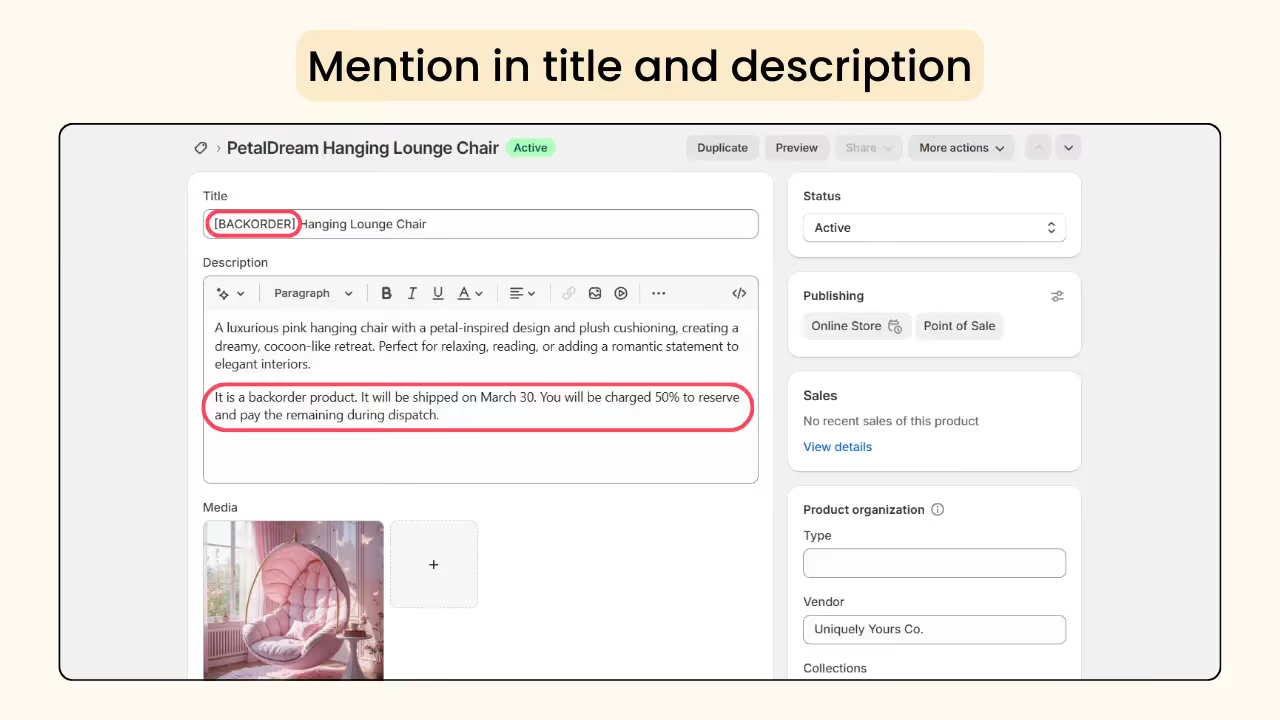
- Mention that the product is available on backorder in the product title or description.
Set up with a backorder app
With a Shopify backorder app, you can automate and customize your backorder campaigns. Here’s how to set up backorders using the Dibs app.
Step 1: Install the app
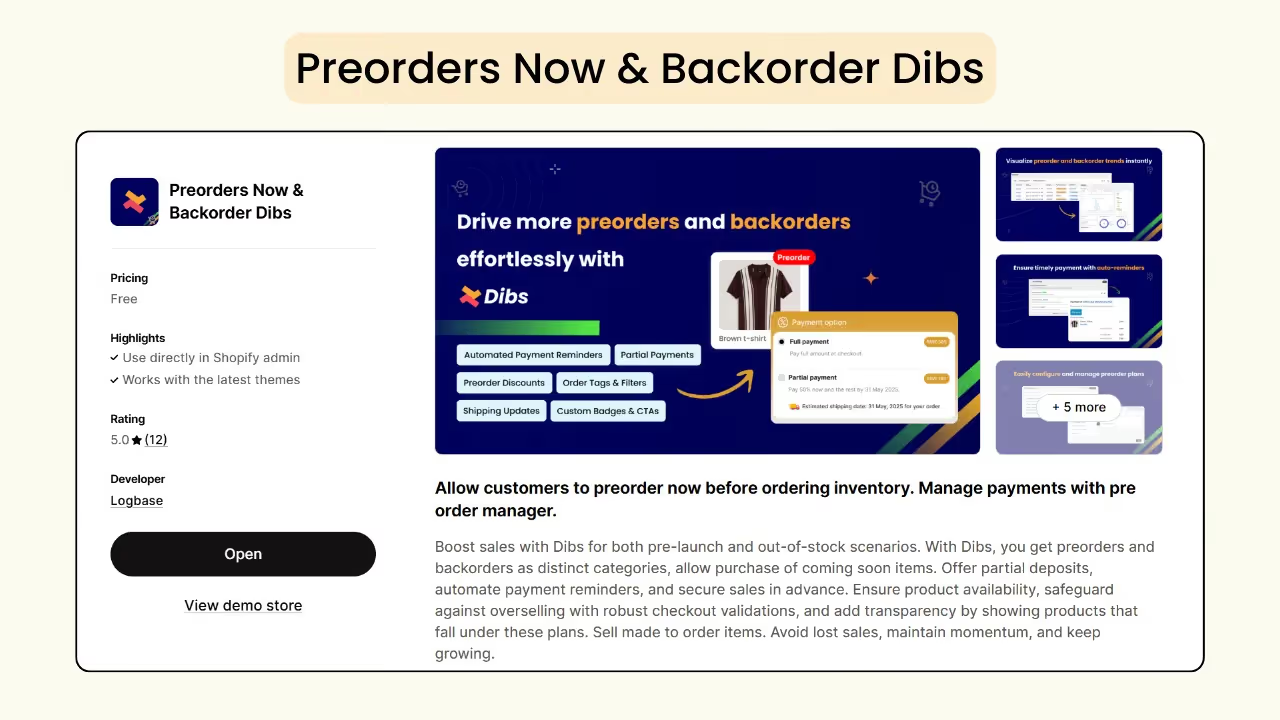
Install Preorders Now & Backorder Dibs app from the Shopify App Store.
Step 2: Choose the plan
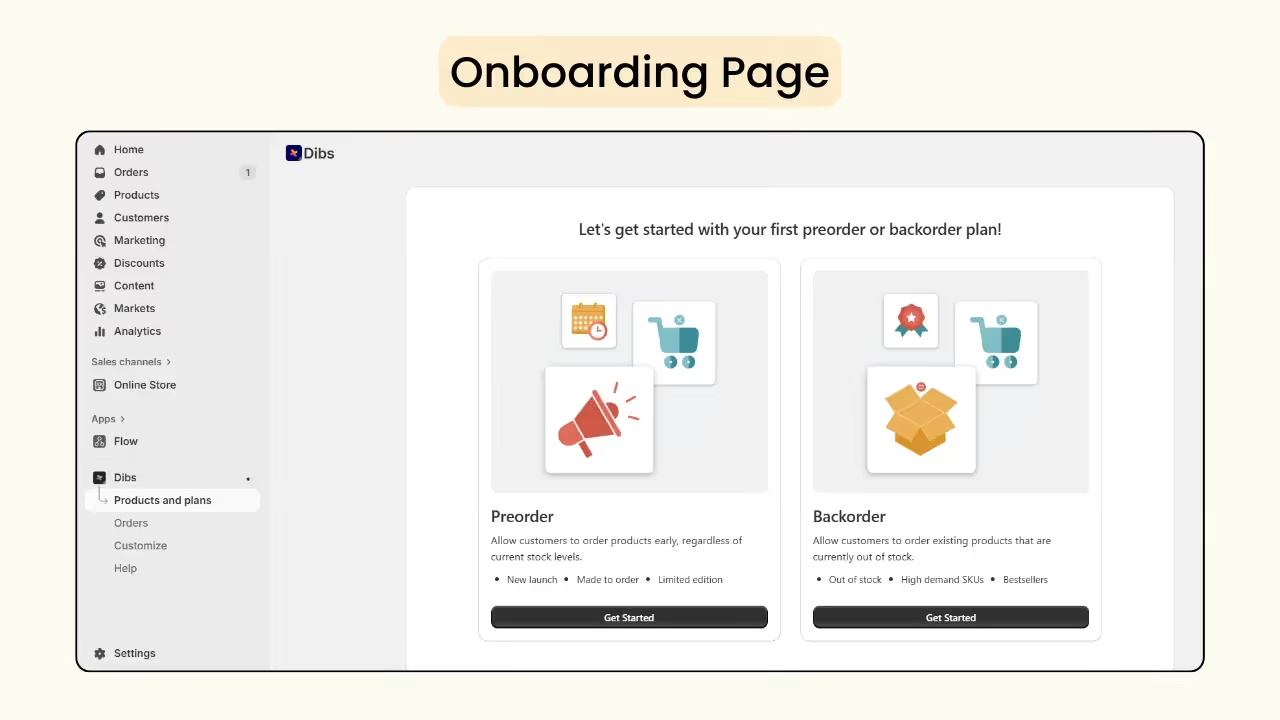
Under Products and Plans, select Backorder and enter a plan name.
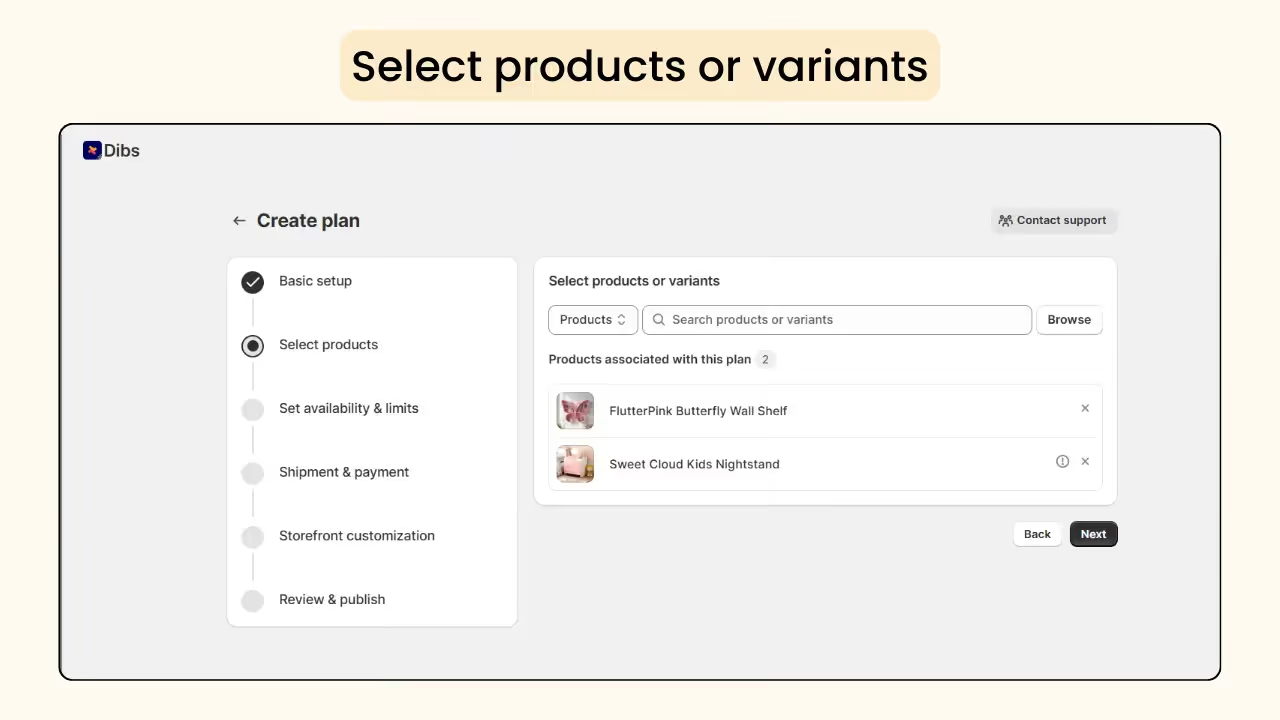
Step 3: Select the products
Choose the products or variants you want to apply the plan to and click next.
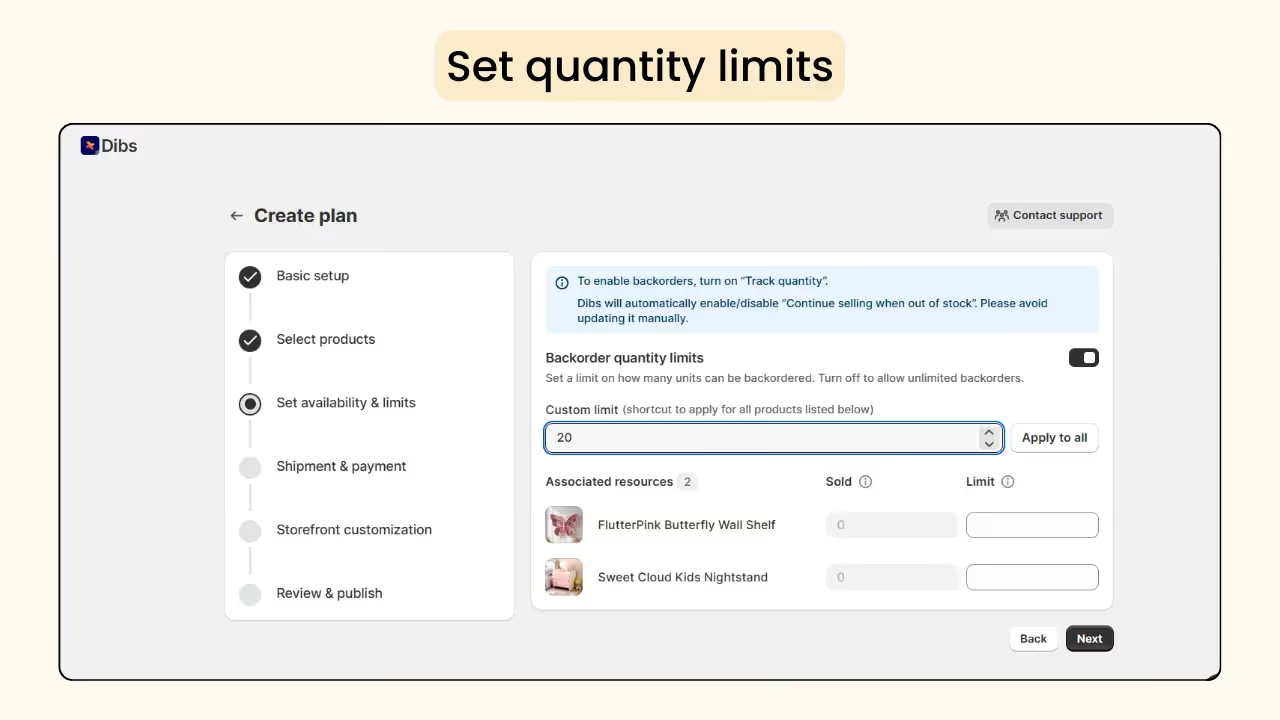
Step 4: Set quantity limits
Limit the number of units that can be backordered. Once the limit is reached, the product will show as sold out.
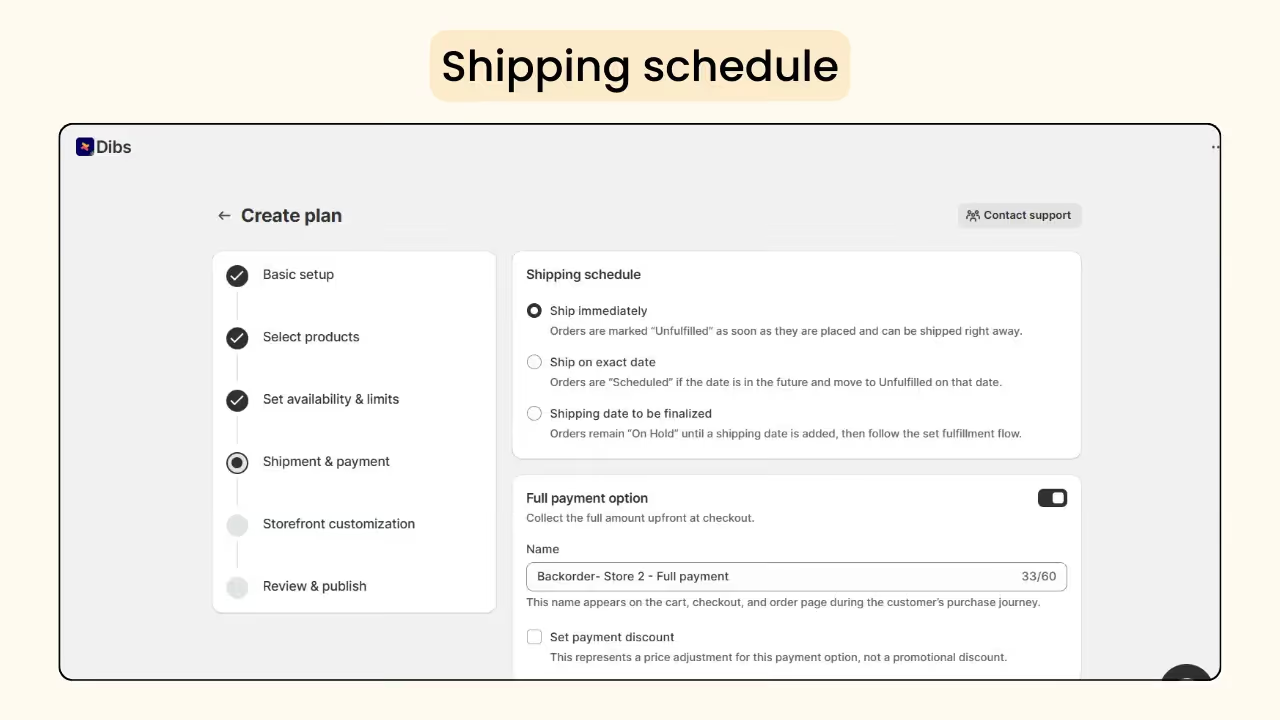
Step 5: Set shipping schedule
Choose a shipping method based on your stock availability.
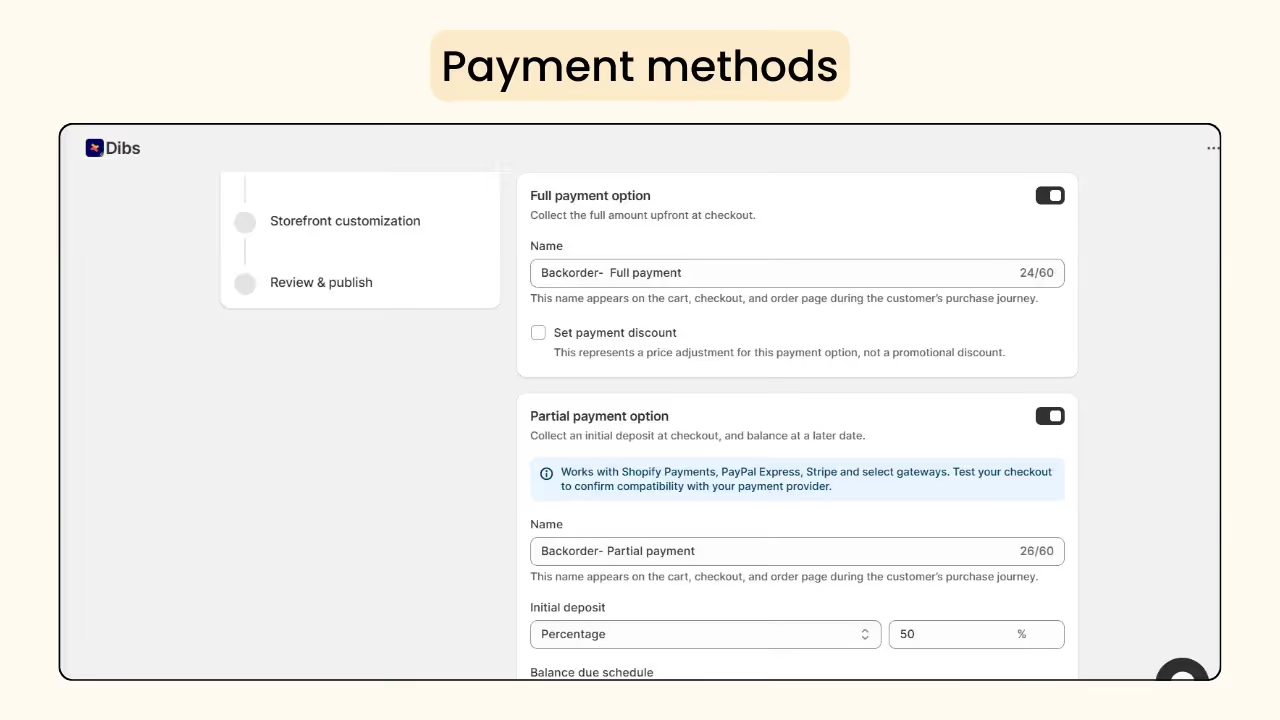
Step 6: Choose the payment method
Dibs supports full and partial payments, and you can also apply discounts.
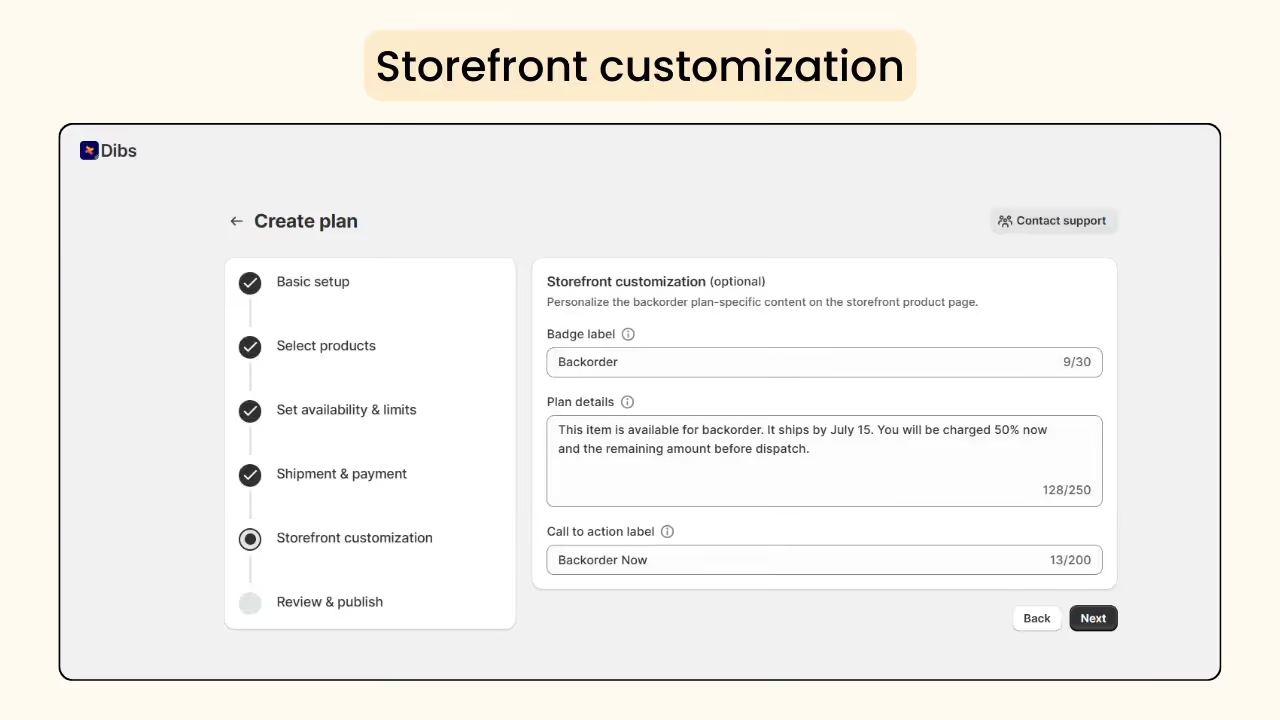
Step 7: Customize your plan
Enter the text you want to show to customers in the storefront customization section.
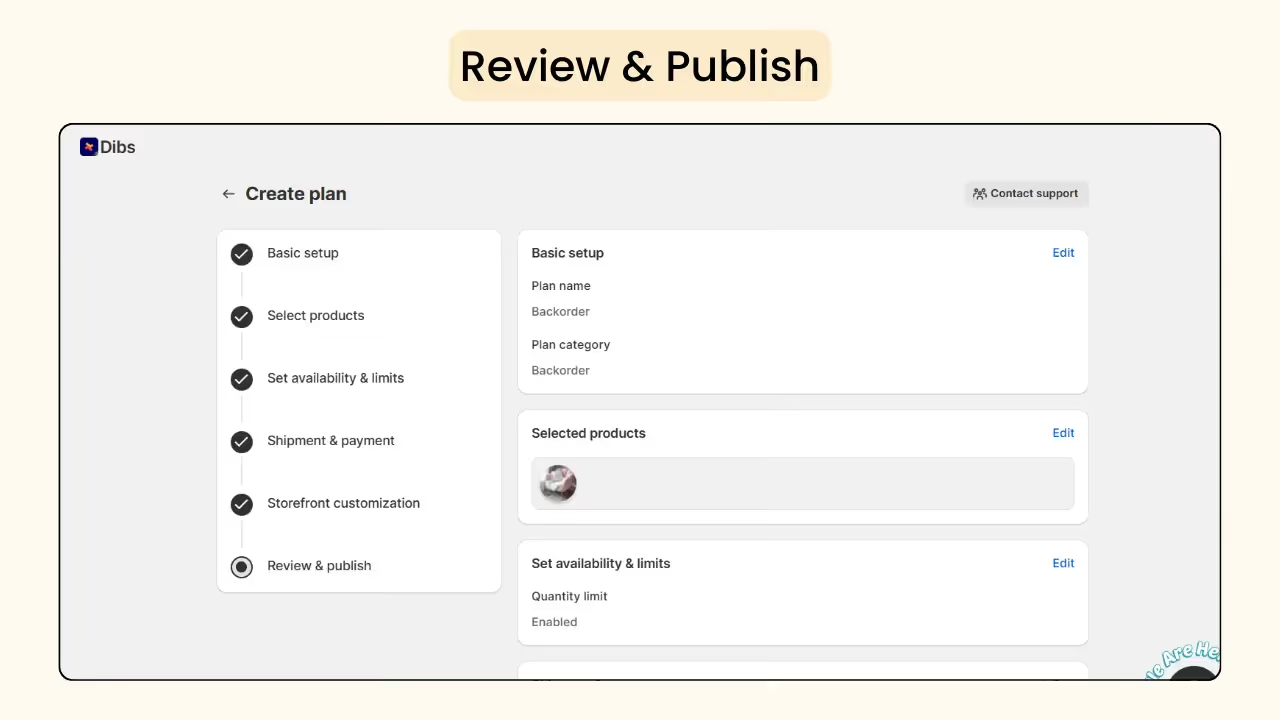
Step 8: Summary
Review all details in one place and update them if needed. Then, click create, and the plan will be visible on the product page
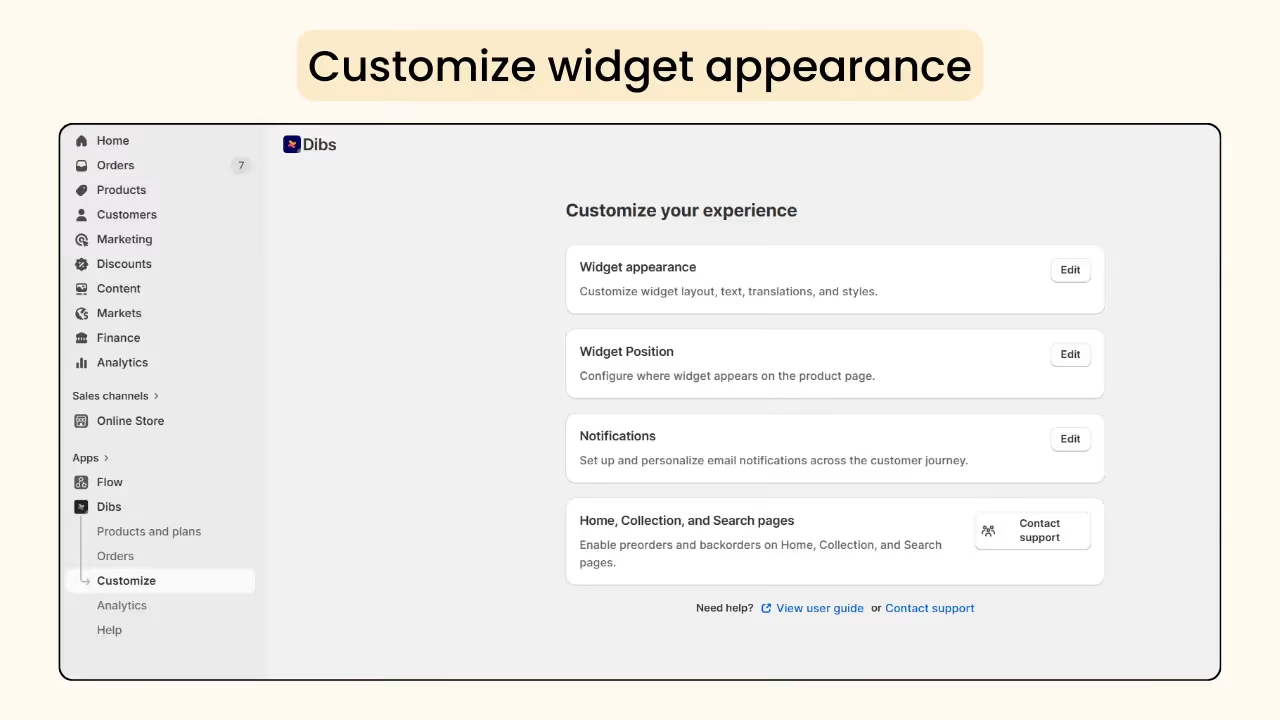
If you want to match the widget’s appearance to your store design, go to Customize and modify the changes in the widget appearance section.
Manual setup vs Backorder apps
Below is a comparison between manual setup and backorder apps to help you choose the right option for your store.
Regular orders and backorders are counted together in a manual backorder setup, with no clear differentiation. This makes inventory tracking and order management difficult, especially when handling multiple products or SKUs.
Backorders created with the Dibs app are clearly labeled with a Backorder tag and plan name, making them easy to identify and manage separately from regular orders.
You can choose either manual or app-based backorders for your store, depending on the features you require.
How does Dibs manage backorders?
Once the setup is complete, here’s how Dibs works automatically. The product continues regular sales while inventory is available.
Once stock runs out, Dibs automatically starts accepting backorders by turning on ‘Continue selling when out of stock’ option.
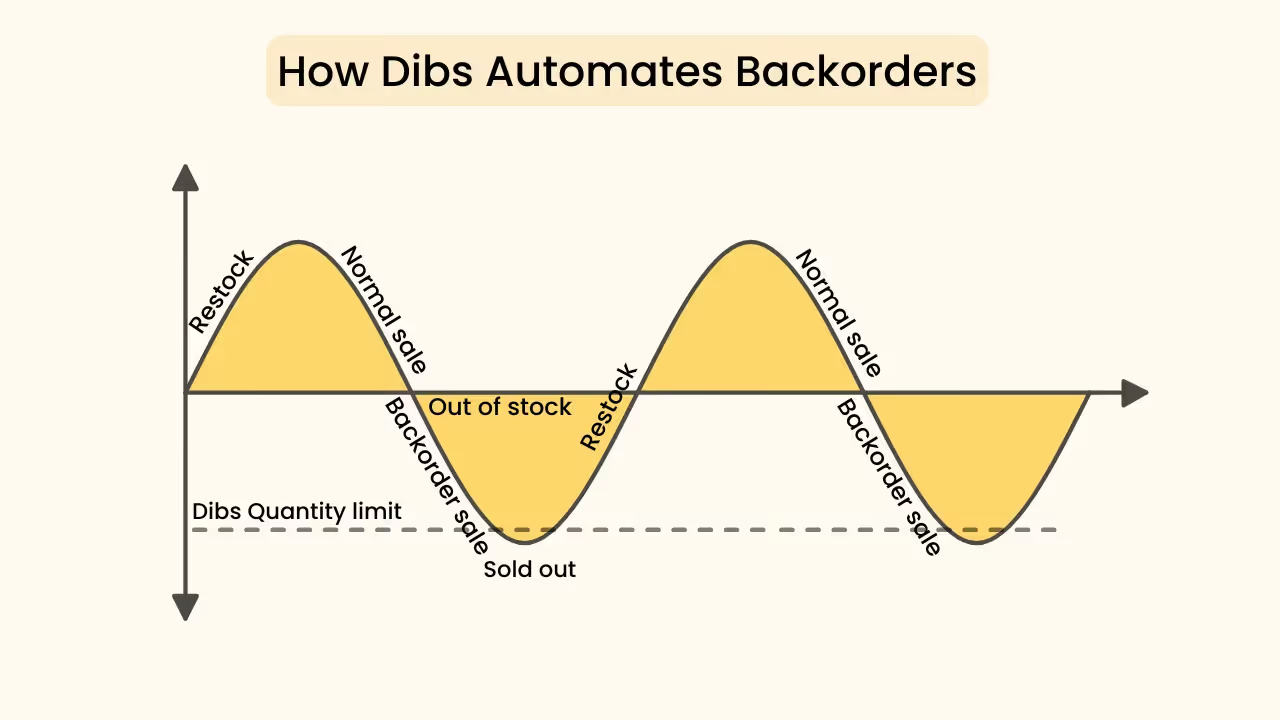
The Dibs app tracks the number of units sold as backorders. If a quantity limit is set, backorders stop once the limit is reached, ‘Continue selling when out of stock’ option is disabled, and the product shows as sold out.
If no limit is set, backorders remain open until the product is restocked. This cycle continues automatically.
Common mistakes in Shopify backorders
Here are some common mistakes merchants make when implementing backorders in Shopify.
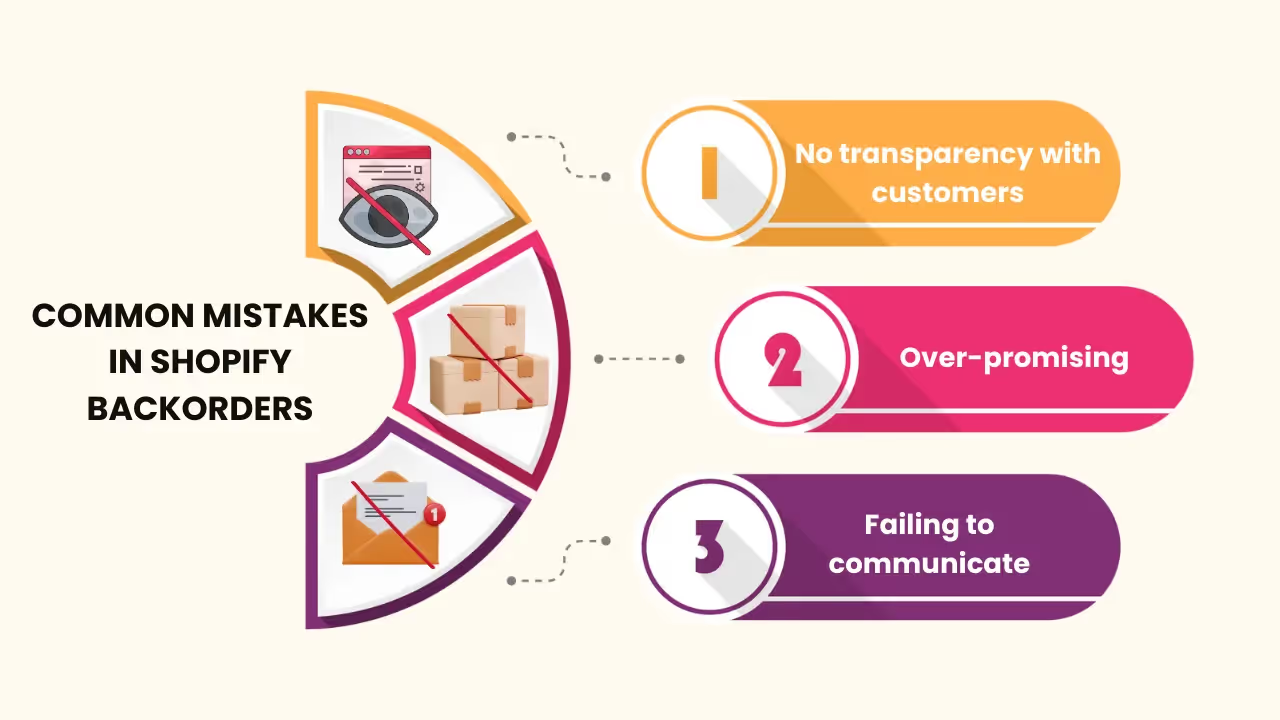
No transparency with customers
Lack of information about the shipping date on when the product will be shipped to the customers.
Mention the expected shipping date on the product page and send shipping update and delay emails.
Over-promising
Taking in a high volume of orders but being unable to ship them due to insufficient stock. This will create a negative impression among the customers.
Set quantity limits to limit the number of units that can be ordered, which will prevent you from overselling.
Failing to communicate
Leaving customers without any notifications may cause a loss of trust.
Share automated confirmation emails and payment reminder emails with the Dibs app.
Proven strategies to create successful Shopify backorders
These strategies will help you run successful Shopify backorder campaigns.
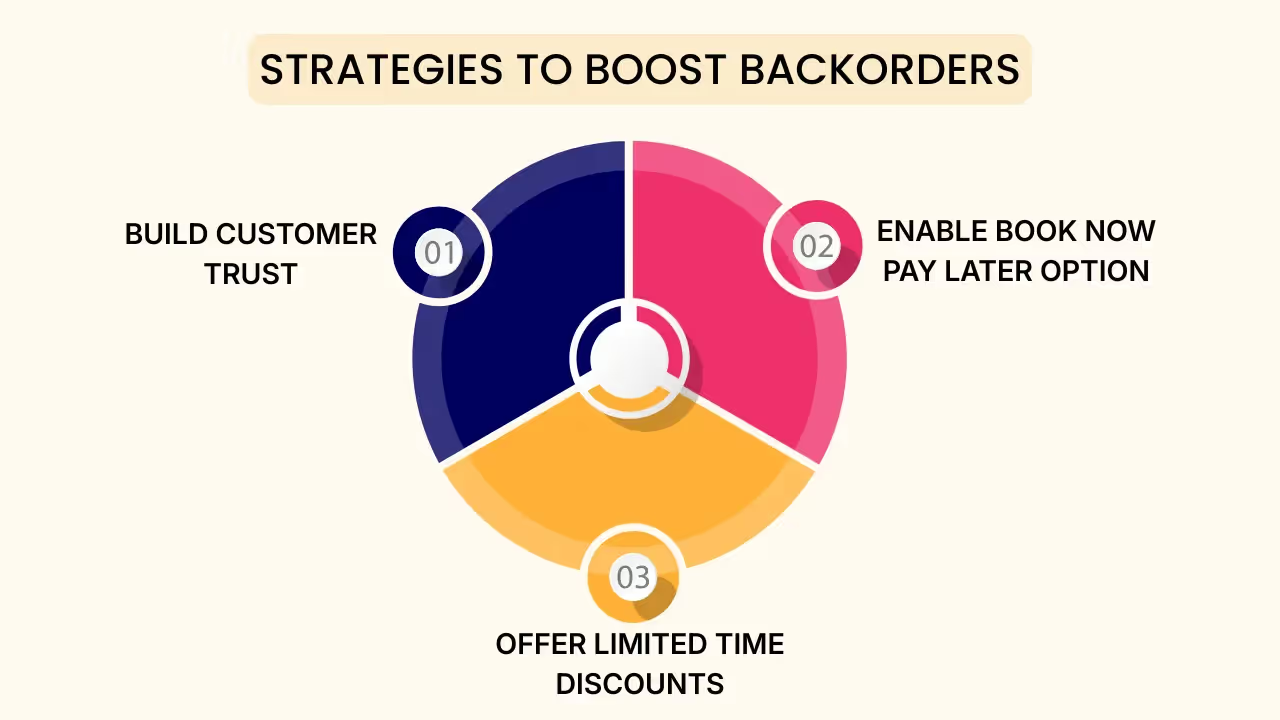
Build customer trust
Clearly mention the expected fulfillment date of the product. Send timely notifications for payments and shipping updates.
This transparency builds customer trust and encourages repeat purchases.
Offer Book now, pay later option
For backorders, you can set an initial deposit that customers pay to reserve the product. You can also set it to 0% and offer a “Book now, pay later” option.
Offer limited-time discounts or incentives
You can offer limited-time discounts, such as 20% off in the first week, and then reduce it to 10% afterward to maintain urgency.
When implemented correctly, these backorder strategies deliver measurable results. A survey shows that clear delivery timelines, discounts, and communication emails can reduce cart abandonment by 40% and boost sales by 25%.
Wrapping up!
In this blog, we’ve covered the basics of Shopify backorders, including benefits, mistakes, strategies, and how to set up backorders using Shopify and the Dibs app.
In 2026, automating Shopify backorders helps stores reduce lost sales, build trust, and scale efficiently.
Frequently asked questions
1. What does Shopify backorders mean?
A Shopify backorder allows customers to purchase out-of-stock products, with the items shipped later once inventory becomes available.
2. How do you set up backorders on Shopify?
You can enable backorders manually through Shopify or use a Shopify backorder app like Preorders Now & Backorder Dibs for easier setup, customization, and management.
3. What is the difference between “Out of stock” and “Backorder”?
Out-of-stock products cannot be purchased because the merchant has no available inventory. Backordered products are also out of stock, but customers can still buy them and receive delivery at a later date.
4. Can I limit backorders?
Yes, you can set quantity limits to limit the number of units that can be backordered. This will prevent overselling.

.webp)
.avif)
.avif)
.svg)
.svg)
.svg)


.svg)