.svg)
How to Combine Shipping Rates for Multiple Items on Shopify (2026 Complete Guide)
Last updated on
August 20, 2026

Quick Answer
- Combined shipping prevents customers from paying duplicate shipping charges when purchasing multiple products.
- Shopify’s default shipping cannot combine custom product shipping rules into a single rate.
- A shipping rate app like ShipX lets you choose exactly how rates combine (Sum, Average, Highest or Lowest) based on product tags or SKUs.
- Combined shipping works especially well for furniture, home goods, auto parts, wholesale, and mixed-products stores.
Think about it: when you purchase an item online, you understand that you may have to pay extra for shipping. But if that cost is unclear, or too high, you’ll think twice before making the purchase. Nearly half of online shoppers abandon their cart when shipping costs feel too high or too confusing at checkout.
One common culprit: a customer buys two products from your store and gets charged full shipping for both, even though shipping them together doesn’t actually cost you double.
This guide covers why that happens, what you can do with Shopify’s native settings, and how to set up true combined shipping rates using an app, so customers see one fair rate instead of a stacked one.
What are combined shipping rates?
Combined shipping rates let you charge one fair shipping fee when a customer buys multiple products, instead of stacking a separate charge for each item.
Take a dining table priced at $50 shipping, a dining chair priced at $10 shipping, and a table lamp at $15 shipping. Without combining, a customer who buys all three pays $75 in shipping. With a combined rate using the “Highest” method, they pay $50, since the table already covers most of the real cost of shipping both items together.
When should you use combined shipping?
Combined shipping matters most when customers frequently buy multiple products with meaningfully different shipping costs.
Shopify's default combined rates
Shopify calculates shipping using shipping profiles (groups of products that share the same shipping rules). If an order contains products from different shipping profiles, Shopify already combines them into a single rate at checkout.
But that default combination works a bit differently than it sounds: Shopify pulls the cheapest matching rate from each profile involved, then sums those profile-level rates together.
In other words, Shopify already does some combining, but you have no control over the method. There’s no built-in way to say “just charge the highest rate” or “average these two” or “only combine these specific product tags this way”. That’s the actual gap this guide addresses.
This matters beyond the technical detail. When shipping costs feel disconnected from what a customer is actually buying, it erodes trust at exactly the moment they’re deciding whether to complete the purchase.
Fixing the combination logic tends to reduce cart abandonment, encourage customers to add complementary items without shipping-cost anxiety, and keep your checkout pricing consistent as your catalog grows.
When native settings are enough
If you sell one type of product, ship from one location, and use a single shipping profile, the native settings can get you a workable flat rate without installing anything. That covers a smaller, simpler subset of stores.
If that describes your store, start in Settings → Shipping and delivery: check how many shipping profiles you're running, whether any zones overlap, and whether you're fulfilling from more than one location. Consolidating those three usually gets you a flat, predictable rate without installing anything.
When you will need an app:
- Choose how rates combine (Sum, Average, Highest, or Lowest, you get whatever Shopify’s default cheapest-per-profile logic produces)
- Base combine rules on specific product tags or SKUs
- Cap a combined rate that still comes out too high
- Apply different combine logic to different product groups in the same store
So even a store that technically qualifies for “native is enough” is often just avoiding the problem for as long as its catalog stays simple. The moment you add a second product category with different shipping needs, you’re back to stacked or unpredictable rates, without a way to adjust it beyond manually re-auditing your profiles each time your catalog changes.
That's the actual gap a shipping rate app closes: not doing something native Shopify can’t do at all, but giving you control over how it’s done.
Setting up combined shipping rates with ShipX
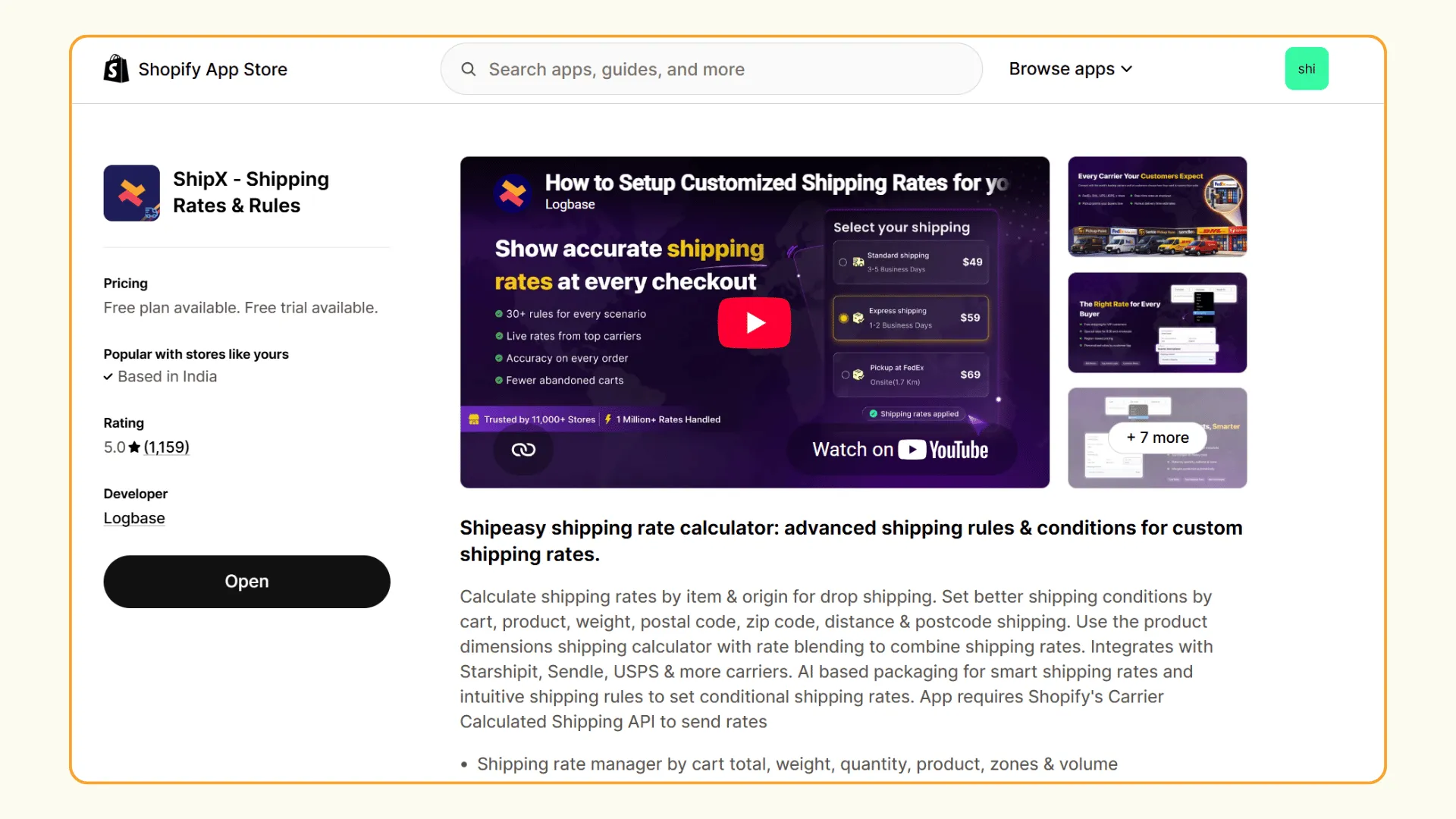
Now, we’ll see how to set up combined shipping rates using ShipX - Shipping Rates & Rules, a shipping rate calculator app.
Step 1: Organize products into shipping groups
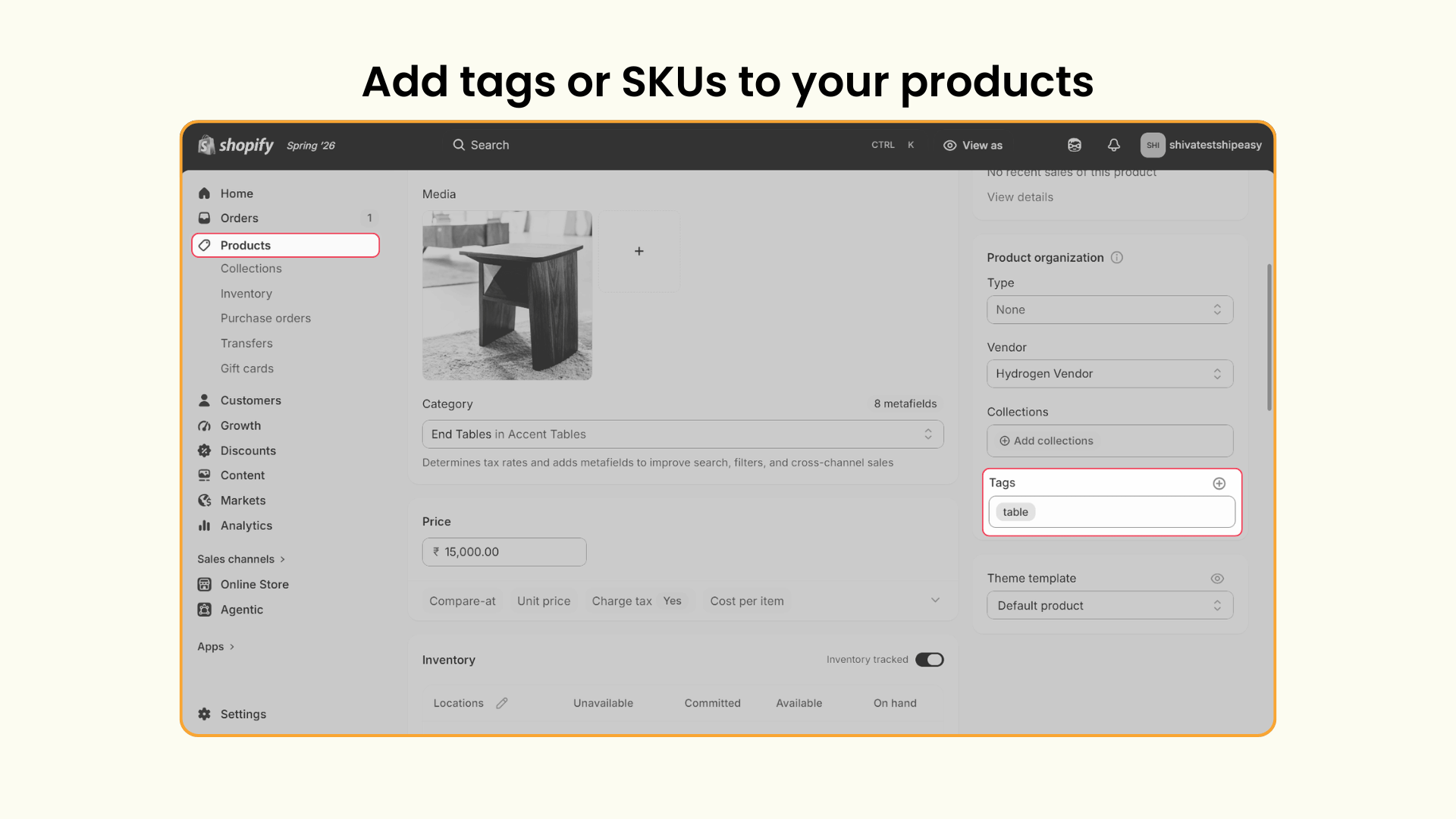
Group the products you want to combine using a product tag or SKU
To add tags or SKUs, go to Shopify admin → Products → Select a product → Add a tag or SKU and repeat the process for all products.
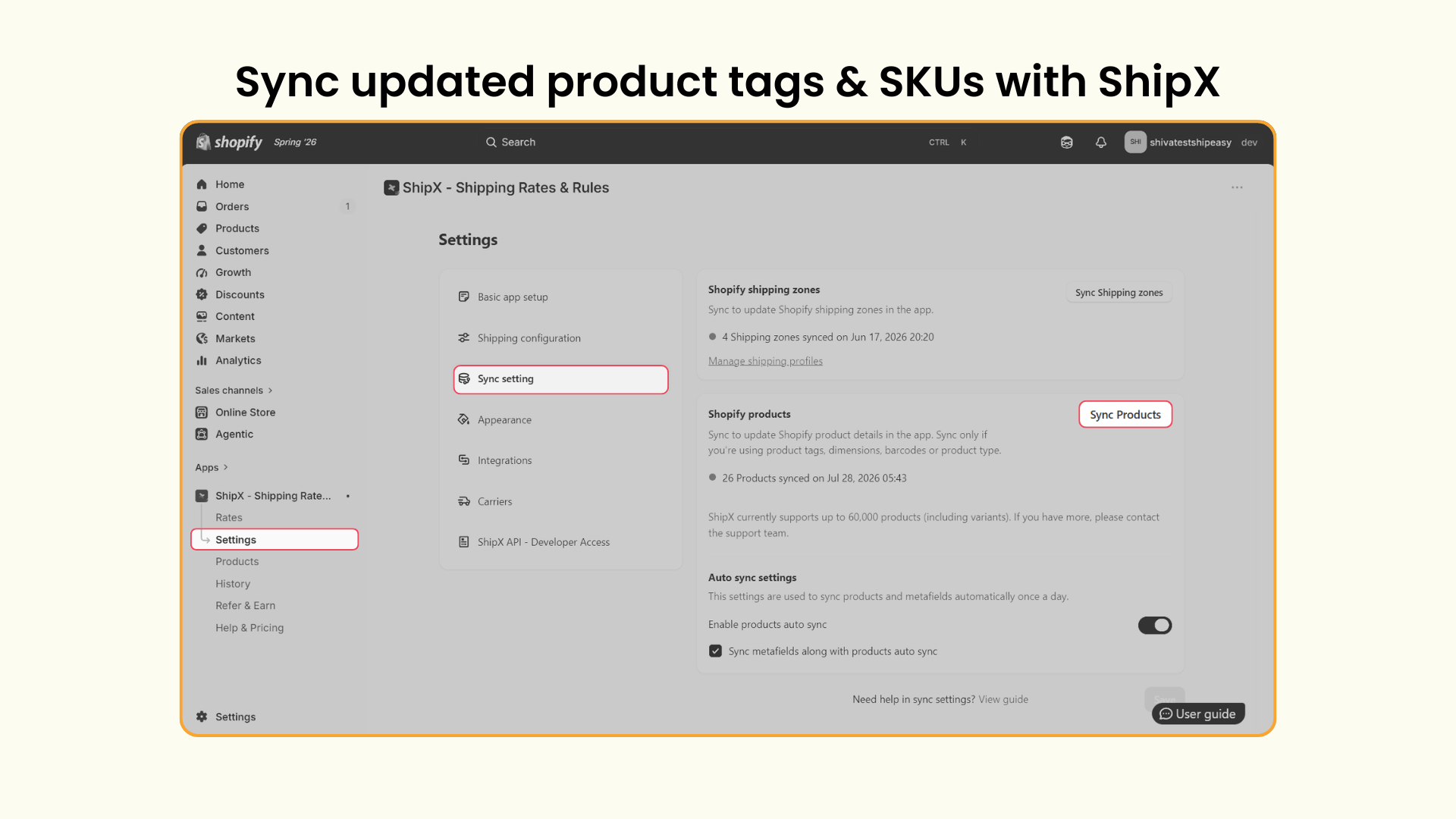
Once you add tags, go to ShipX’s Settings → Sync setting → Click Sync Products so the app picks up your tags or SKUs.
Use consistent tag names. A mix of “Table,” “tables,” and “Dining Table” for products meant to belong to the same group will cause rules to miss items.
Step 2: Create a shipping scenario for each product group
Go to ShipX Rates → Click Create on Scenarios.
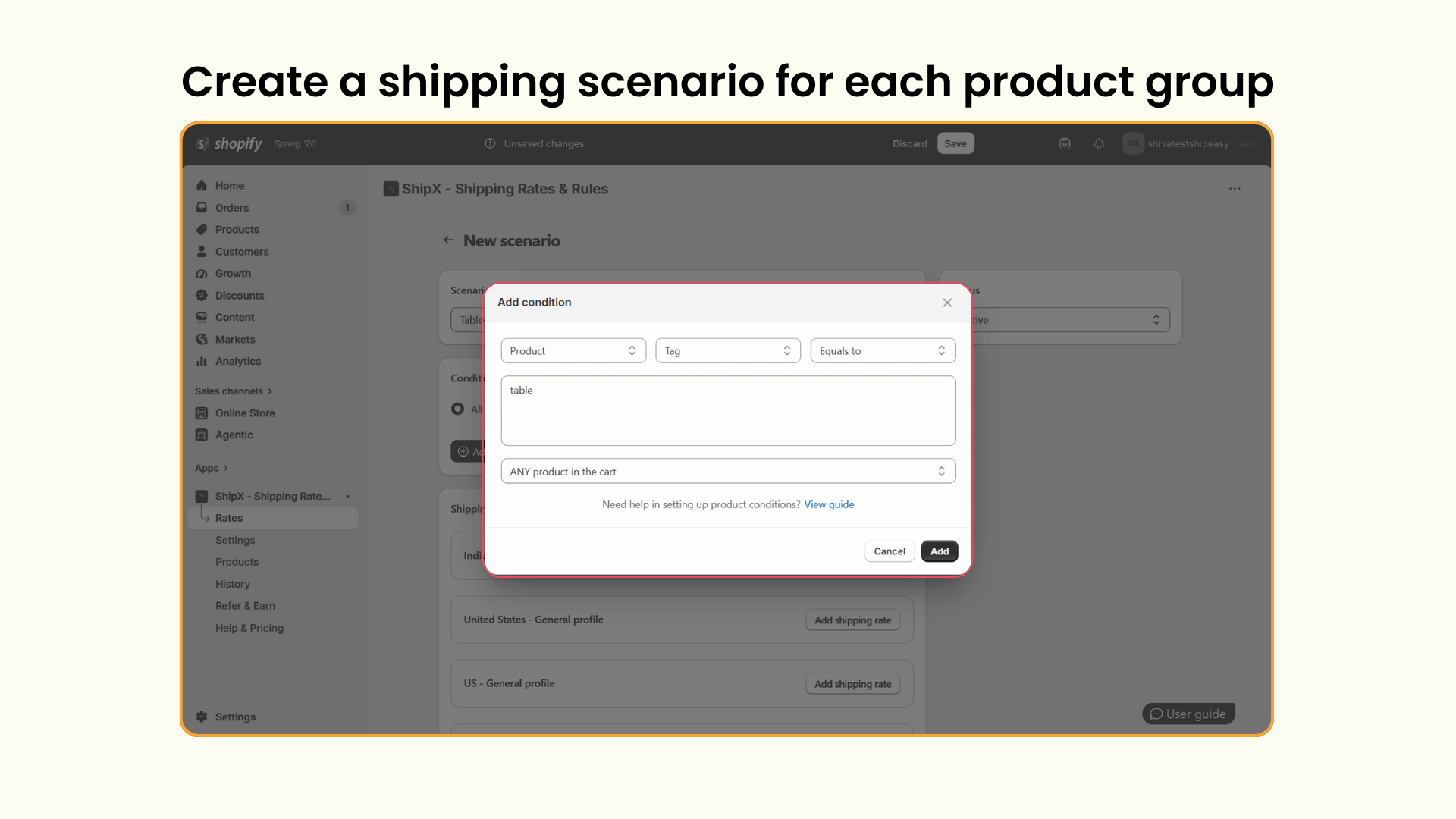
Enter a name for the scenario and click Add condition.
Set the condition as Product → Tags or SKU → Equals to → Enter the relevant tag or SKU.
For the table group, the condition will be Product → Tag → Equals to → table.
Click Save to complete creating the scenario.
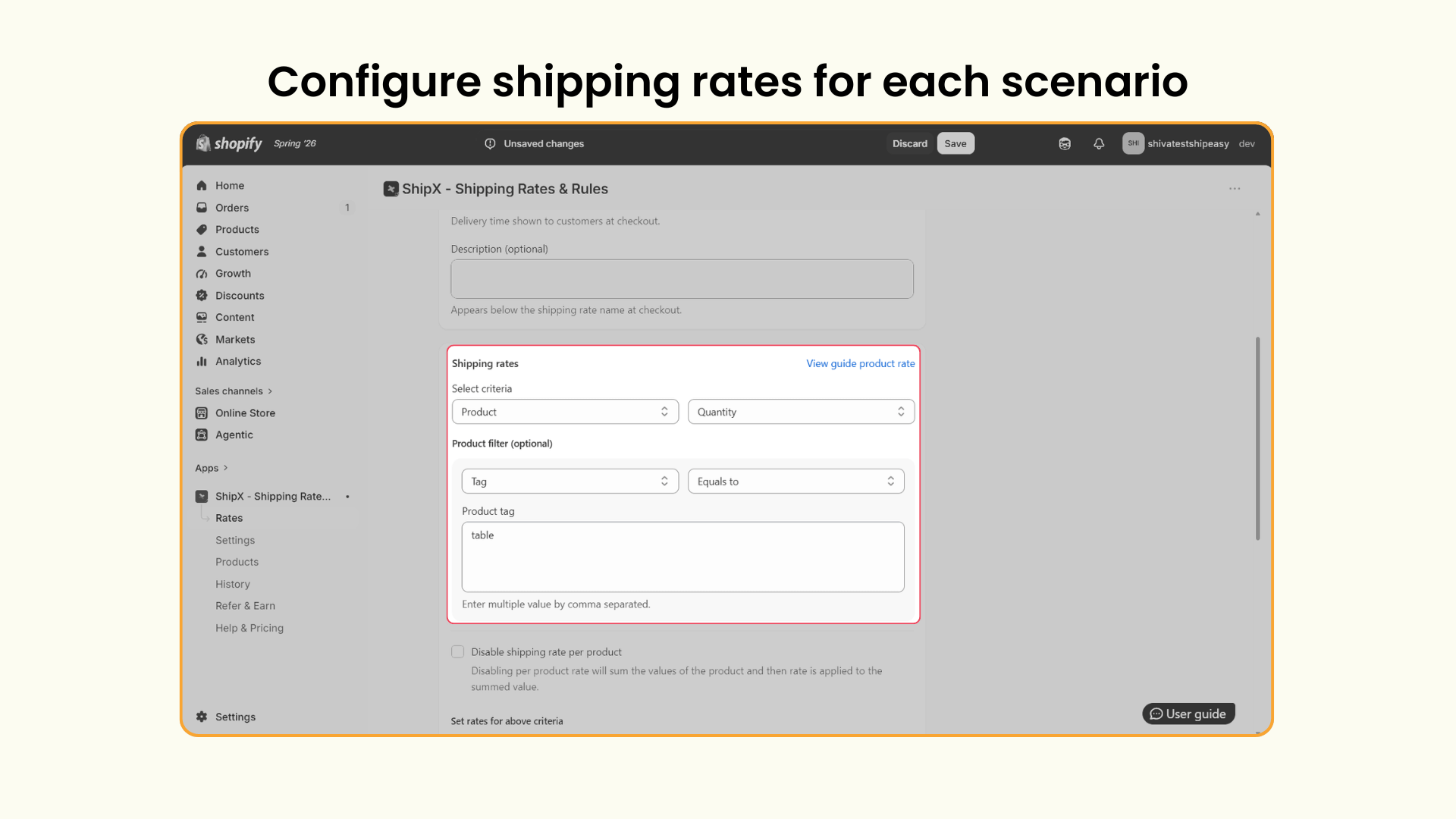
Step 3: Configure shipping rates for each scenario
Click Add Shipping Rate and enter a name for it.
Under Shipping rates, select the rate criteria as Product and choose the preferred rate basis.
Set the Product Filters to Tag or SKU, matching what you set in Step 1.
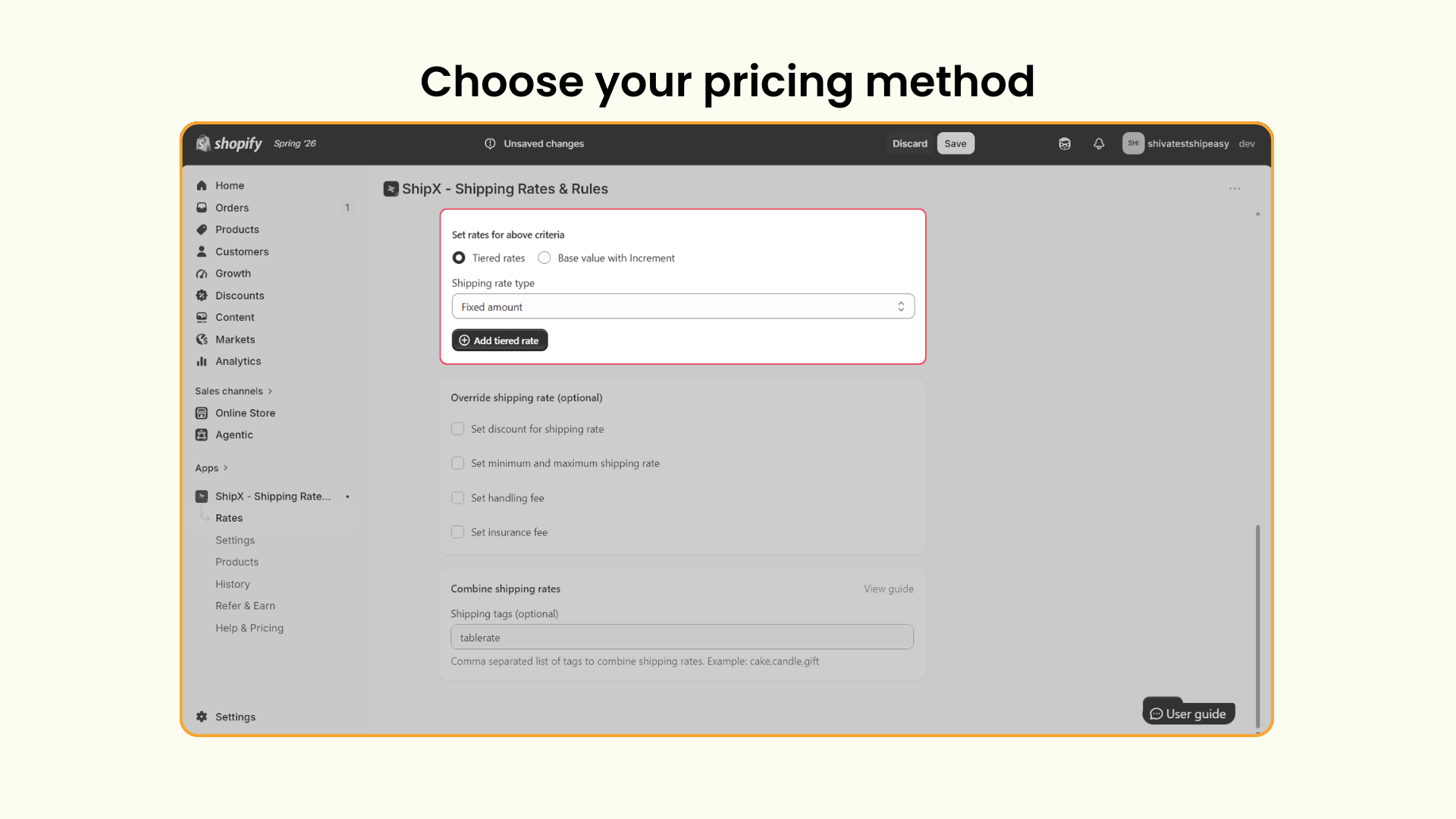
Step 4: Choose your shipping pricing method
Choose between two ways to price the rate:
1. Tiered rates: Set a different price for each quantity or weight range.
2. Base value with increment: Start with a base fee and add a fixed amount per additional item.
For example, a $20 base rate plus $5 per additional item means an order of 4 units costs $20 + (3 x $5) = $35
Step 5: Assign a combine shipping tag
Scroll to Combine shipping rate and enter a shipping tag, for example “tablerate” for the table scenario. This tag is what tells ShipX which rates belong together later.
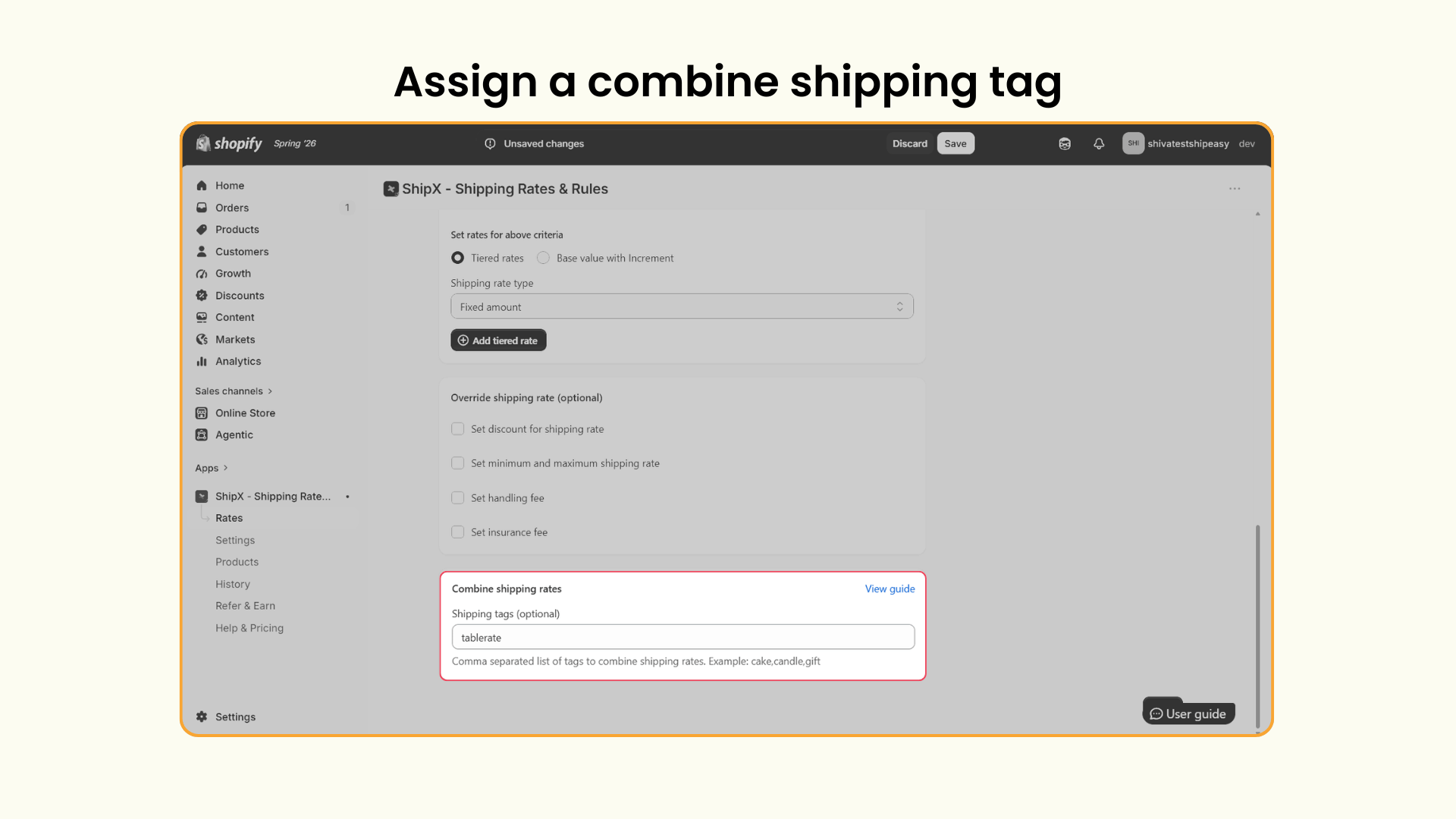
Click Save and repeat steps 2 to 5 for every product group you want to include.
Step 6: Combine the shipping rates
Go to ShipX Rates → Click Create on Combined shipping rates.
Enter a name for the combined shipping rate.
Under Combined rate calculation, select Any tag should have value and choose the Combined rate type.
You can choose between Sum, Average, Highest, or Lowest.
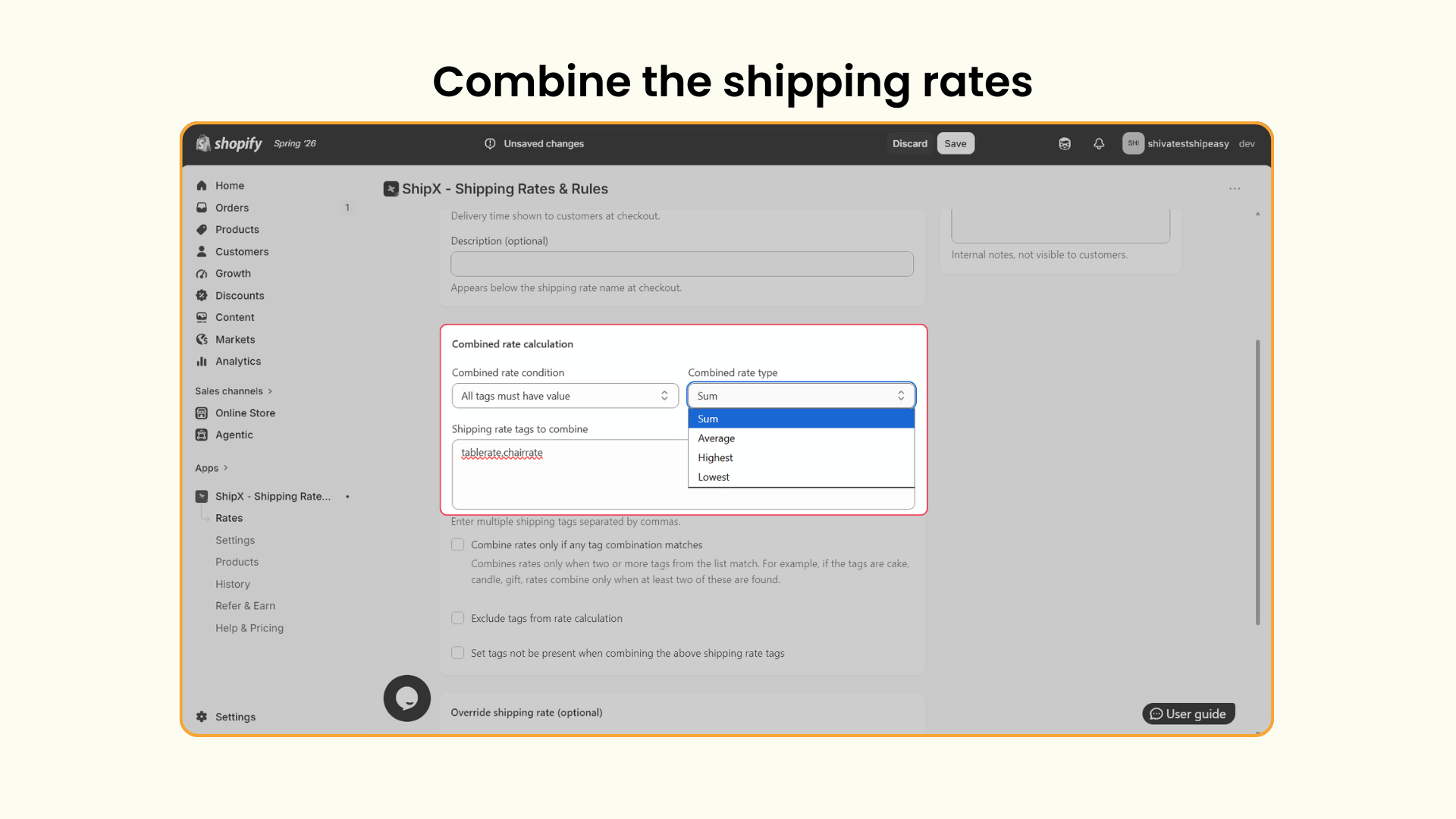
Under Shipping rate tags to combine, enter the shipping tags, eg. tablerate,chairate and click Save.
Understanding the four combine types
Each combine type produces a different result. Here’s how each one plays out using the same table ($50) and chair ($10) example from above.
The demo on this page uses Highest, which is why the customer pays $50 instead of $60. That’s usually the right call when items ship in a single box and the smaller item adds negligible extra handling. If your products genuinely cost more to ship together (say, separate packaging for fragile items even within one shipment), Sum is more accurate.
Which combined method fits your store?
- Use Highest if you sell furniture, homeware, or bundles that ship in one box.
- Use Sum if you sell items where handling costs genuinely stack (fragile or oversized products)
- Use Lowest if you are running a promotion or trying to reduce abandonment on mixed carts
- Use Average if you have a catalog with wide price variance and want a predictable middle rate.
Shopify Combined Shipping Rate: Best Practices
- Use consistent, clear naming for tags and SKUs to avoid rules silently missing products.
- Group products by how they actually ship (oversized, fragile, standard) rather than by category alone.
- Keep rules as simple as your catalog allows. Fewer well-organized scenarios are easier to maintain as you add products.
- Test every relevant cart combination, not just the pair you built the rule around, including international orders if you sell abroad.
- Review shipping rules periodically.
Offer fair shipping rates for your customers
Shipping cost has a real effect on whether someone finishes checking out. Charging separate shipping for every item in a multi-product order makes checkout feel more expensive than it needs to be. Shopify does some combining automatically by default, but that default doesn’t always reflect what shipping the order together actually costs.
With ShipX, shipping rates can be more precise. You can build combined rates using Sum, Average, Highest, or Lowest, so checkout stays fair to customers and sustainable for you.
Frequently Asked Questions
1. How do I calculate shipping rates for multiple items on Shopify?
Install a Shopify shipping app like ShipX that supports tag-based or SKU-based shipping rules, then set a combined rule (Sum, Average, Highest, or Lowest) for the products you want grouped together.
2. Why does Shopify charge separate shipping for each item in my cart?
Because Shopify calculates the rate per shipping profile. If your products sit in different profiles, or ship from different locations, each profile’s rate gets added together by default rather than merged into one.
3. Can I combine carrier-calculated shipping rates with product-based rates?
Yes. You can combine carrier-calculated shipping rates with product-based shipping rates. However, this is only possible when a single live carrier rate applies to the order. If multiple live carrier rates match, ShipX cannot determine which carrier rate should be combined with the product-based shipping rate. In such cases, the product-based rate is not combined.
4. Can I combine shipping rates without an app?
To a degree. Consolidating shipping profiles, zones, and fulfillment locations, or setting a single flat rate, can approximate a combined shipping rate for simpler catalogs. For tag-based rules or multiple combine types, you’ll need an app.
5. Can I cap the maximum combined shipping rates a customer pays?
Yes. You can cap the minimum and maximum on the final combined rate shown at the checkout using the ShipX app.
6. How do I set different shipping rates per product?
With the ShipX app, you can set shipping rates per product based on weight, quantity, volume, or dimensions.

.webp)
.webp)

.svg)
.svg)
.svg)


.svg)