.svg)
How to Set Shipping Rates Per Item on Your Shopify Store (2026 Complete Guide)
Last updated on
August 20, 2026
Quick Answers
- Shopify doesn’t natively support assigning a unique shipping rate to every individual product.
- Shopify’s shipping profiles get you partway to per-item pricing, but they combine rates when a cart spans multiple profiles.
- For true per-SKU rates and quantity-based tiers, you’ll need a shipping rate app like ShipX.
- Per-item matters most for stores where products have meaningfully different fulfillment costs.
Calculating accurate shipping rates protects your profit margins and prevents cart abandonment. One way to do this is by setting up shipping rates per item, so each product contributes its own shipping charge instead of the whole order getting one flat fee.
Imagine selling two chairs in a single order. With per-item shipping, you charge the right shipping cost for each chair, rather than under-charging on a heavy item or over-charging on a light one.
In this guide, you’ll learn how per-item shipping works and how to set it up using Shopify’s built-in tools and a shipping app like ShipX.
What is per-item shipping on Shopify
Per-item shipping means each product contributes its own shipping charge to the final total, instead of one flat fee applying to the whole order.
This is especially useful for products that are heavy, require individual packaging, ship separately, or are otherwise more expensive to fulfill than the average item in your catalog.
Example: Say your store sells a chair ($15 shipping), a coffee table ($30 shipping), and a lamp ($8 shipping). A customer orders 2 chairs, 1 coffee table, and 3 lamps:
Total shipping: $84. A flat $20 shipping fee on this same order would mean absorbing a $64 loss.
Why merchants use per-item shipping
Charging every customer the same flat shipping fee tends to create one of two problems:
You lose money on expensive-to-ship products. A sofa that actually costs $120 to ship, charged at a flat $35 rate, loses you $85 on that order alone.
Customers overpay on lightweight products. If you raise your flat rate to cover the sofa, a customer buying an $8-to-ship table lamp might get charged $20, and abandon checkout when they see it.
Per-item shipping (and quantity-based tier within it) scales the shipping rate to match what an order actually costs to fulfill, instead of forcing one shipping rate to work for your entire catalog.
Which Shopify store benefits the most?
Can Shopify set shipping rates per item natively?
Not exactly. Shopify’s built-in shipping tools are designed for general shipping scenarios rather than assigning an individual cost to each product.
As your catalogs grow, these gaps become more noticeable, particularly once different products genuinely need different shipping logic.
Native method: Shopify Shipping Profiles
Shipping Profiles are the closest native workaround. They let you group products and assign a separate rate set to each group.
- Go to Settings > Shipping and delivery in your Shopify admin.
- Under Shipping profiles, click Create custom profile.
- Add the products or variants that should ship at this rate.
- Set your rates for each zone (flat, weight-based, or price-based).
- Save the profile.
A product or variant can only belong to one profile at a time. Assigning it to a new profile automatically removes it from the previous one.
The catch: If a customer’s cart contains products from two different profiles, Shopify combines the rate from both into a single checkout charge instead of choosing the more sensible one. If Profile A charges $10 and Profile B charges $15, the customer pays $25 total, whether or not that reflects the actual combined shipping cost.
Shipping profiles are enough when you have a handful of clearly distinct product categories and don’t need quantity-based tiers or SKU-level control.
You’ll outgrow them when you have many individual SKUs that each need their own rate, you sell items frequently bought in multiples, or the rate-combining behavior is overcharging customers on mixed carts.
Common shipping challenges
A few scenarios you can’t handle without an app:
- Charging $15 per chair, $8 per stool, and $25 per dining table within the same profile.
- Charging $20 for the first chair and $10 for every additional chair (incremental, quantity-based pricing).
- Charging a lower rate for the first 5 units and a different rate after that threshold.
- Combining product-level, destination-level, and customer-type conditions into one shipping rule.
Each of these requires more granular logic than flat, weight-based, price-based, or carrier-calculated rates provide on their own.
Setting up per-item shipping with ShipX
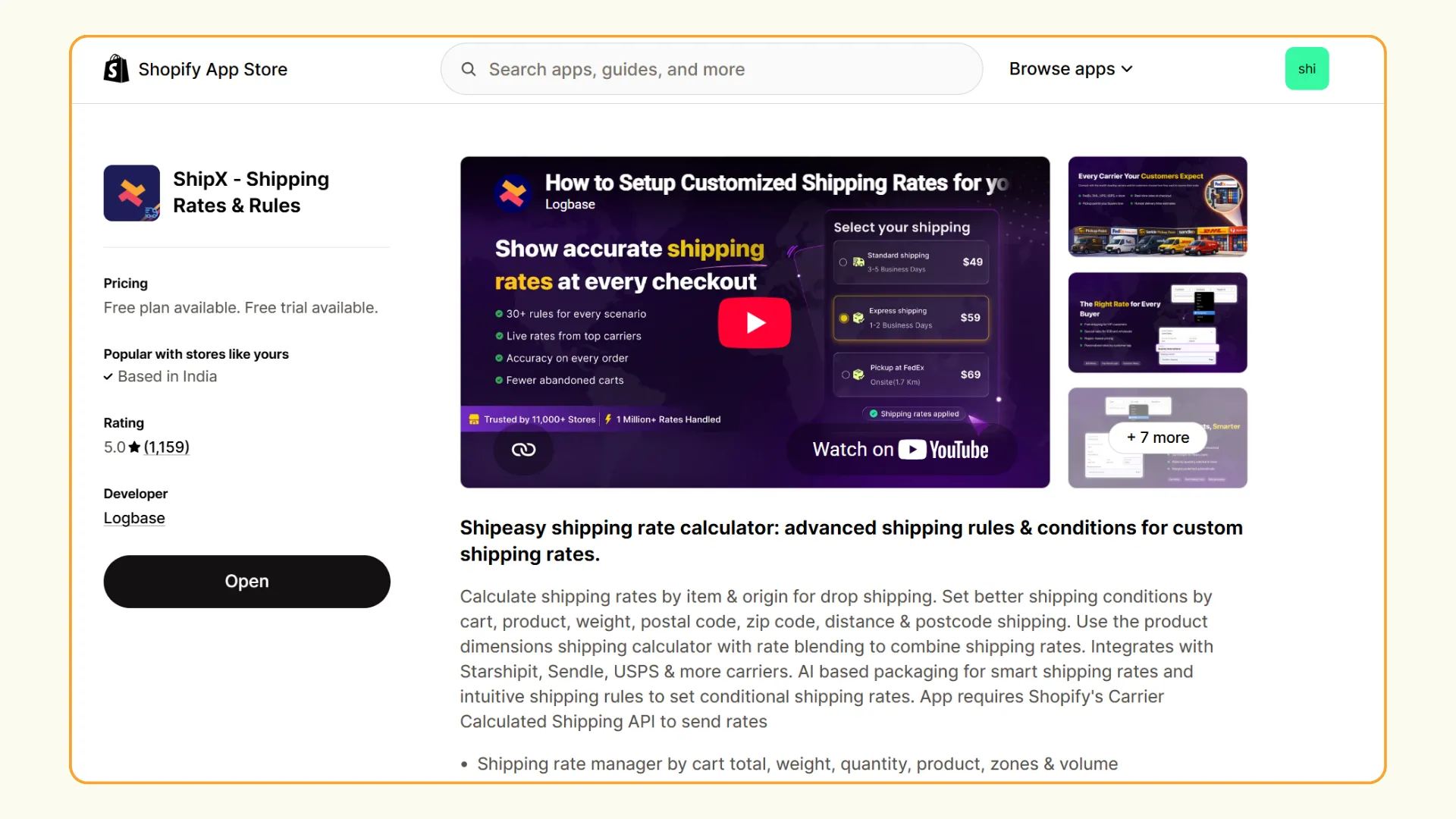
Here's how to set up per-item shipping rates using ShipX - Shipping Rates & Rules, a shipping rate calculator app.
Step 1: Create product groups
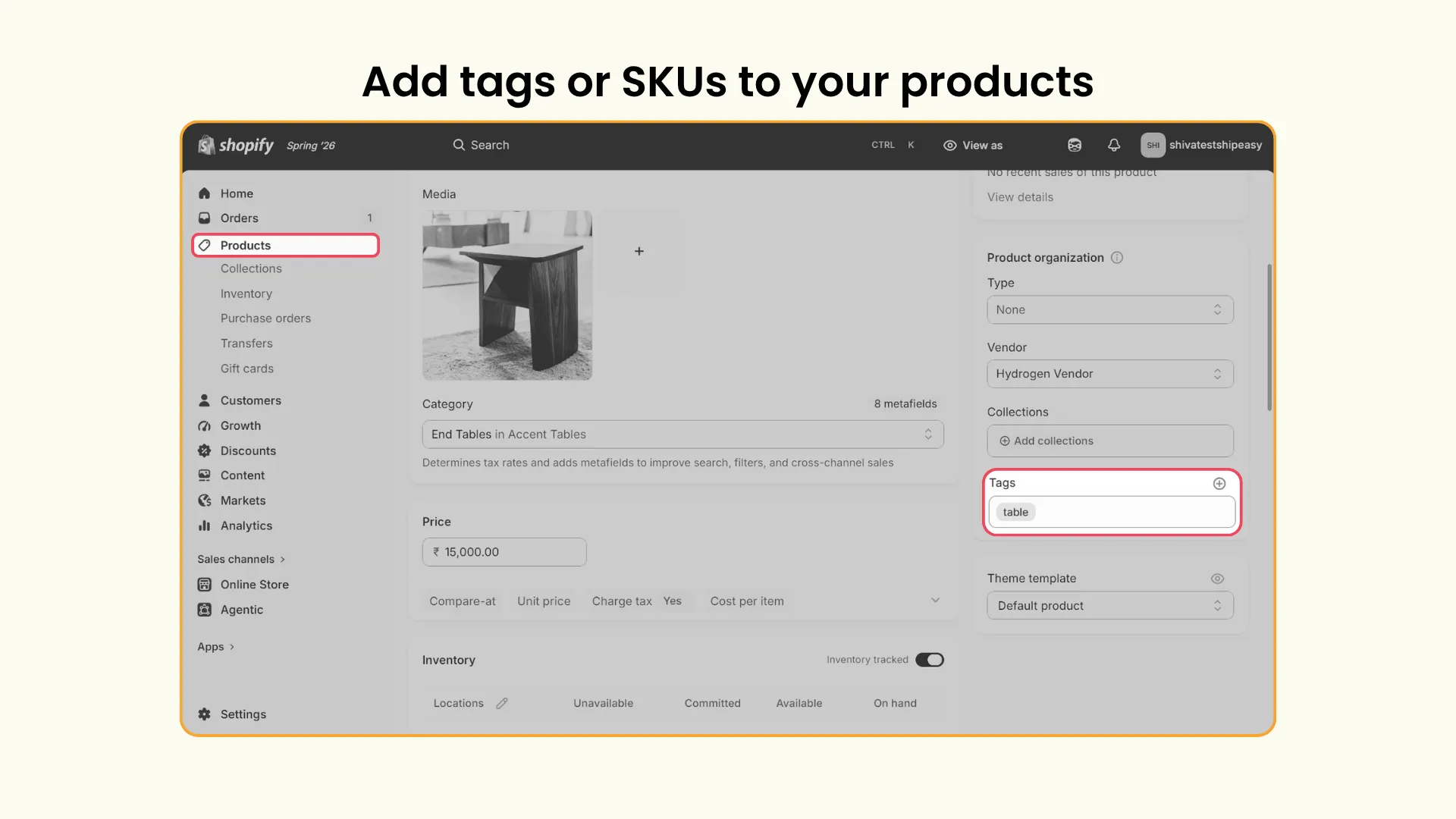
Group similar products using a shared tag rather than configuring each one individually. For example, tag a dining chair, office chair, gaming chair, and rocking chair all with tag: chair, then create one shipping rule for the group instead of four.
To add tags, go to Shopify admin → Products → Select a product → Add a tag and repeat the process for all products.
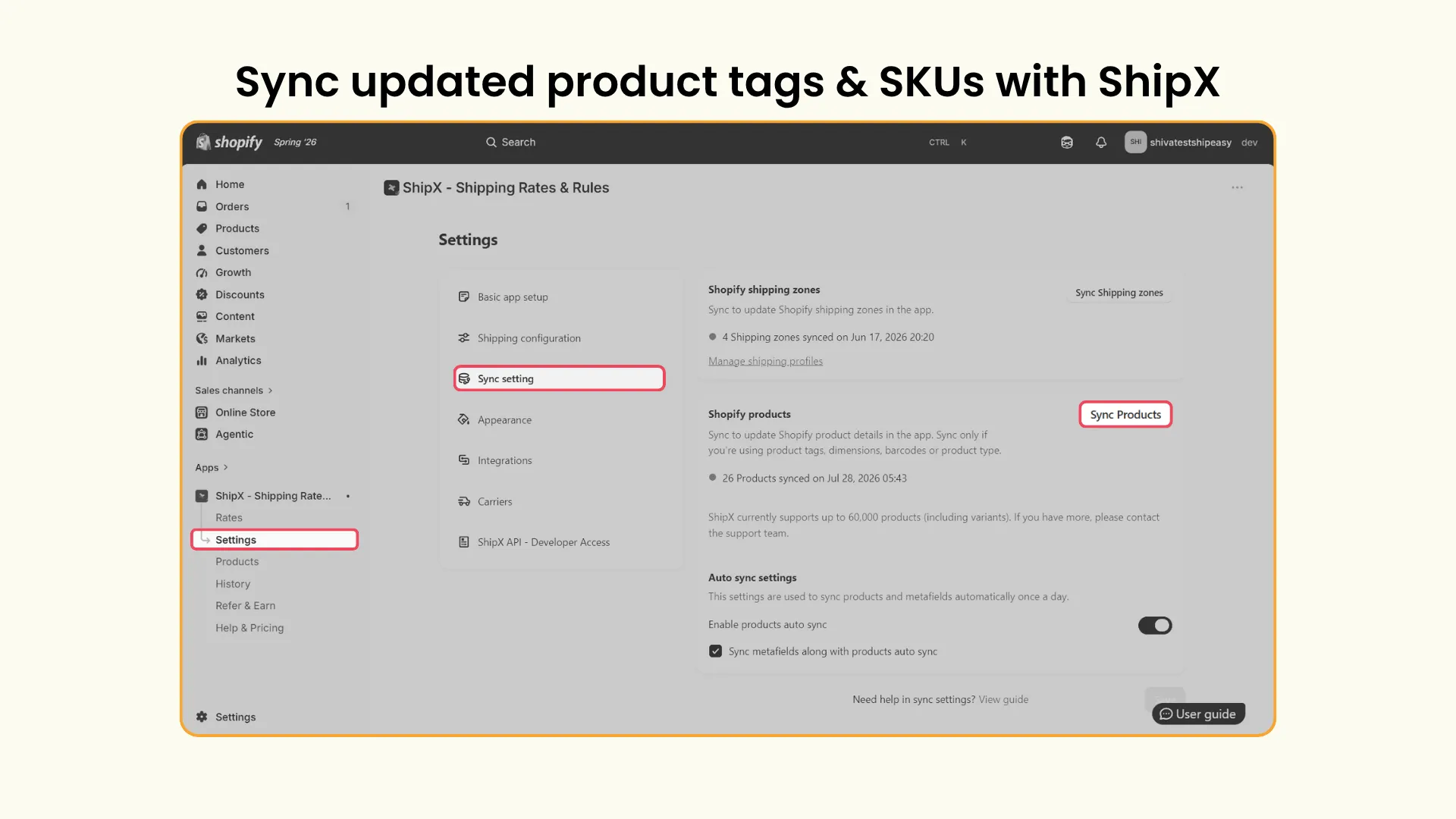
Once you add tags, go to ShipX’s Settings → Sync setting → Click Sync Products so the app picks up your tags.
Tags are generally easier to maintain for groups of similar products; SKU is better when a single product needs a truly unique rate.
Step 2: Create a shipping scenario
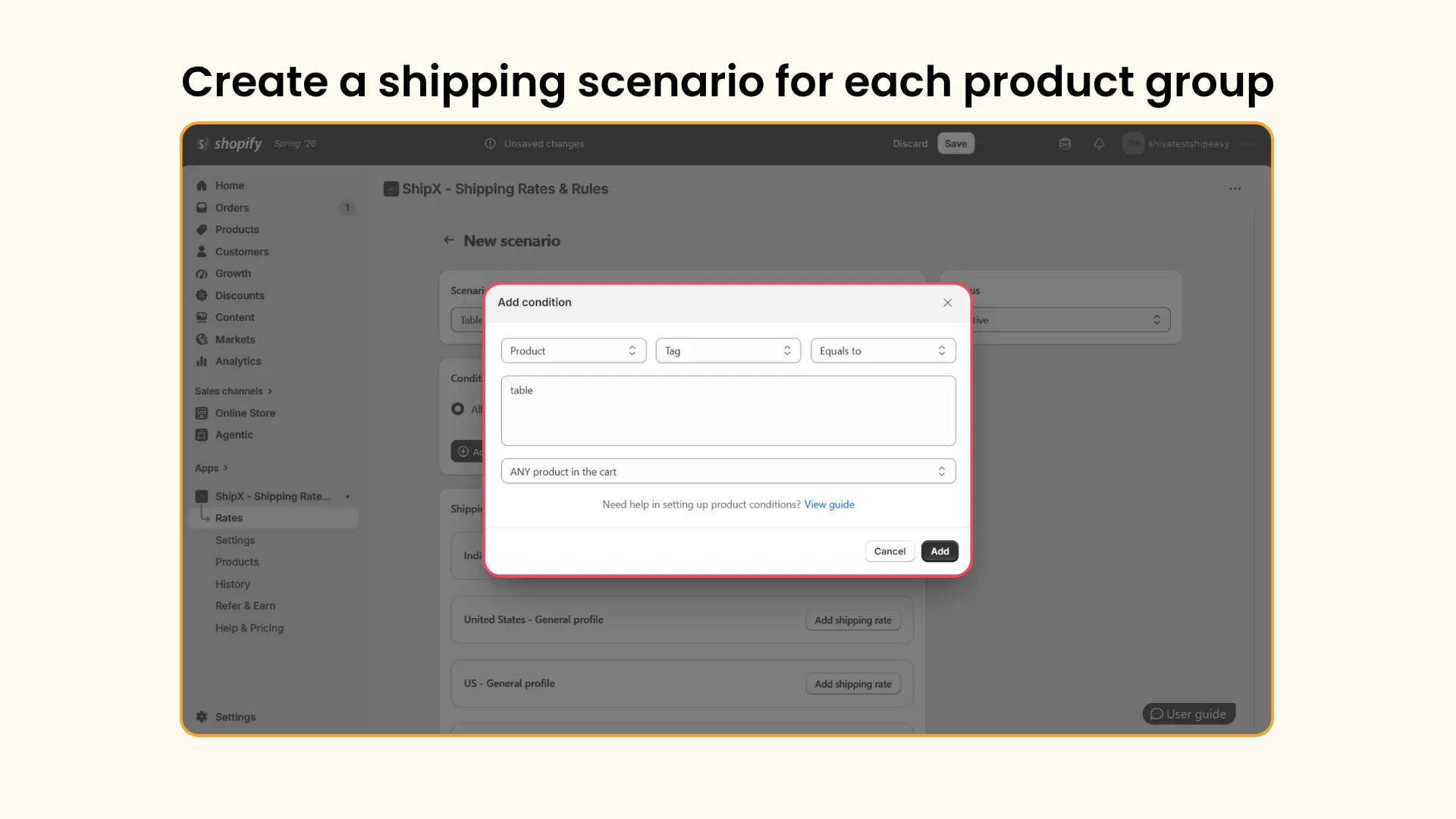
Go to ShipX → Rates → Click Create on Scenarios
Enter a name for the scenario and click Add condition.
Tip: Give the scenario a descriptive name like “Chair Shipping” or “Wholesale Orders” rather than “Scenario 1”. Clear naming matters once you have more than a couple of scenarios running.
Set the condition as Product → Tags → Equals → Tag (chair) or SKU (CHAIR001) to tell ShipX which products this scenario applies to.
Step 3: Configure per-item shipping rates
Click Add Shipping Rate and enter a name for it.
Under shipping rates, select the rate criteria and then choose your product filter (tag or SKU) and enter the matching value.
Choose Base value with increment.
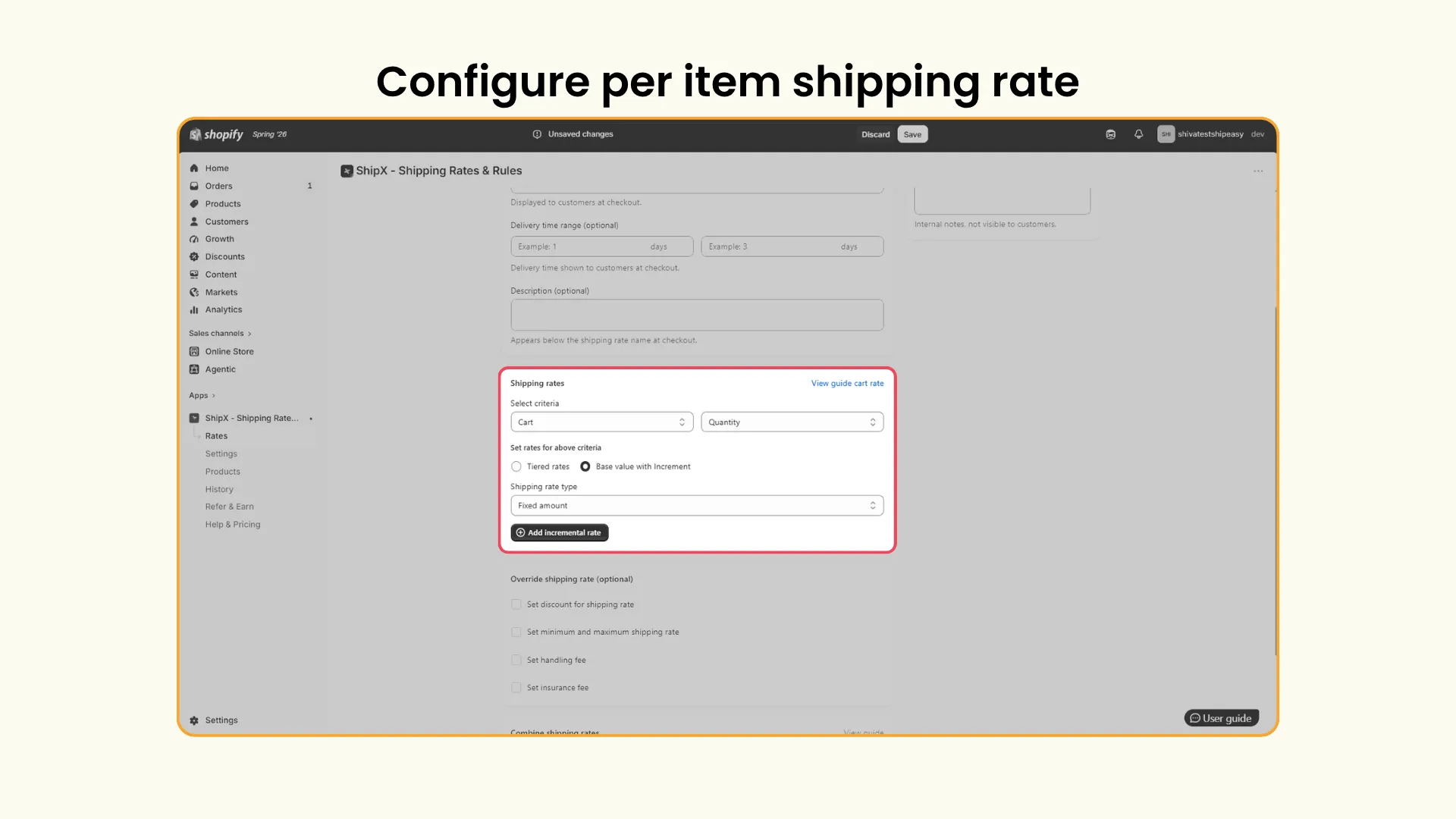
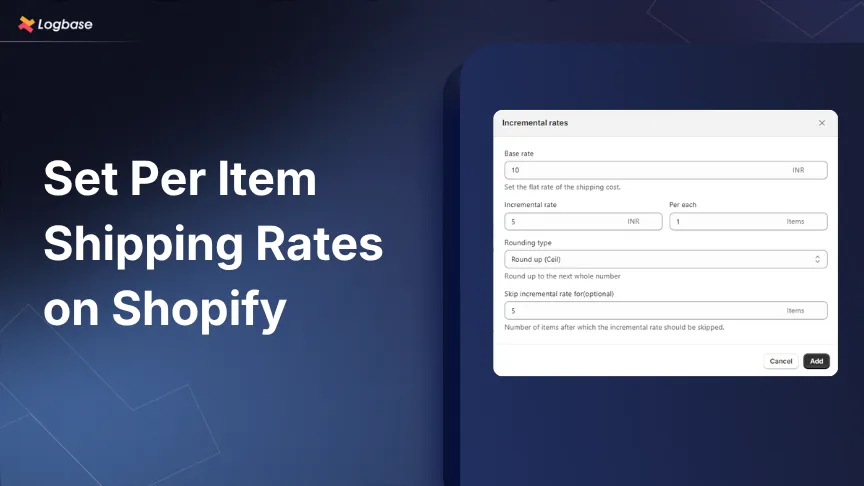
Set your shipping rate type (Fixed amount or Percentage), then define:
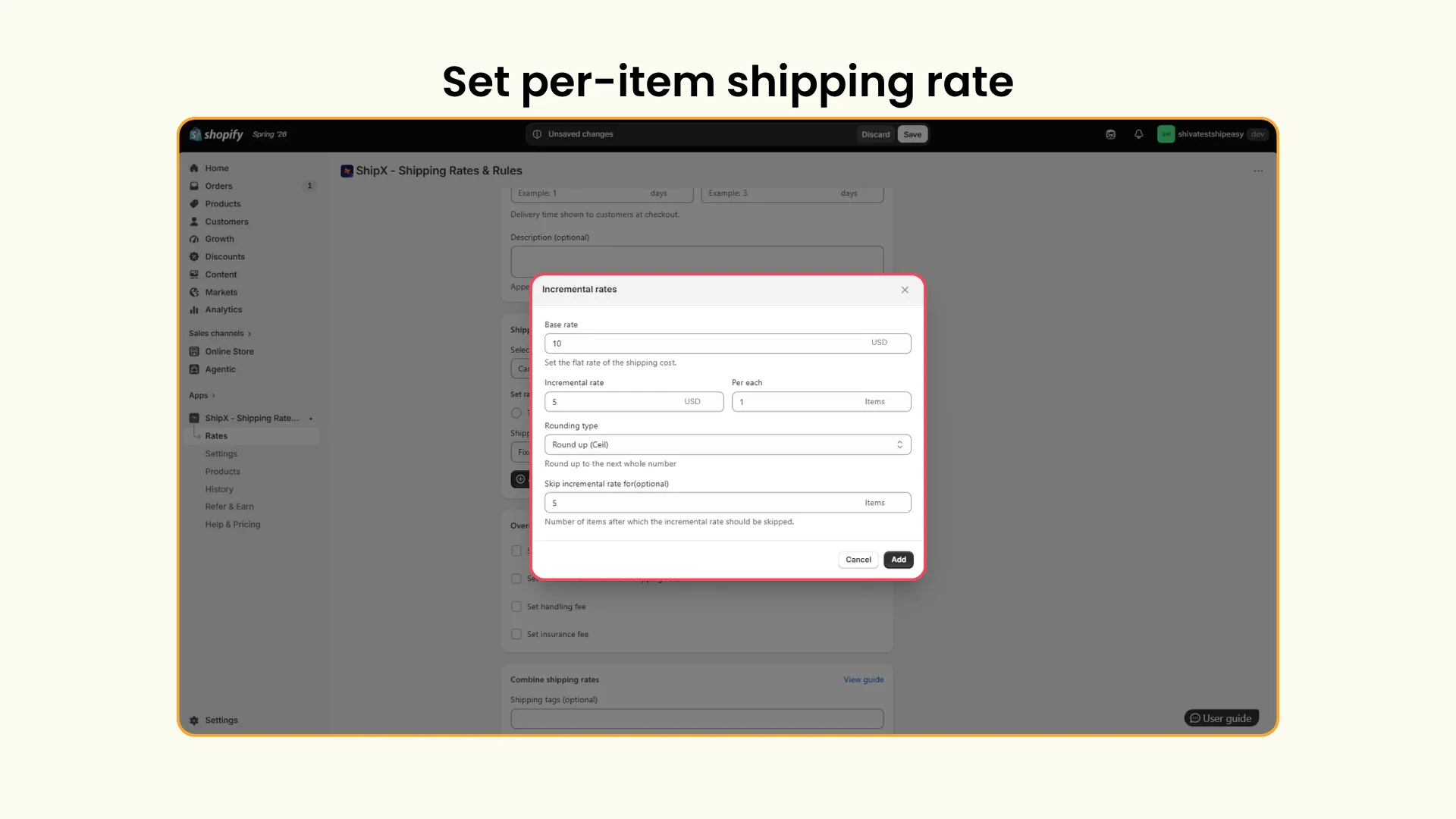
Save the rate. Your per-item shipping scenario is live.
How base and incremental rates work
Using the settings above:
you absorb the shipping cost on smaller orders and only scale up once a larger order genuinely costs more to fulfill, which works well for furniture, hardware, and wholesale orders.
What happens with a mixed cart
Say a customer orders 2 chairs (base $10, incremental $5, from the scenario above) and 1 lamp (base $8, incremental $3, from a separate scenario). ShipX calculates each scenario independently, then combines them based on how you’ve configured the app, so you can stay in control of the total rather than Shopify silently stacking two full profile rates together.
Advanced per-item shipping scenarios
Most merchants eventually need more than one rule running at once:
- Different rates by product: Chair $15, Sofa $60, Coffee Table $25, each has its own scenario.
- Different rates by destination: Chair shipping at $15 domestically, $25 to Canada, $45 to Australia.
- Retail vs. wholesale: $15 per chair for retail customers, $8 per chair for wholesale customers, without duplicating products.
- Quantity thresholds: $15 for 1-5 units, $30 for 6-10, free freight at 11+.
- Combined mixed-cart rates: A customer buying a chair, table, and lamp sees one combined shipping rate instead of several conflicting shipping methods at checkout.
Best practices: Per-item shipping rates
- Group similar products with tags or SKU groups rather than creating a rule for every individual product.
- Test every scenario before going live: single-product orders, multiple quantities, mixed-product carts, and different destinations.
- Review shipping costs periodically, since carrier pricing changes over time and your rules should keep up.
- Use descriptive scenario names (“Furniture Shipping,” “Wholesale Orders”) instead of generic ones, so future updates are easier to manage.
- Avoid overlapping rules. If more than one scenario matches the same product, checkout can show unexpected rates. Review scenarios periodically and remove outdated ones.
- Add a fallback rate so customers never hit a dead end at checkout because no scenario matched their order.
Wrapping up
Choosing the right shipping strategy affects your margins, your customer’s checkout experience, and your own conversion rate. Shopify’s native tools work well for straightforward pricing, but they fall short once products need different shipping costs or shipping needs to scale with quantity.
Per-item shipping closes that gap. Whether you start with Shopify’s free Shipping Profiles or move to a dedicated app like ShipX, the goal is the same: charge accurately for what each item actually costs to ship.
Build more accurate shipping rates for every order. ShipX lets you create per-item shipping rules based on products, quantity, destination, customer groups, and dimensions, helping you calculate shipping with greater accuracy as your store grows.
Frequently Asked Questions
1. Can Shopify charge shipping per item?
Not natively, but yes with a shipping app like ShipX. Shopify’s built-in shipping setting focuses on flat rates, price-based rates, weight-based rates, and carrier-calculated shipping. If you need different shipping charges for individual products or quantity-based shipping, you’ll typically need a shipping calculator app like ShipX.
2. What’s the difference between “cost per item” and “shipping rate per item” on Shopify?
“Cost per item” is a separate field under a product’s inventory settings, used to track product cost for margin calculations. It has nothing to do with shipping. “Shipping rate per item,” covered in this guide, is the shipping rate applied per unit.
3. Can I charge more shipping when customers buy additional quantities?
Yes, using ShipX’s quantity-based rules with a base rate and an incremental rate that kicks in after a set threshold, for example $15 for the first 5 quantities and $5 for each additional quantity.
4. What’s the difference between per-item shipping and flat-rate shipping?
Flat-rate shipping charges the same fee on every eligible order regardless of what’s in it. Per-item shipping assigns a cost to individual products or product groups, so the total scales with what’s actually in the cart.
5. Is per-item shipping worth it for a small store?
It depends on your catalog. If most products have similar shipping costs, flat-rate or weight-based shipping is probably enough. If costs vary significantly between products, even a small store benefits from per-item pricing accuracy.
6. What is the difference between per item and per product shipping?
Both describe tying a shipping cost to an individual product rather than the whole order. “Per Item” tends to emphasize quantity (shipping increases as a customer adds more units), while “per product” tends to emphasize the product itself (this product ships for $X, regardless of quantity logic).
7. How do I set different shipping rates for different products in Shopify?
To set different shipping rates for different products, you will need a shipping calculator app. With an app like ShipX, you can group products using tags, SKU, or product type and create shipping rules that assign different shipping rates to each group.
8. Does Shopify combine shipping rates if my cart has products from different profiles?
Yes. When a cart includes products from more than one shipping profile, Shopify adds the rates together and shows a single combined rate at checkout. If you need advanced rules to combine shipping rates on Shopify, you will need a shipping calculator app like ShipX.

.avif)
.avif)
.avif)
.svg)
.svg)
.svg)


.svg)